The Attachments folder gathers every file attached to your mail into one place, so you can find a document without hunting through individual messages. This guide shows how to open it, filter it by folder, and sort it.
Step 1 — Open the Attachments folder
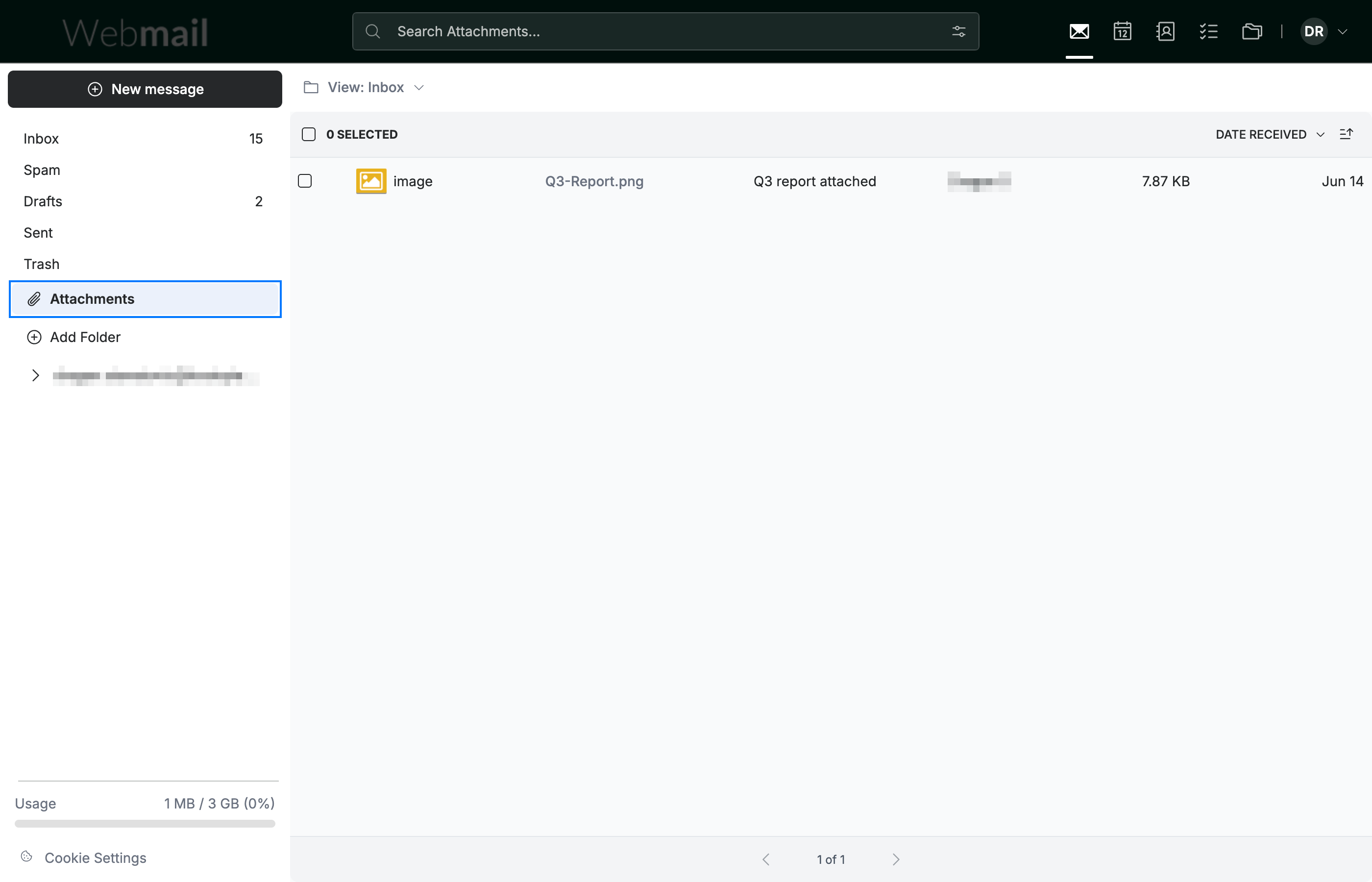
Click Attachments (blue) in the sidebar. Each entry shows the file type, file name, the subject of the message it came from, the sender, the file size, and the date.
Step 2 — Filter by mail folder
Click the View dropdown (blue) at the top of the list to choose which mail folder's attachments to show, such as Inbox or Sent.

Step 3 — Sort the attachments
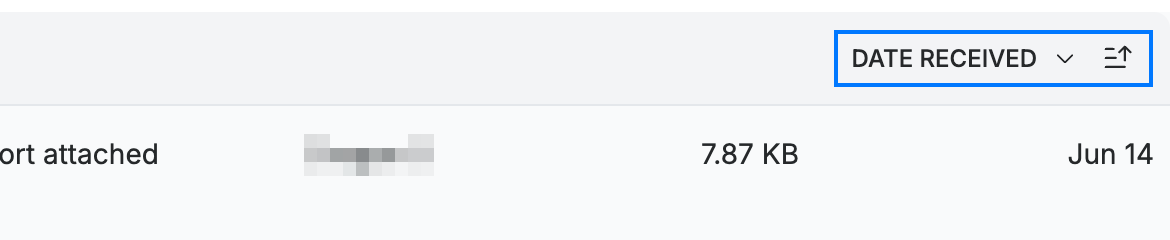
Click the sort dropdown (blue) at the top-right — set to Date received by default — to change the order, then use the direction button beside it to switch between ascending and descending.
Tip: Click any attachment to open it without returning to the original message.
Explore our other guides to get the most out of Webmail.