The All Files view lists everything in your Online Storage and lets you reorder it and act on each file. This guide shows how to read the list, sort it, and use the per-file actions.
Step 1 — Open Online Storage
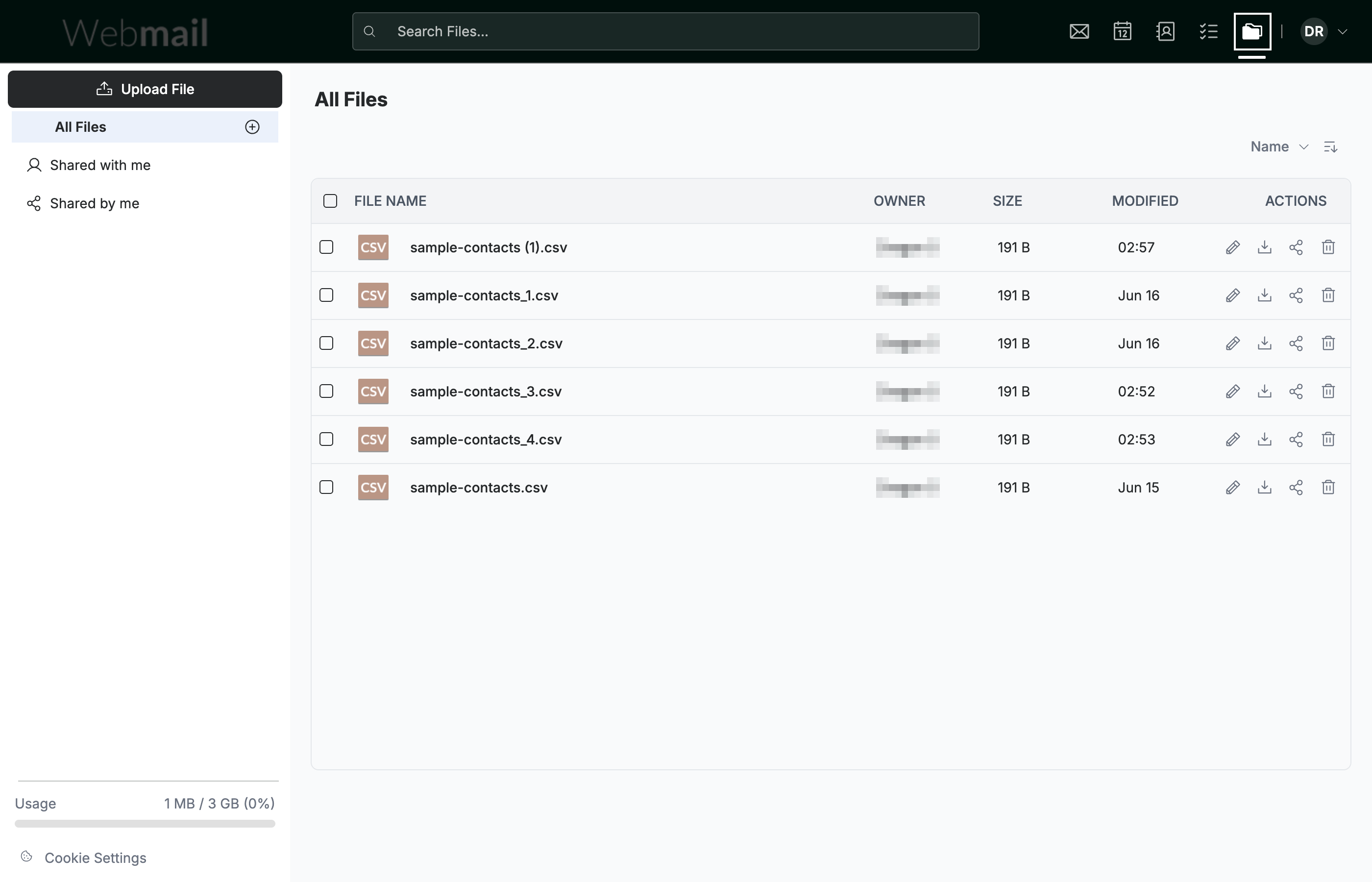
Click the Online Storage icon in the top navigation bar. The All Files view opens, with a column for each file's name, owner, size, and date modified.
Step 2 — Sort your files
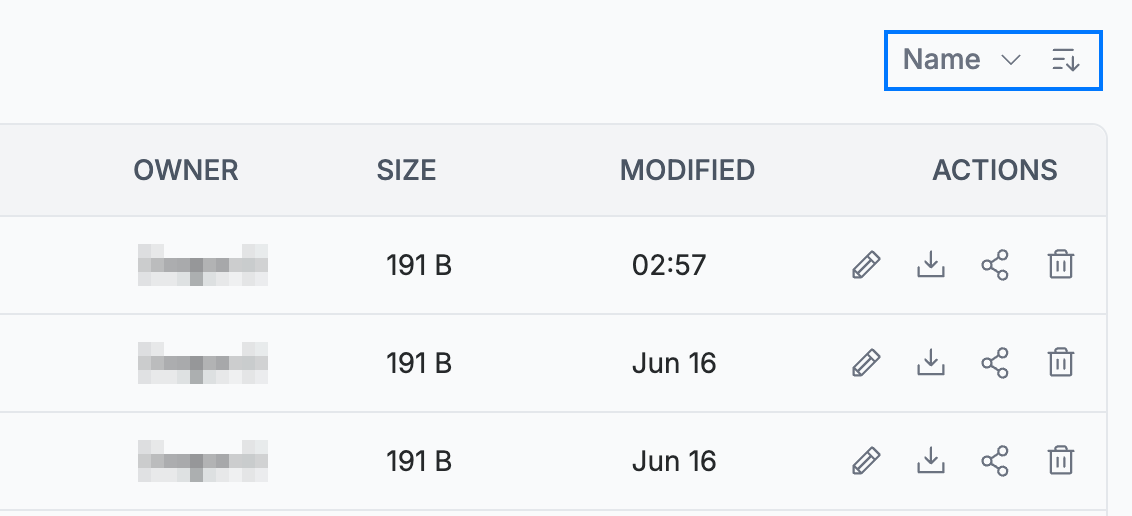
Select a sort field from the dropdown above the list (blue), then click the direction button beside it to switch between ascending and descending order. You can sort by Name, Type, Owner, File Size, or Date modified.
Step 3 — Manage a file
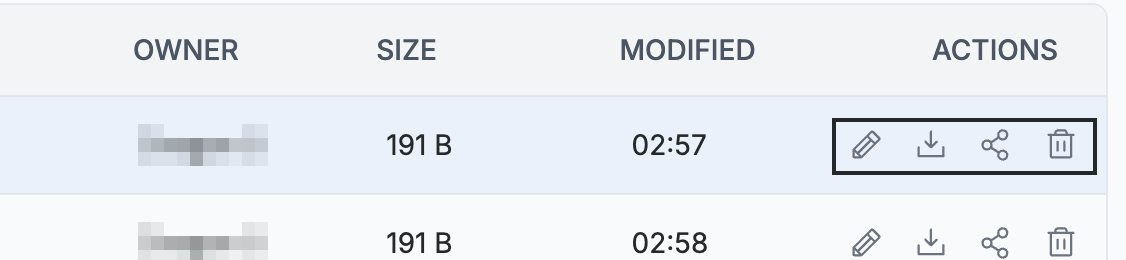
Use the icons in the Actions column of each file row to manage it. From left to right: Edit the file's name, Download it, Share it, or Delete it.
Note: Deleting a file removes it from your Online Storage. Download a copy first if you might need it later.
Explore our other guides to get the most out of Webmail.