When a mailbox holds hundreds of messages, search filters narrow the results to exactly what you need. This guide shows how to search by keyword and refine the results by field, status, and date.
Step 1 — Enter a search term
Enter a keyword in the search box (blue) at the top of the window — for example, a sender name or a word from the subject. Matching emails in the current folder appear as you type.

Step 2 — Open the search filters
Click the filter icon (blue) at the right end of the search box to open the advanced filter options.

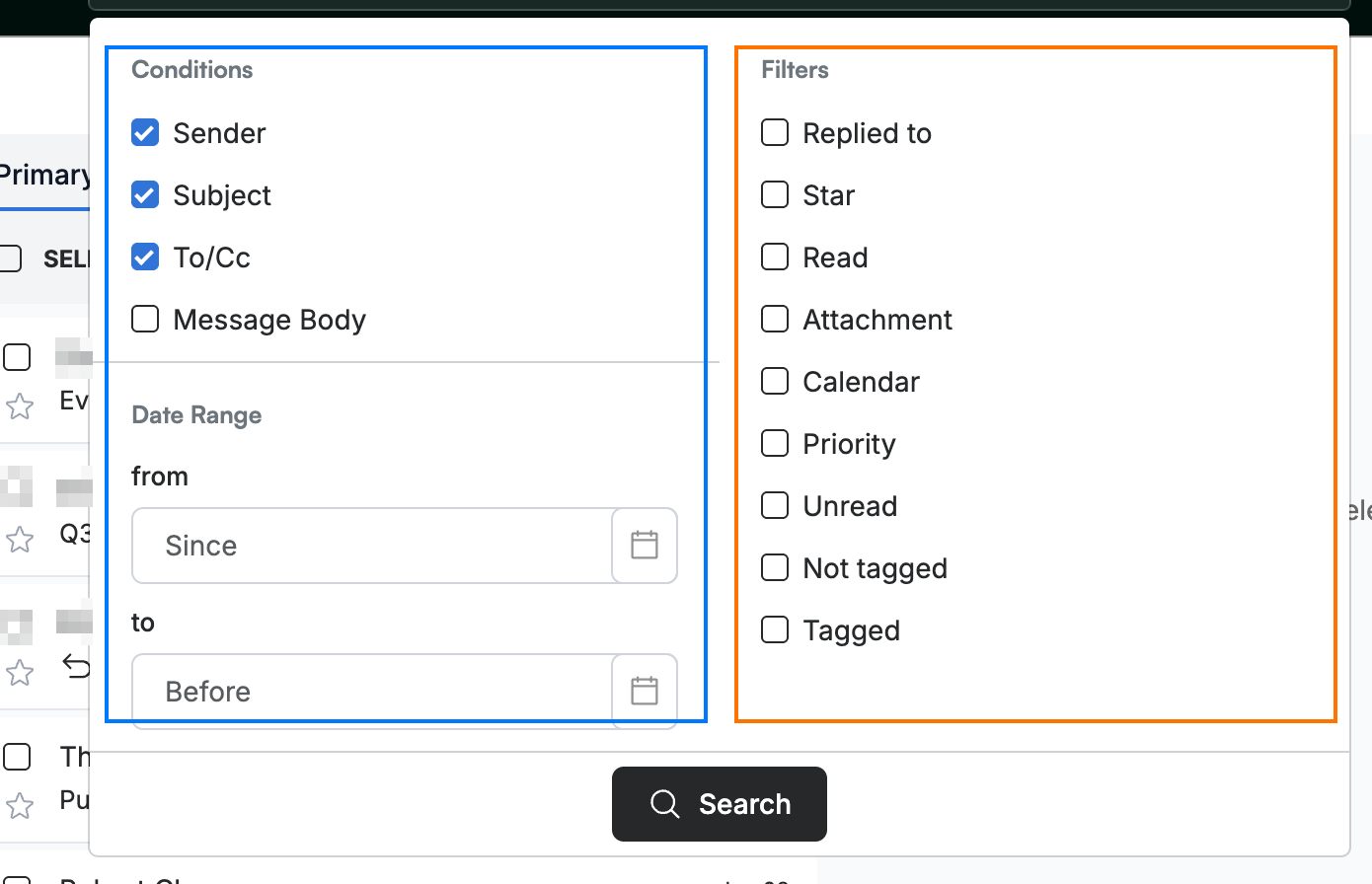
Step 3 — Set your conditions and filters
Choose where to search under Conditions (blue) — Sender, Subject, To/Cc, or Message Body — and narrow the date range with from and to. Refine by status under Filters (orange): Replied to, Star, Read, Unread, Attachment, Calendar, Priority, Not tagged, or Tagged.
Tip: Combine conditions and filters — for example, search the Subject for unread messages with an Attachment — to find a specific email fast.
Step 4 — Run the search
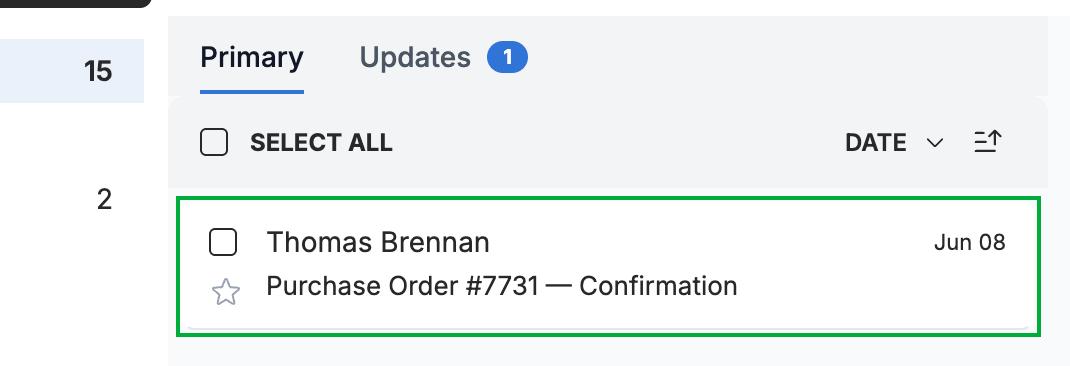
Click Search to apply your filters. Matching emails (green) appear in the message list.
Explore our other guides to get the most out of Webmail.