Set up a professional email signature the first time you sign in to Webmail. Webmail drafts the signature from your account details, and once you save it, applies it to all your outgoing mail.
Step 1 — Click Get started
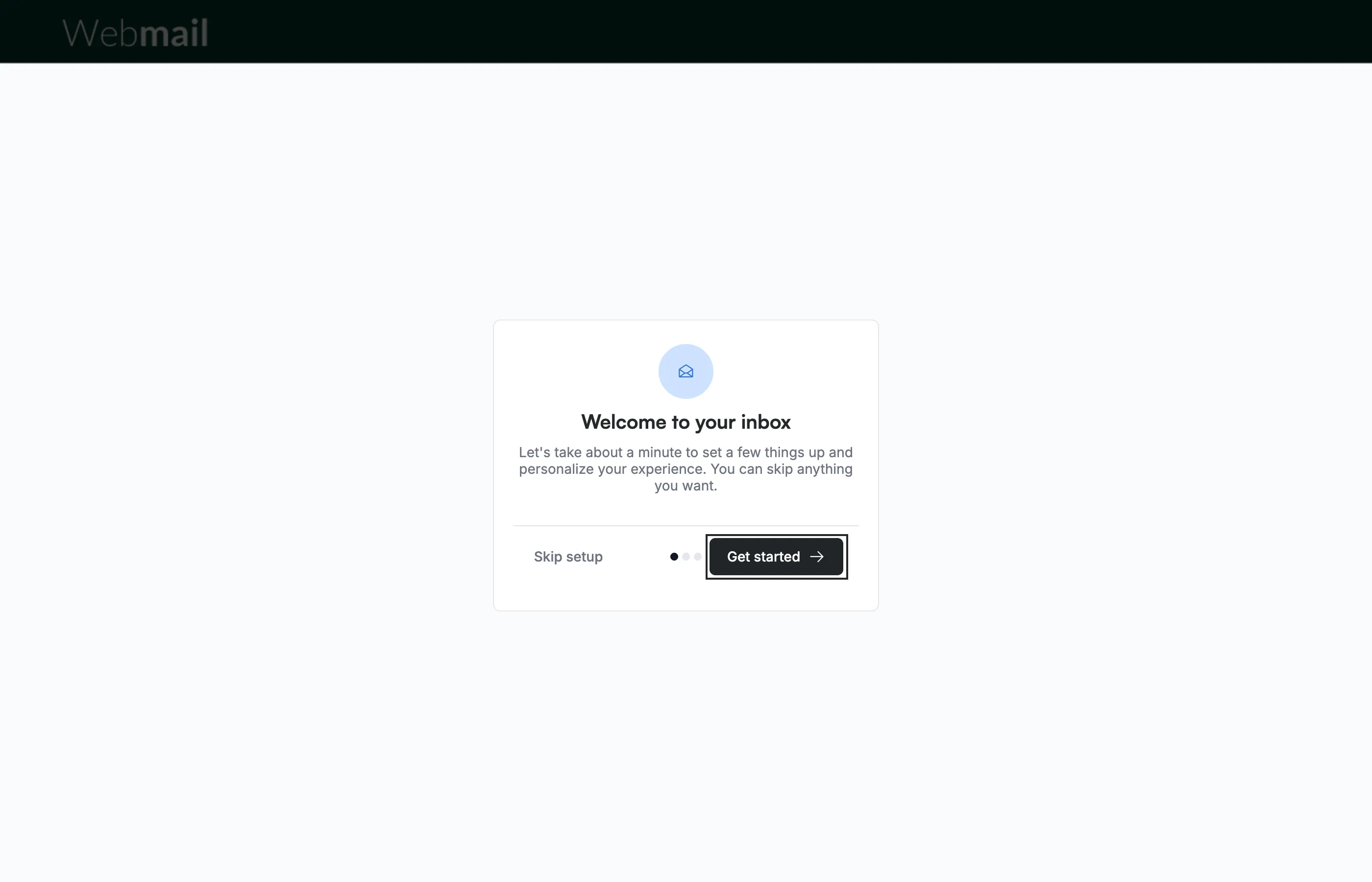
Click Get started on the Welcome to your inbox screen, which opens the first time you sign in. If your provider asks you to create a security question, this screen opens after it.
Note: Skip setup skips the signature step and the rest of the setup, and they do not open again. You can create a signature later in Settings > Signatures.
Step 2 — Review the signature screen
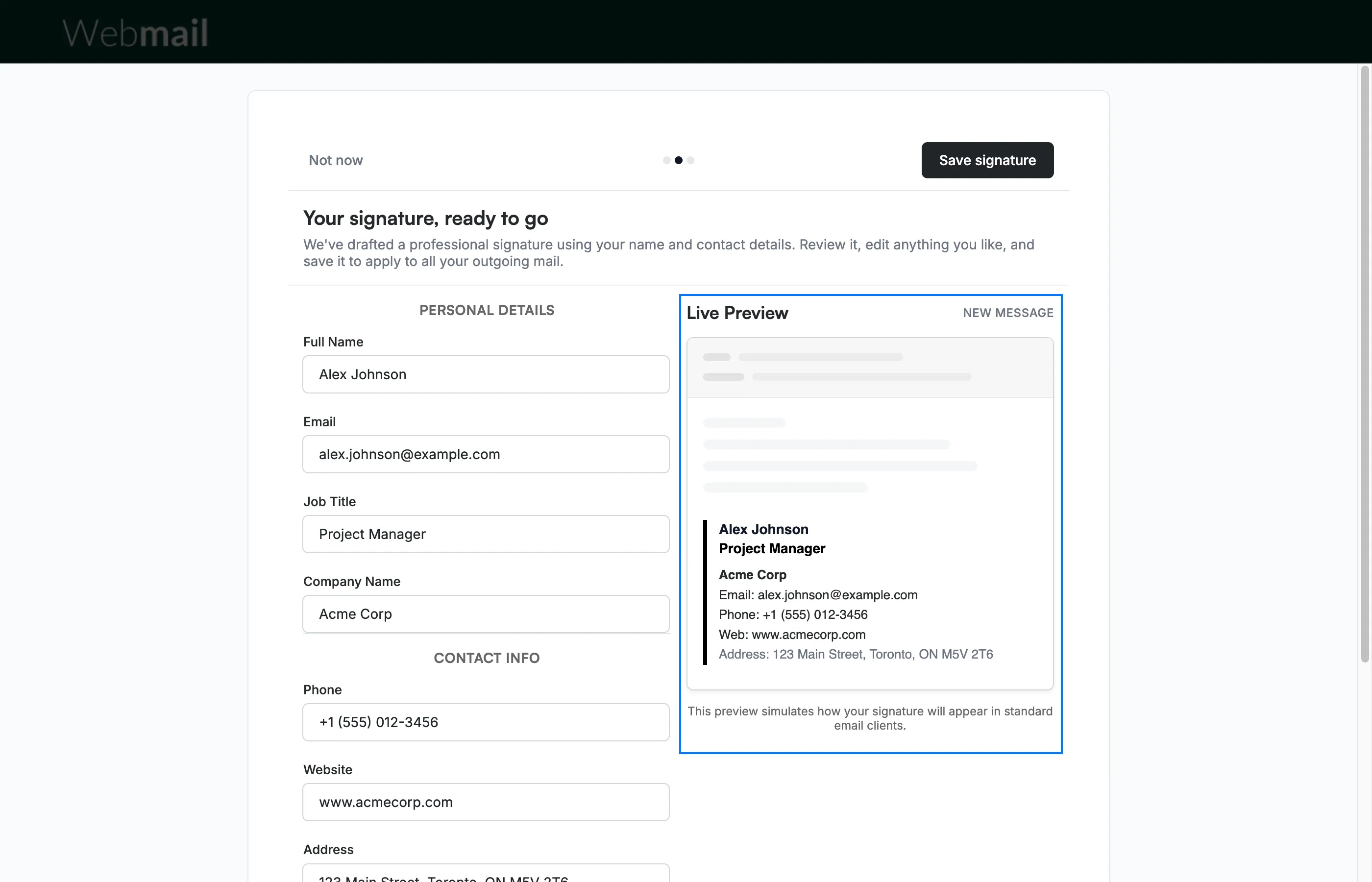
Review the Your signature, ready to go screen. Webmail fills in the details it already has, such as your email address. Edit the form on the left, and the Live Preview on the right shows how your signature looks and updates as you type.
Tip: You can change your signature later in Settings > Signatures, where you can also format it and add images, such as a logo, and links.
Step 3 — Enter your personal details
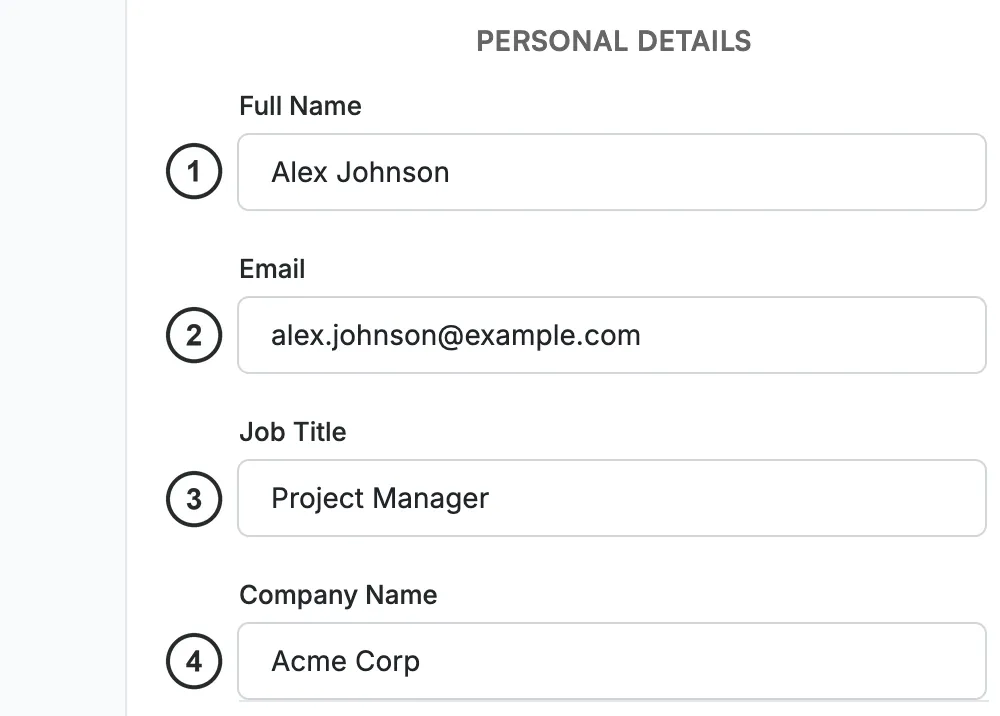
Enter your Full Name ①, Email ②, Job Title ③, and Company Name ④ in the Personal Details section.
Step 4 — Enter your contact info
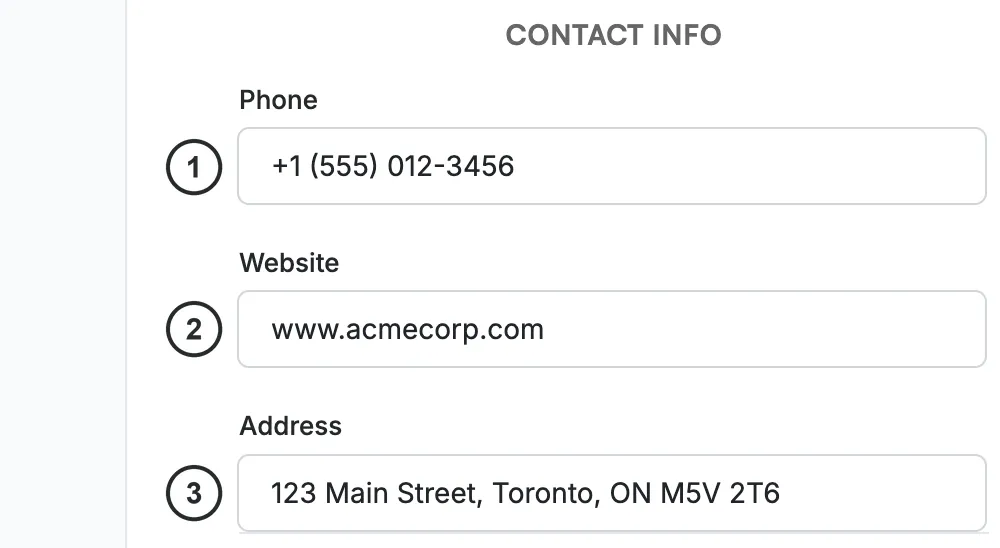
Enter your Phone ①, Website ②, and Address ③ in the Contact Info section.
Step 5 — Select a brand accent color
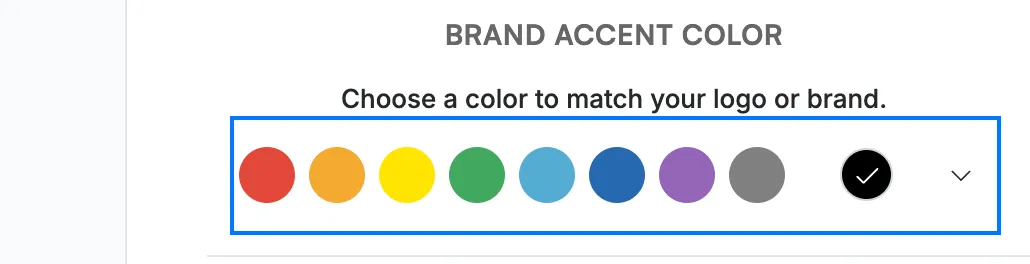
Select a color from the Brand Accent Color palette to match your logo or brand, or use the custom color picker on the right. The accent color is applied to the bar beside your signature in the preview.
Step 6 — Save your signature
Click Save signature to save it as your default signature and apply it to all your outgoing mail. To set it up later instead, click Not now. Either way, the setup moves on to its next screen, where you can add your mail to your phone.

Explore our other guides to get the most out of Webmail.