Webmail's Settings let you tailor how mail is composed, filtered, forwarded, and protected. This tour shows where the settings live and how to save changes.
Step 1 — Open Settings
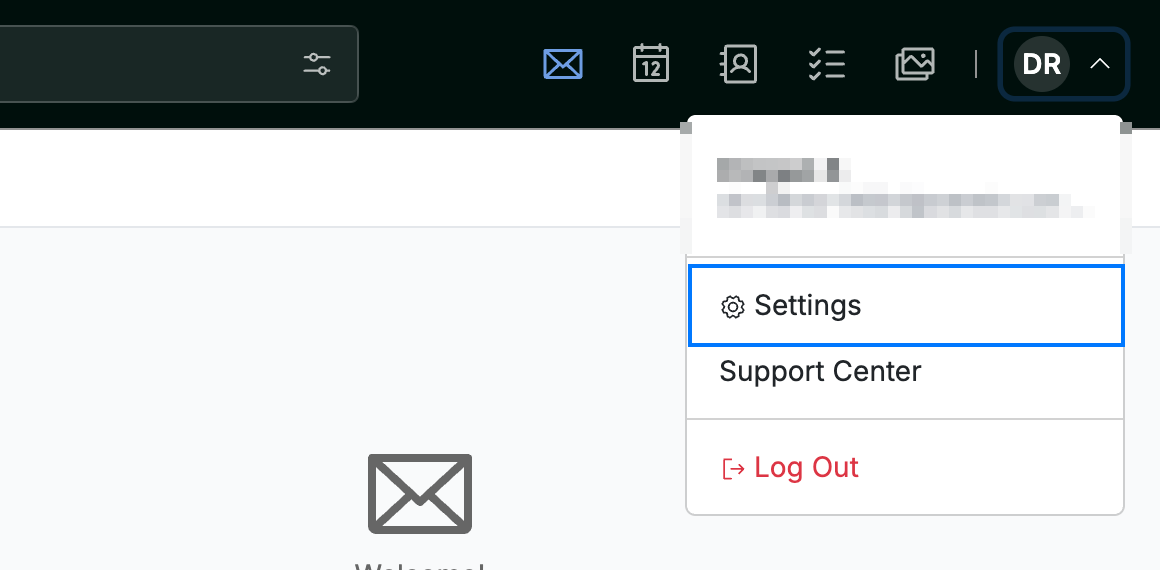
Click your avatar in the top-right corner and select Settings.
Step 2 — Browse the settings panels
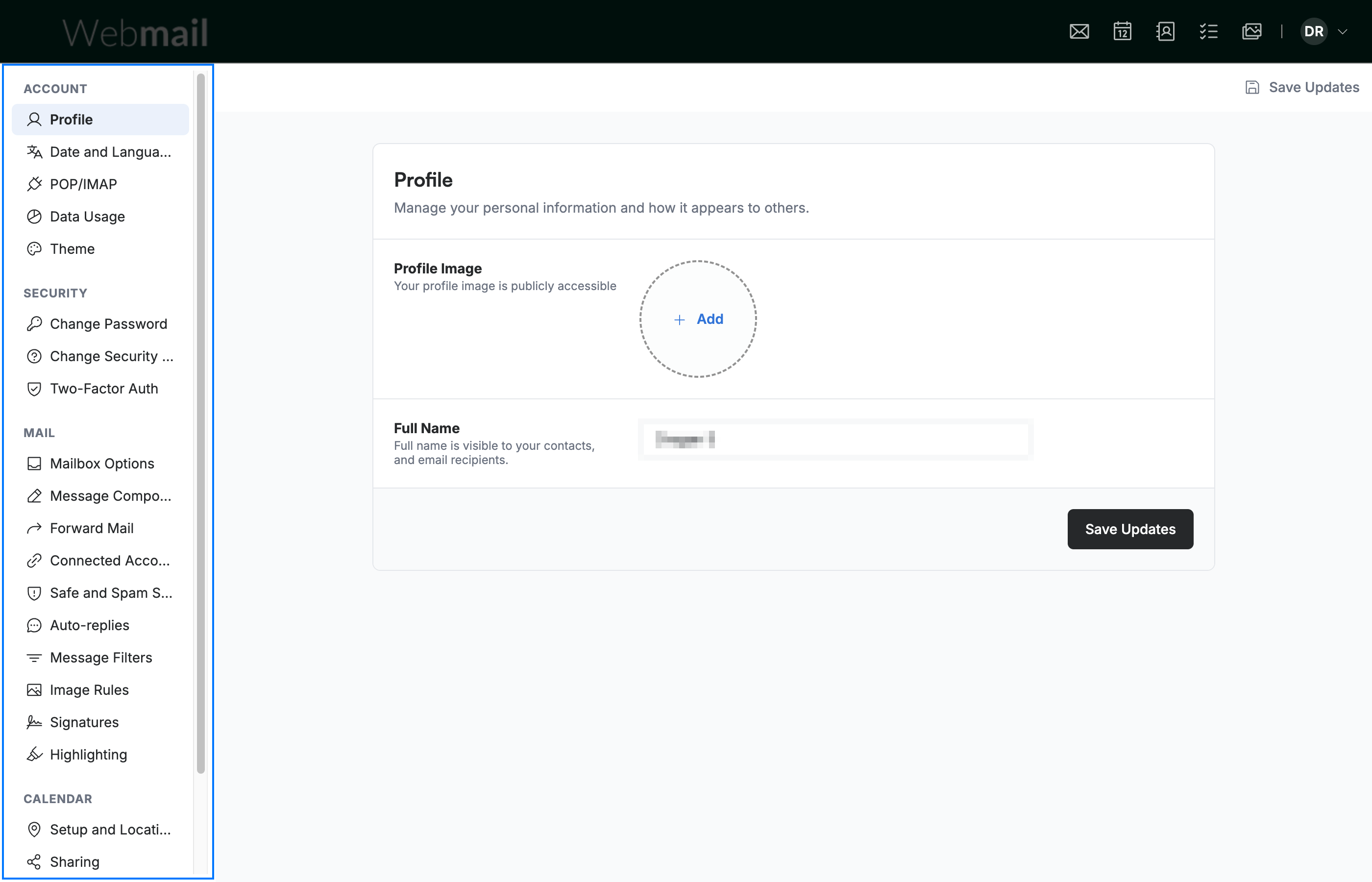
Pick a panel from the settings sidebar (blue). The most useful mail panels are:
- Message Composing — default font, reply format, and the attachment warning
- Forward Mail — send a copy of incoming mail to another address
- Message Filters — sort mail automatically into folders
- Signatures — add a sign-off to your messages
- Auto-replies — send automatic replies while you're away
- Safe and Spam Senders — control spam filtering and sender authentication
Tip: The sidebar also holds account-wide settings like Profile, Date and Language, Theme, and Change Password.
Step 3 — Save your changes
Click Save Updates (green) after changing a setting to apply it. Changes don't take effect until you save.

Explore our other guides to get the most out of Webmail.