When you can send from more than one address, the compose window shows a From dropdown for choosing which address a message goes out from. This guide explains what the dropdown is and what it contains.
Note: The From dropdown appears only when more than one sending address is available — for example, after you connect an external account under Settings > Connected Accounts.
Step 1 — Locate the From field
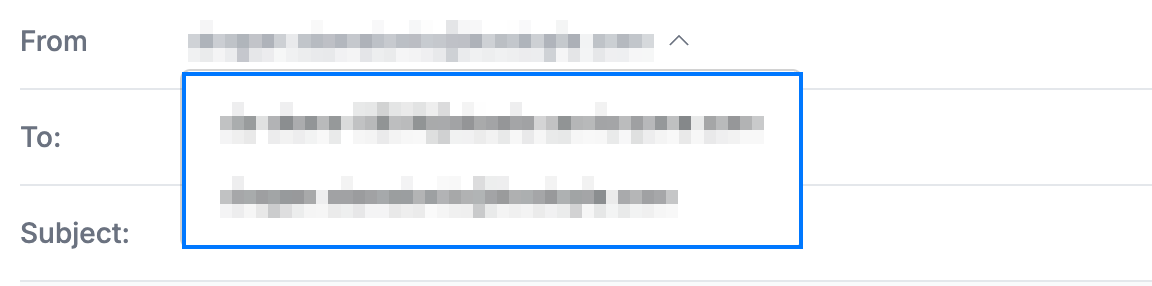
Open a new message and look at the From field (blue) at the top of the compose window. It shows the address your message is sent from — your primary mailbox by default.

Step 2 — Open the From dropdown
Click the From field to open the dropdown (blue). It lists every address you can send from — your own mailbox plus any connected external accounts.
Step 3 — Confirm the selected address
Review the From field (blue) after choosing — whichever address you select becomes the sender for that message, while your default stays unchanged for future messages.

Explore our other guides to get the most out of Webmail.