Learn how to use advanced search in Webmail to find a specific email quickly — narrow your results by which fields to search, by date, and by message status such as unread, starred, or with attachments.
Step 1 — Open the search panel
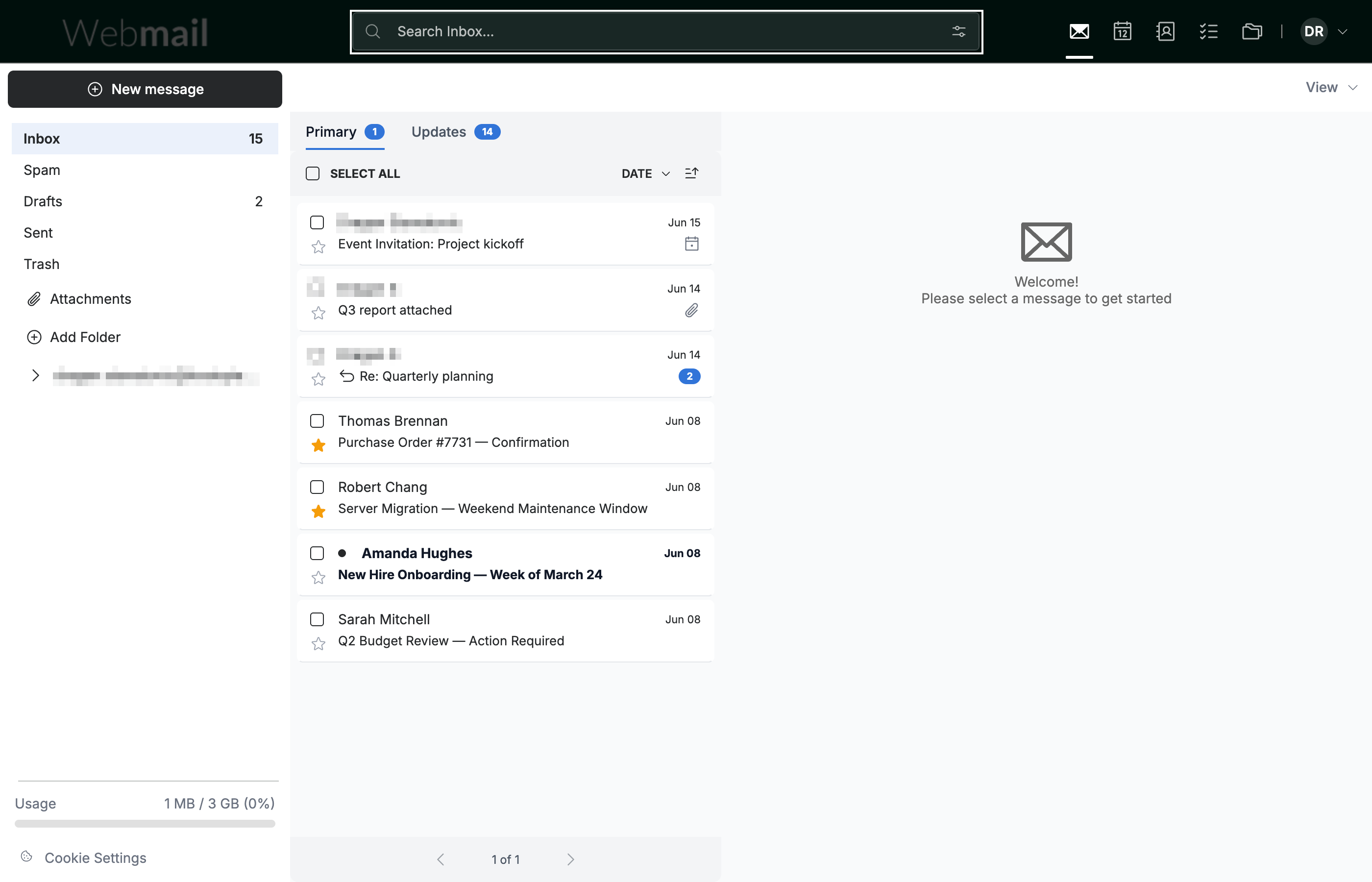
Click the filter icon at the right end of the Search Inbox bar at the top of the window to open the advanced search panel.
Step 2 — Choose what to search in
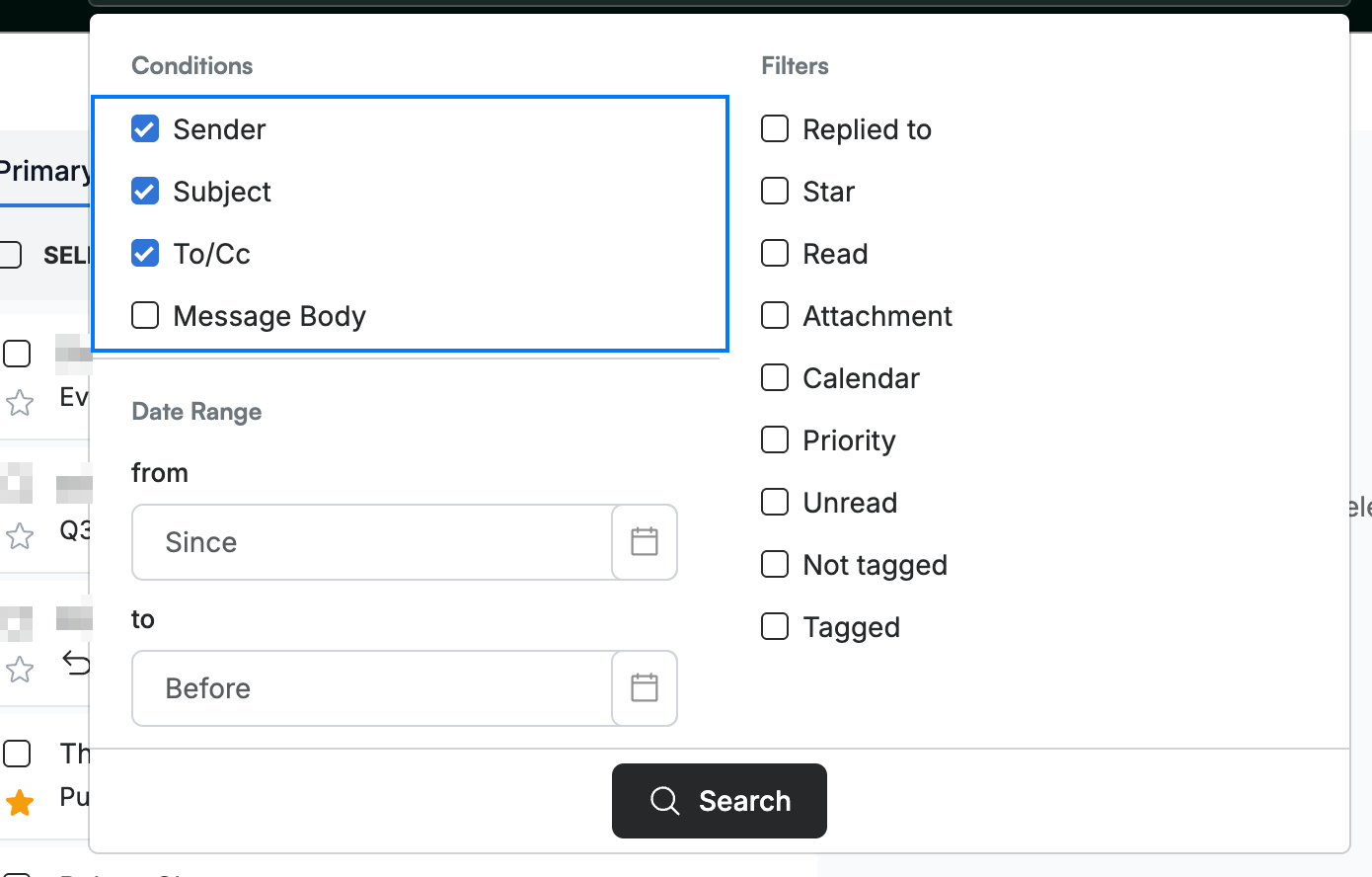
Select one or more fields to search in (blue): Sender, Subject, To/Cc, or Message Body. Each field accepts a keyword to match against.
Step 3 — Set a date range
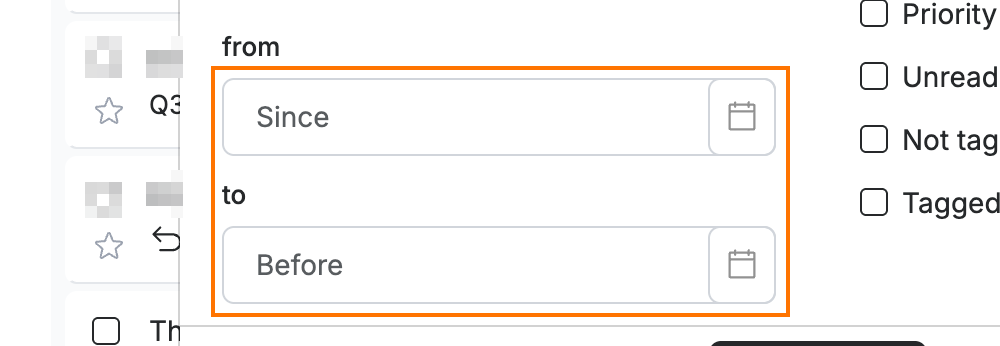
Enter a start date in the Since field and an end date in the Before field to limit results to a date range.
Tip: Leave one date empty to search in only one direction — fill Since alone to find everything after a date, or Before alone to find everything up to a date.
Step 4 — Filter by message status
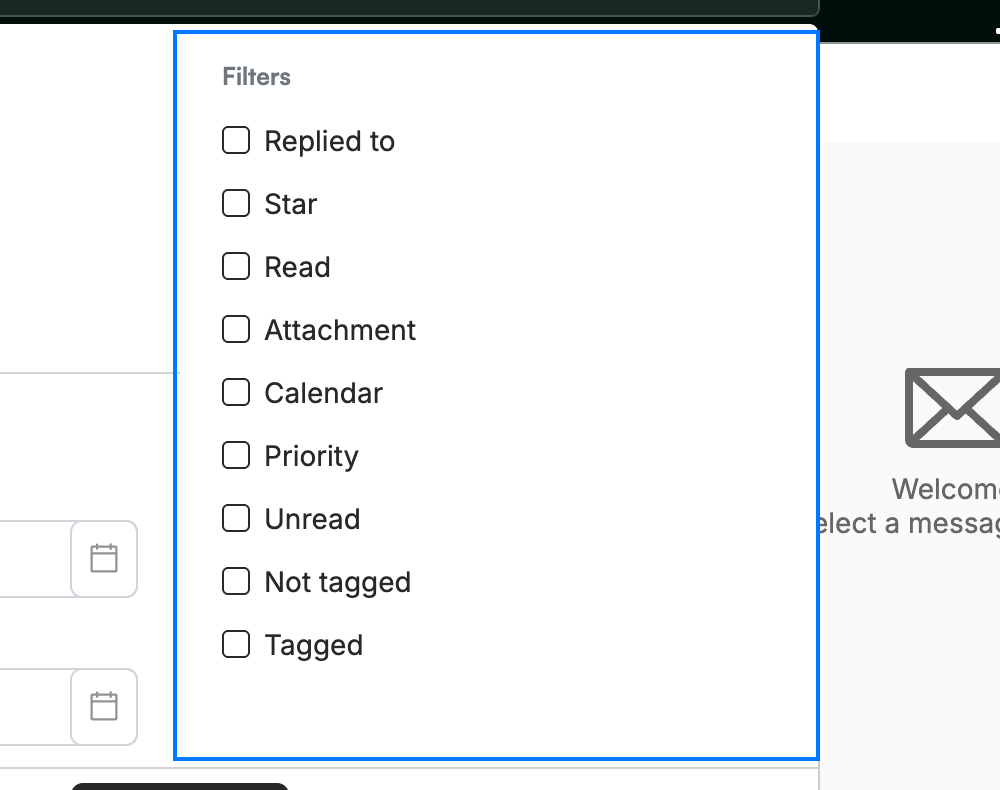
Select any of the status filters (blue) to narrow your results further: Replied to, Star, Read, Attachment, Calendar, Priority, Unread, Tagged, and Not tagged.
Step 5 — Run your search
Click Search at the bottom of the panel. Matching emails appear in the message list.

Explore our other guides to get the most out of Webmail.