When you open an email, Webmail shows two toolbars — one for the whole page and one for the open message. This guide explains what each toolbar contains so you know where to find every action.
Step 1 — Open a message to show the toolbars
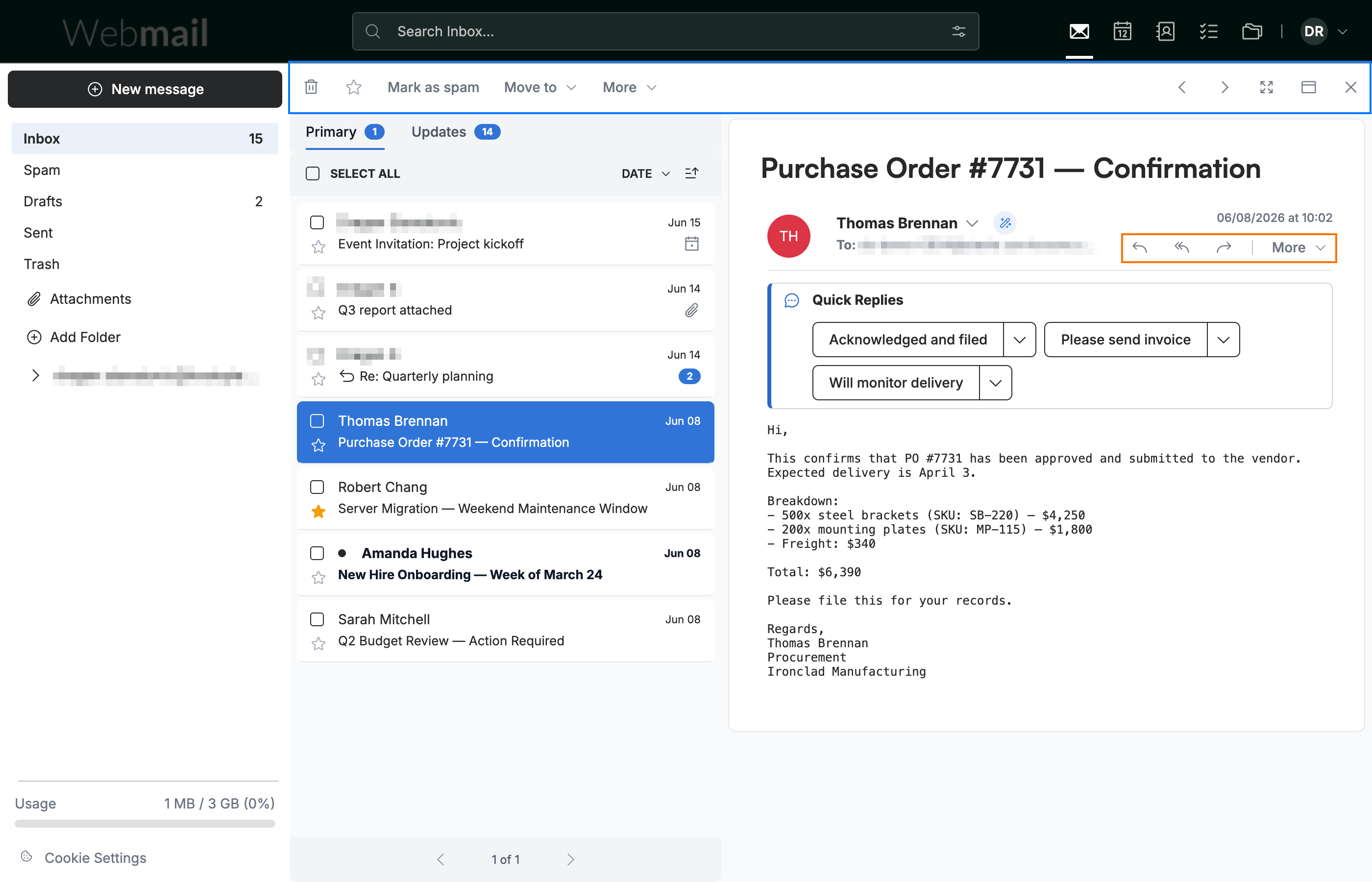
Open any email from the inbox. Two toolbars appear: the page toolbar (blue) running across the top of the window, and the message toolbar (orange) in the open message's header.
Note: These toolbars appear only while a message is open. In the message list, the top bar shows list controls such as Select all and the sort order instead.
Step 2 — Review the page toolbar
Review the page toolbar across the top of the window. From left to right it contains:
- Delete — move the message to Trash
- Add star — flag the message for follow-up
- Mark as spam — report the message and move it to Spam
- Move to — file the message in another folder
- More — extra actions, including Mark as unread and Save message(s)
On the right side it also holds Prev and Next for moving between emails, Expand message, Open in separate window, and Close.

Step 3 — Review the message toolbar
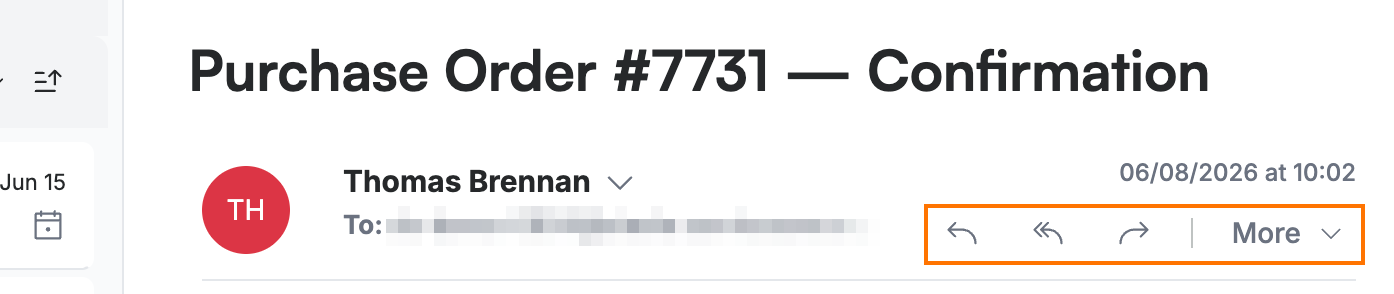
Review the message toolbar in the message's header. It holds the reply actions for that specific message:
- Reply — respond to the sender
- Reply All — respond to everyone on the message
- Forward — send the message to someone else
- More — a menu of additional message actions
Step 4 — Open the More menu
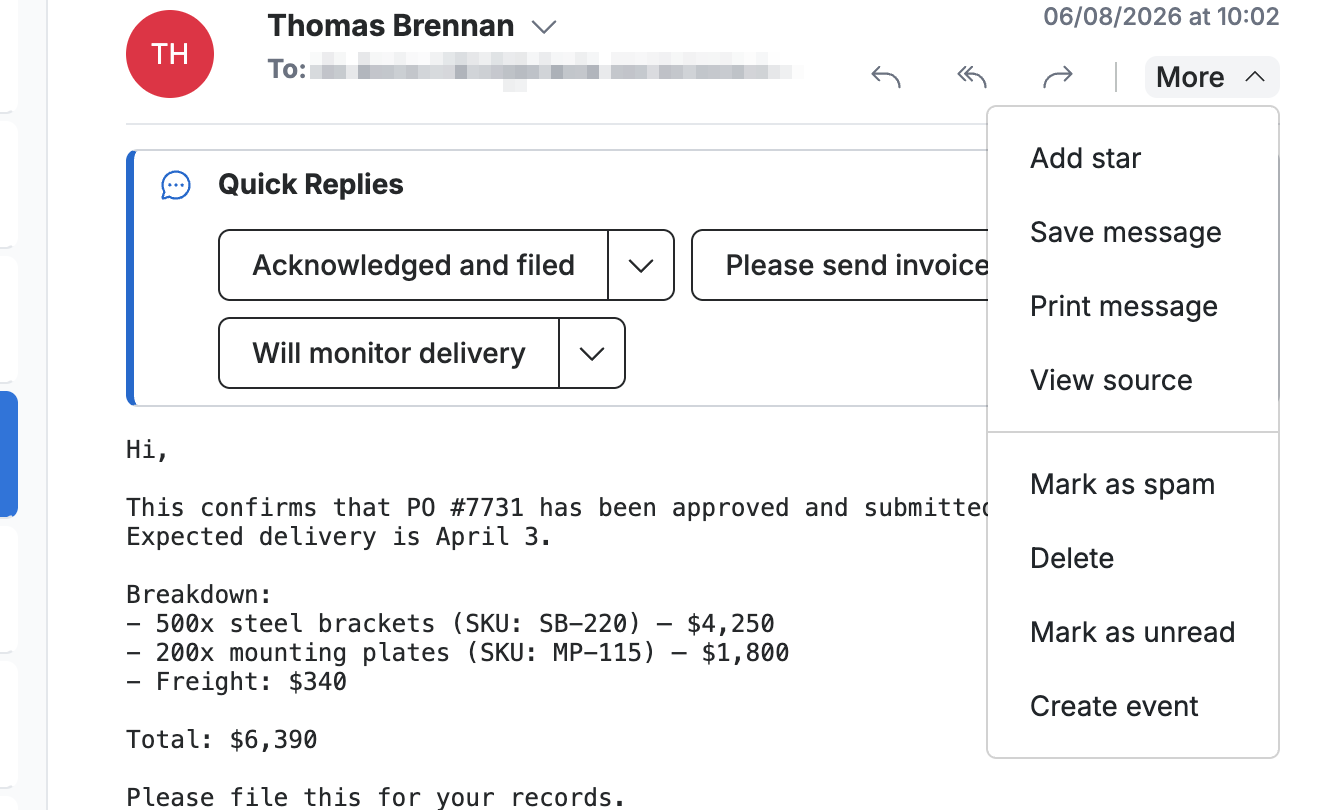
Click More in the message toolbar to open the menu of additional actions:
- Add star
- Save message — download the email as a file
- Print message
- View source — show the raw message
- Mark as spam
- Delete
- Mark as unread
- Create event — turn the message into a calendar event
Explore our other guides to get the most out of Webmail.