Share an address book so colleagues can see — or help maintain — your contacts. Sharing is set in the address book's Address Book Permission section, either with everyone in your domain or with specific people. This guide covers both.
Before you begin: Address books can only be shared with users on the same email domain as you.
Step 1 — Open the address book form
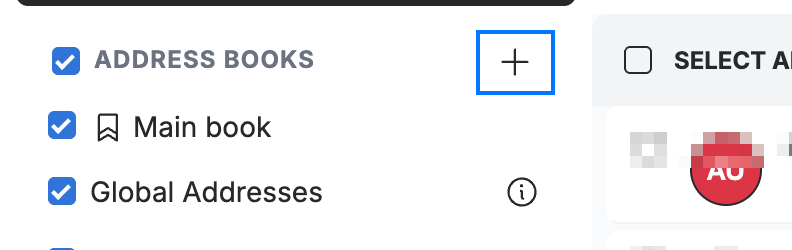
Click + next to Address Books in the sidebar (blue). The new address book form opens, where you can name the book and choose who it is shared with.
Step 2 — Share with everyone in your domain
Open the Share with all domain users dropdown (blue) and choose a permission for everyone on your domain: Read only lets them view the contacts, Add lets them add contacts too. Leave it on Do not share to keep the book private.

Step 3 — Share with specific people
Enter a colleague's name or address in the Share with specific users field, choose their permission from the dropdown (Read only or Add), then click Add (blue).
Note: Read only lets the user view your contacts; Add also lets them create contacts in the shared book.

Step 4 — Save the address book
Click Save Address Book (green) to apply the sharing settings.

Explore our other guides to get the most out of Webmail.