Right-clicking a message in the inbox opens a context menu with quick access to the most common mail actions. This guide explains every option so you know what each one does.
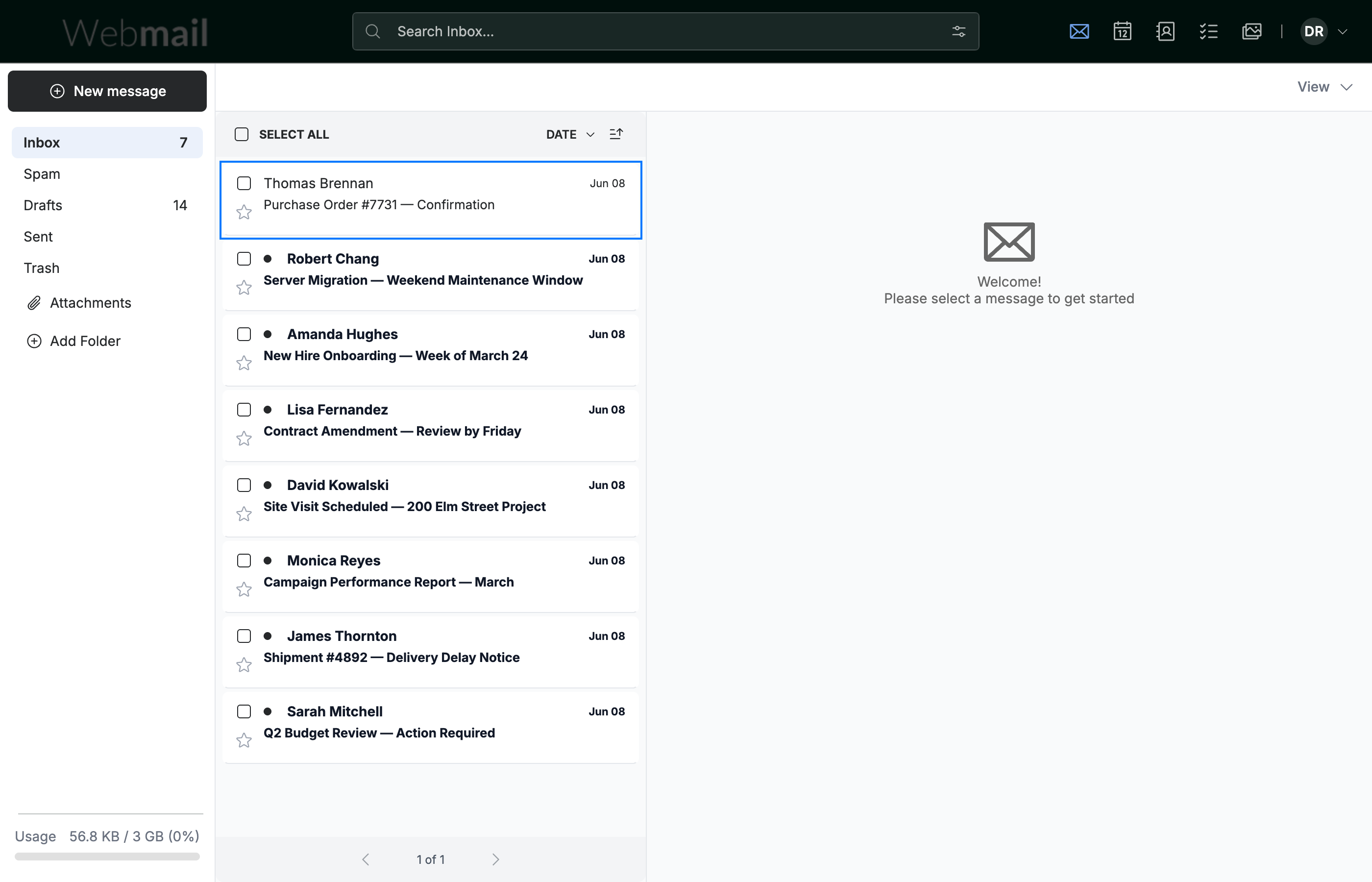
Step 1 — Open the right-click menu
Right-click any message row (blue) in the message list. The actions menu opens beside the message.
Tip: The menu scrolls — drag the scrollbar or scroll down to reach the options near the bottom.
Step 2 — Reply, print, and selection options
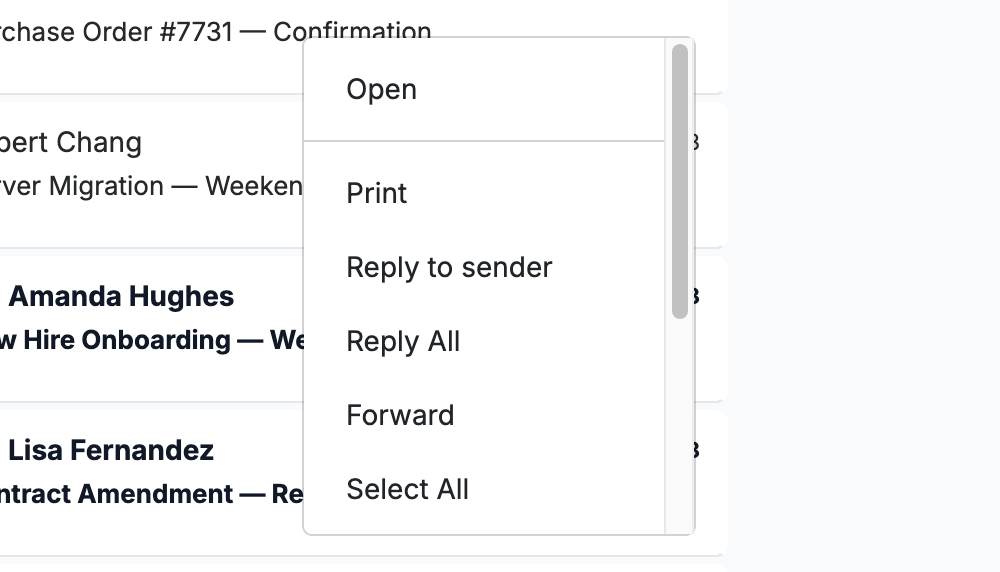
The top of the menu holds the everyday actions for reading and responding to a message:
- Open — open the message in the reading pane.
- Print — open a printable view of the message in a new window.
- Reply to sender — reply only to the person who sent the message.
- Reply All — reply to the sender and everyone else on the message.
- Forward — send a copy of the message to someone new.
- Select All — select every message in the current folder for a bulk action.
Step 3 — Read state, star, and removal options
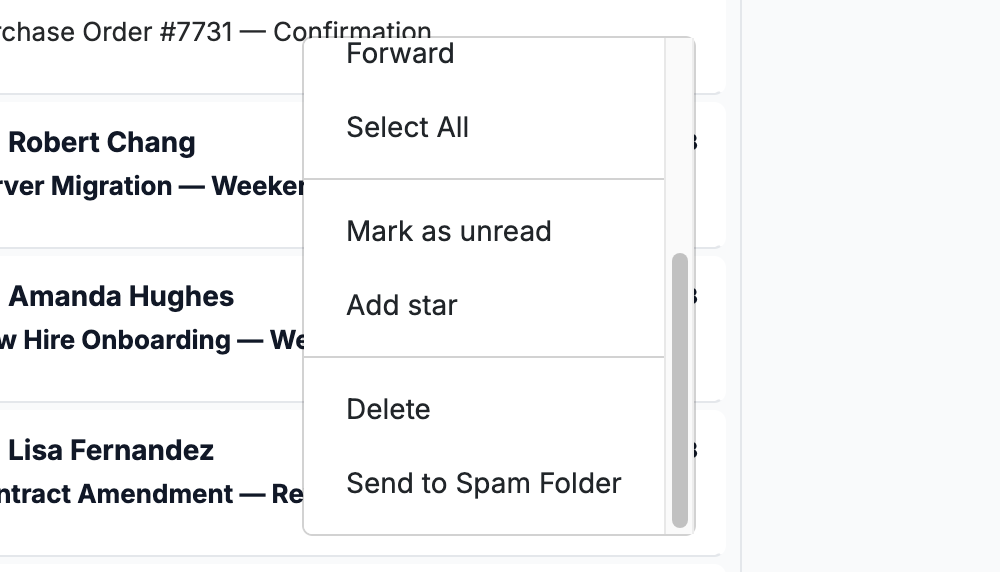
Scroll down for the options that change a message's state or move it out of the inbox:
- Mark as unread — mark the message unread (this reads Mark as read when the message is already unread).
- Add star — flag the message with a star so you can find it later.
- Delete — move the message to the Trash folder.
- Send to Spam Folder — move the message to Spam and help train the spam filter.
Explore our other guides to get the most out of Webmail.