Set your preferred language, time zone, and date and time formats from the Date and Language settings page. These control how the interface language, dates, and times appear throughout Webmail.
Step 1 — Open Settings
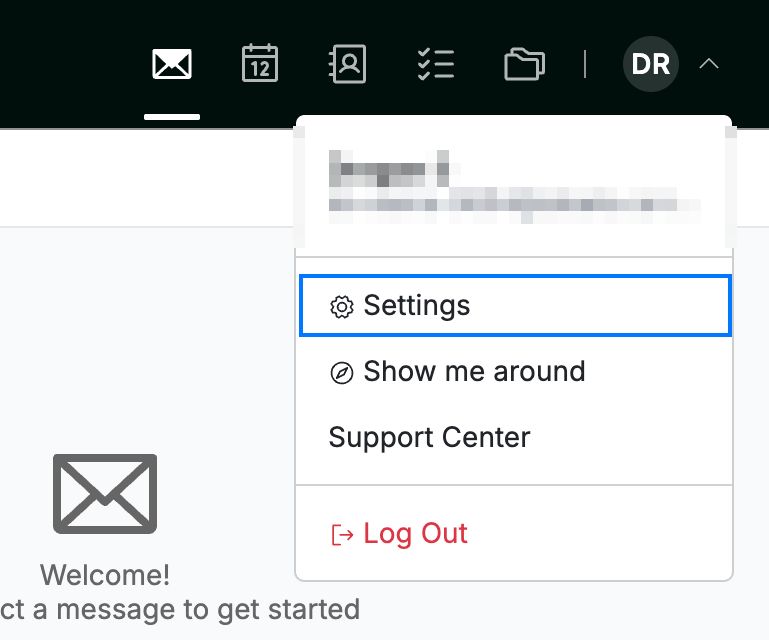
Open the user menu by clicking your initials in the top-right corner, then click Settings.
Step 2 — Open Date and Language
Open Date and Language from the left sidebar in Settings.

Step 3 — Set your preferences
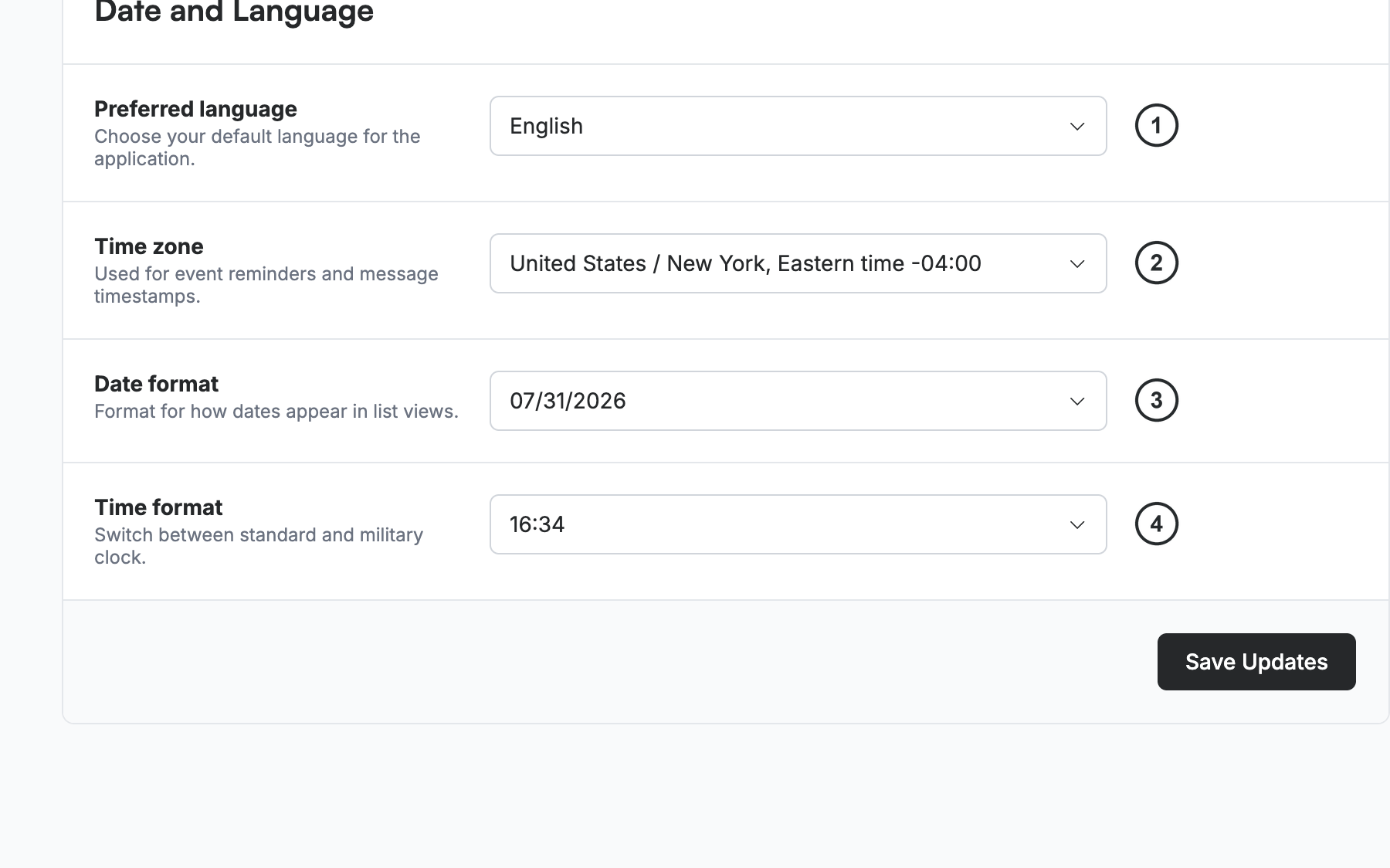
Set the four options on the panel, each from its own dropdown:
- Preferred language ① — your default language for the application.
- Time zone ② — used for event reminders and message timestamps.
- Date format ③ — how dates appear in list views.
- Time format ④ — switch between a standard and a 24-hour (military) clock.
Click a setting to open its dropdown and choose a value.
Step 4 — Save your changes
Click Save Updates to apply your preferences.

Explore our other guides to get the most out of Webmail.