Learn where to find the server settings that connect your Webmail account to another email program, such as Outlook, Apple Mail, or your phone's mail app.
Before you begin: Most mail apps set themselves up from just your email address and password. Add your account in your mail app first, and use the settings below only if it asks for them.
Step 1 — Open Settings
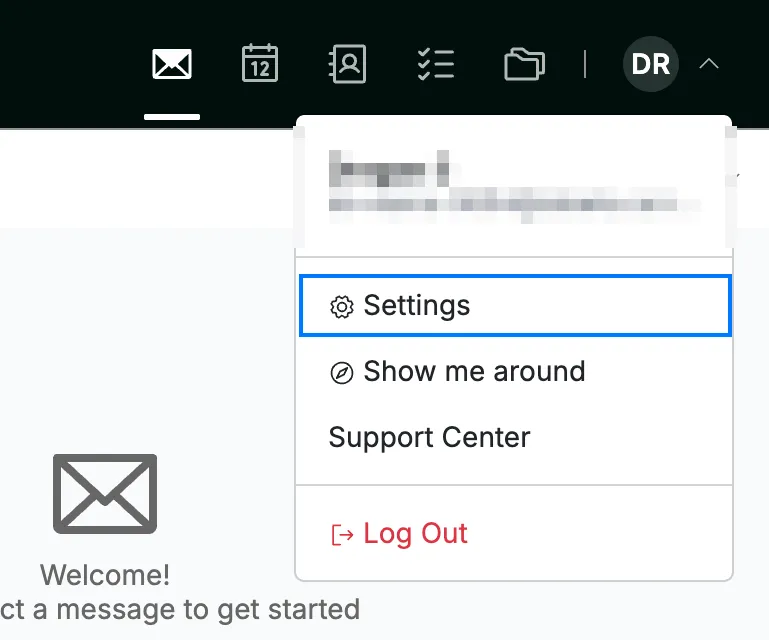
Open the user menu by clicking your initials in the top-right corner, then click Settings.
Step 2 — Open Mail app setup
Select Mail app setup in the left sidebar (blue), then click Other mail apps (orange) to show the server settings.
Tip: On an iPhone, iPad or Mac, the Apple Mail tab can set up your account for you by installing a profile that fills in every setting.

Step 3 — Copy your account details
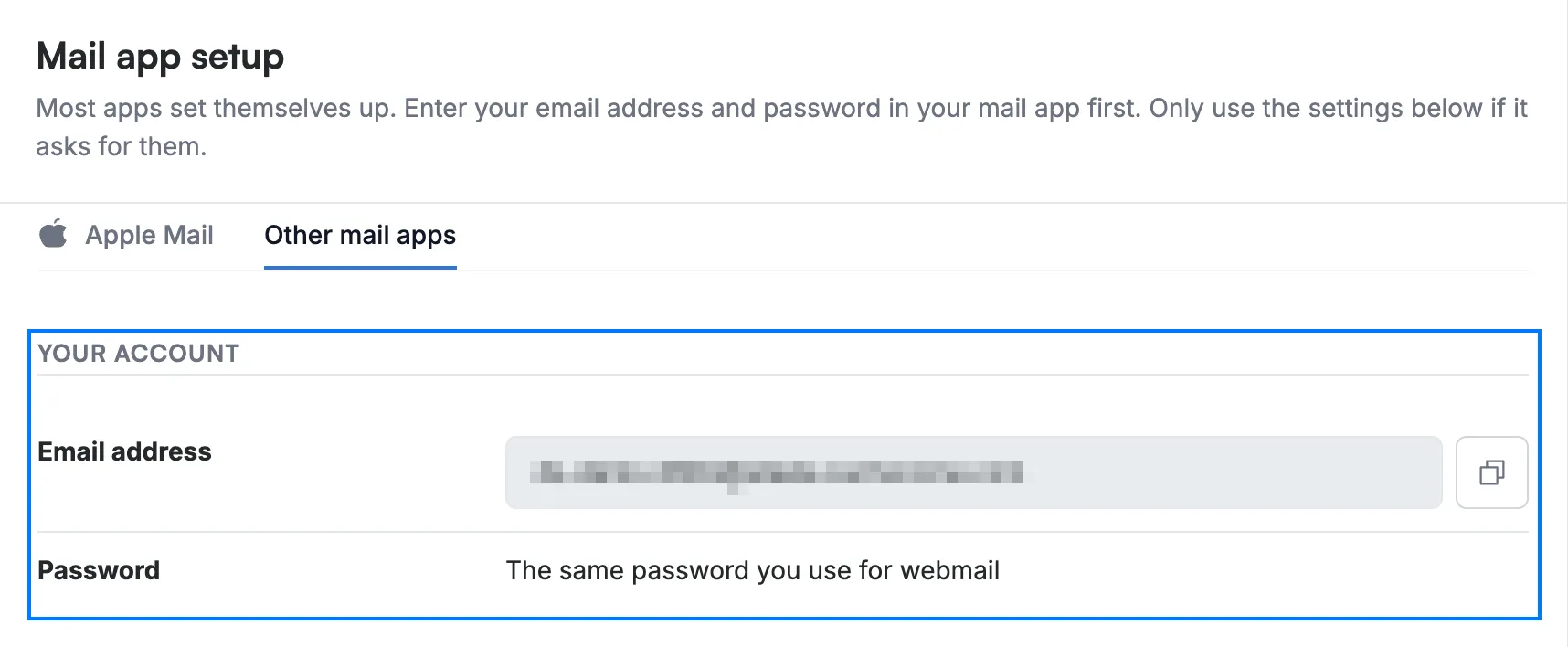
Click the copy icon beside Email address in the Your account section to copy your address.
- Email address — your full Webmail address. Most apps use it as both the account name and the sign-in name.
- Password — the same password you use to sign in to Webmail.
Note: Your own address and server names are hidden in these screenshots. Read them from the Other mail apps tab of your own Mail app setup page — the copy icon beside a value copies it exactly as your app needs it.
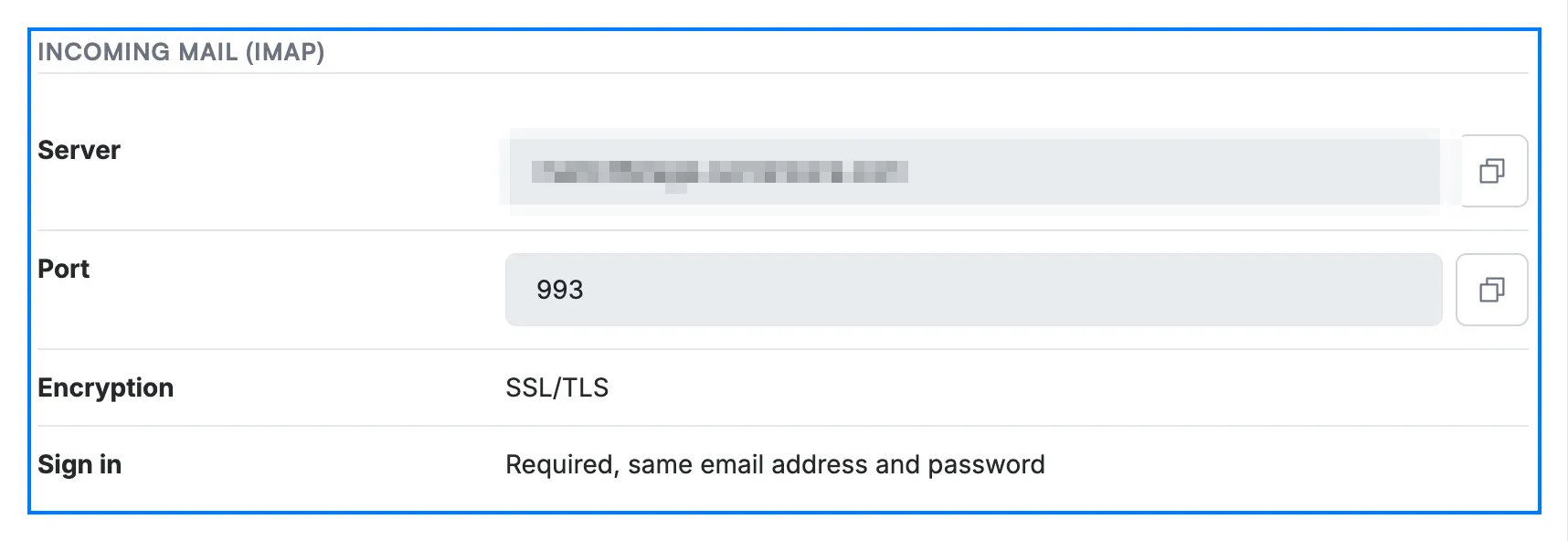
Step 4 — Copy the incoming mail (IMAP) settings
Copy each value in the Incoming mail (IMAP) section into the incoming server fields of your mail app.
- Server — your incoming mail server address.
- Port — 993.
- Encryption — SSL/TLS.
- Sign in — required, using the same email address and password.
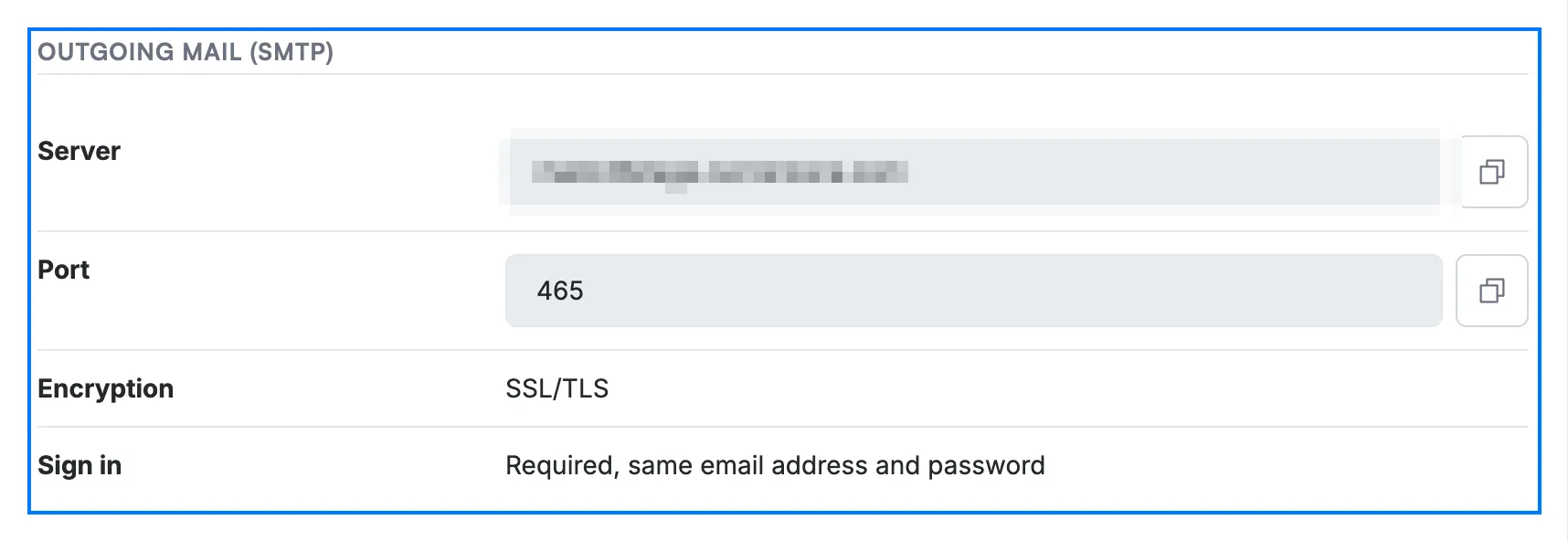
Step 5 — Copy the outgoing mail (SMTP) settings
Copy each value in the Outgoing mail (SMTP) section into the outgoing server fields of your mail app.
- Server — your outgoing mail server address.
- Port — 465.
- Encryption — SSL/TLS.
- Sign in — required, using the same email address and password.
Note: The Server address is the same for incoming and outgoing mail. Only the Port differs — 993 for incoming, 465 for outgoing.
Tip: Sign in is required for outgoing mail, so turn on the option your app calls *My outgoing server requires authentication*. Leaving it off is the usual reason mail arrives but will not send.
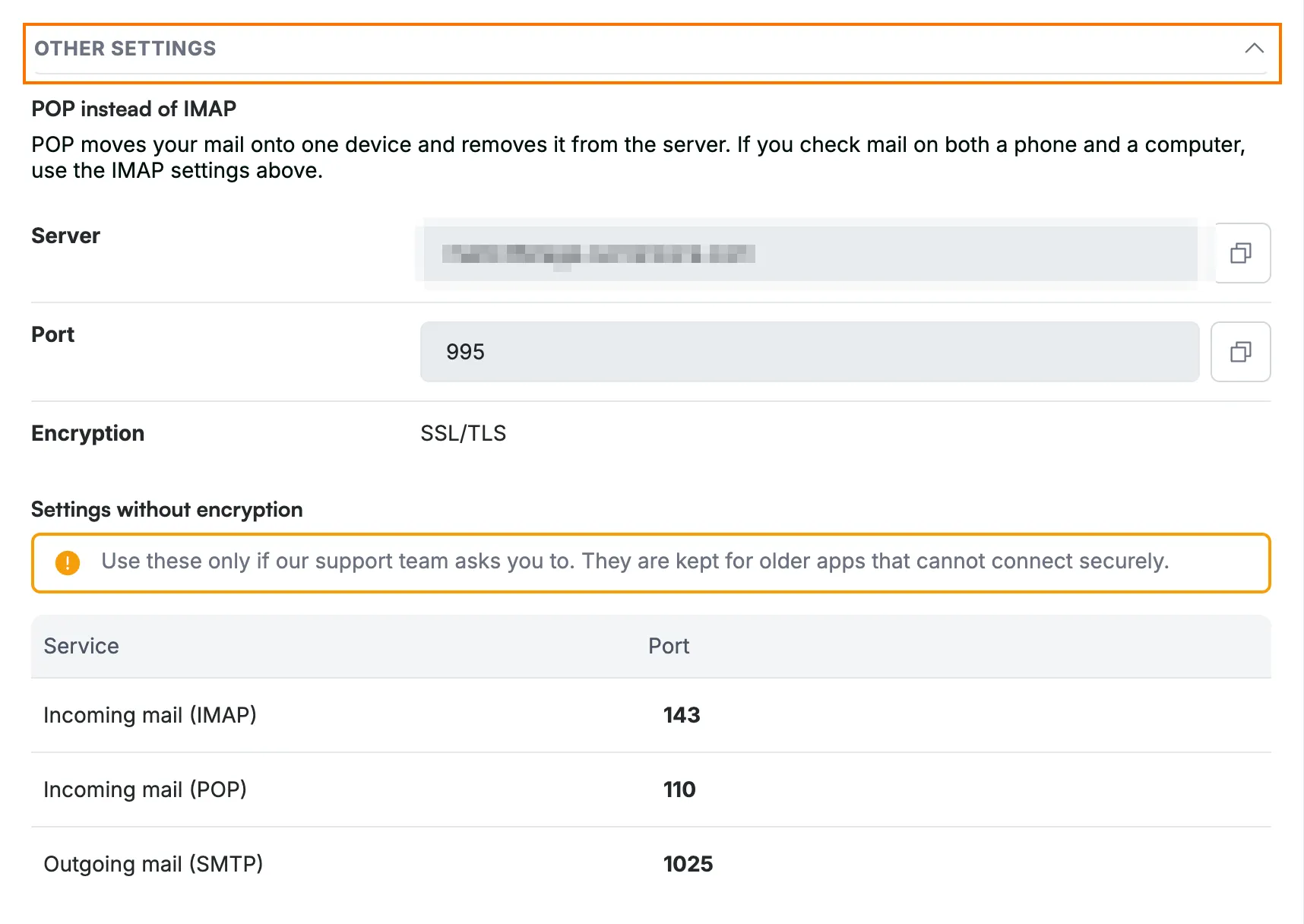
Step 6 — Open Other settings to show the POP settings
Click Other settings to show the POP server details, then copy them in place of the Incoming mail (IMAP) values.
- Server — the same server address as before.
- Port — 995.
- Encryption — SSL/TLS.
- Settings without encryption — for older apps that cannot connect securely. Use these only if our support team asks you to.
Note: Choose POP *or* IMAP, not both. IMAP keeps your mail in sync across every device; POP moves your mail onto one device and removes it from the server.
Step 7 — Match the settings to your app's wording
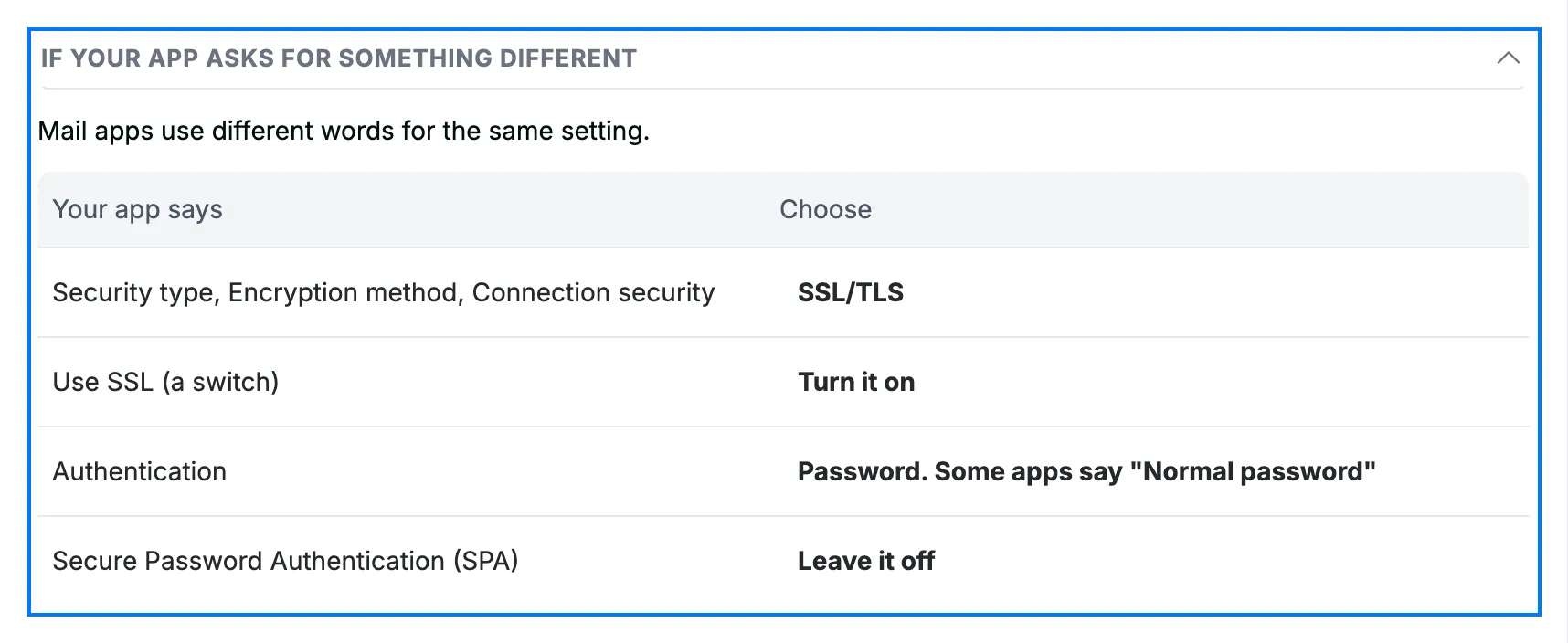
Click If your app asks for something different to see the names other mail apps use for these settings.
- Security type, Encryption method or Connection security — choose SSL/TLS.
- Use SSL — turn it on.
- Authentication — choose Password, which some apps call *Normal password*.
- Secure Password Authentication (SPA) — leave it off.
Tip: If your app still cannot connect after you enter these settings, see How to troubleshoot emails not sending.
Explore our other guides to get the most out of Webmail.