The POP/IMAP page lists the server settings for connecting your Webmail account to another email program — like Outlook, Apple Mail, or your phone's mail app. This guide shows where to find them and what each one means.
Step 1 — Open Settings
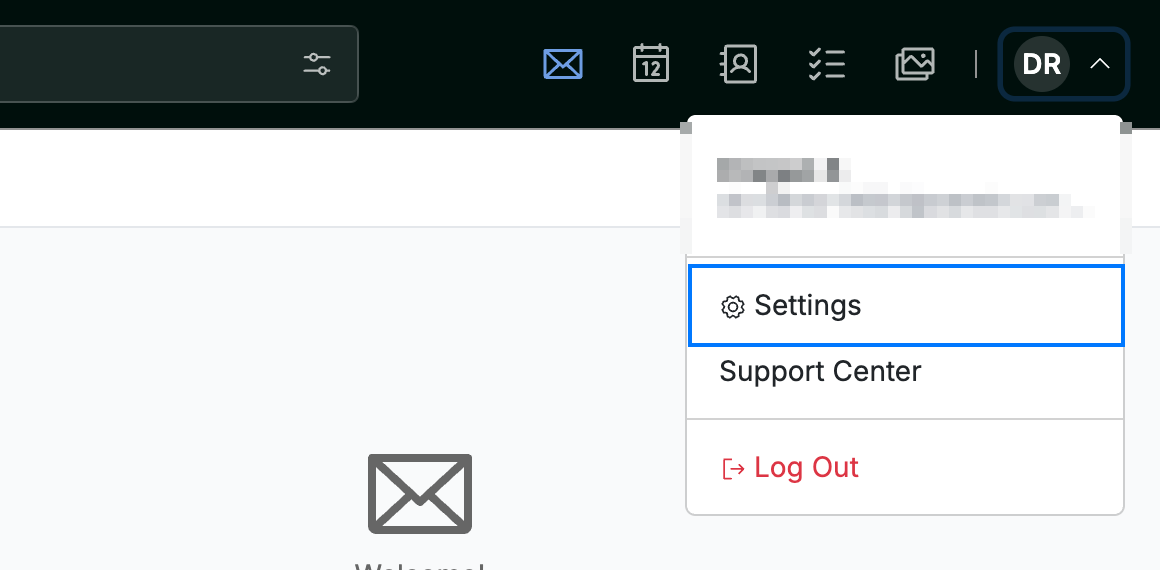
Open the user menu by clicking your initials in the top-right corner, then click Settings.
Step 2 — Select POP/IMAP
Select POP/IMAP from the left sidebar in Settings.

Step 3 — Copy your connection settings
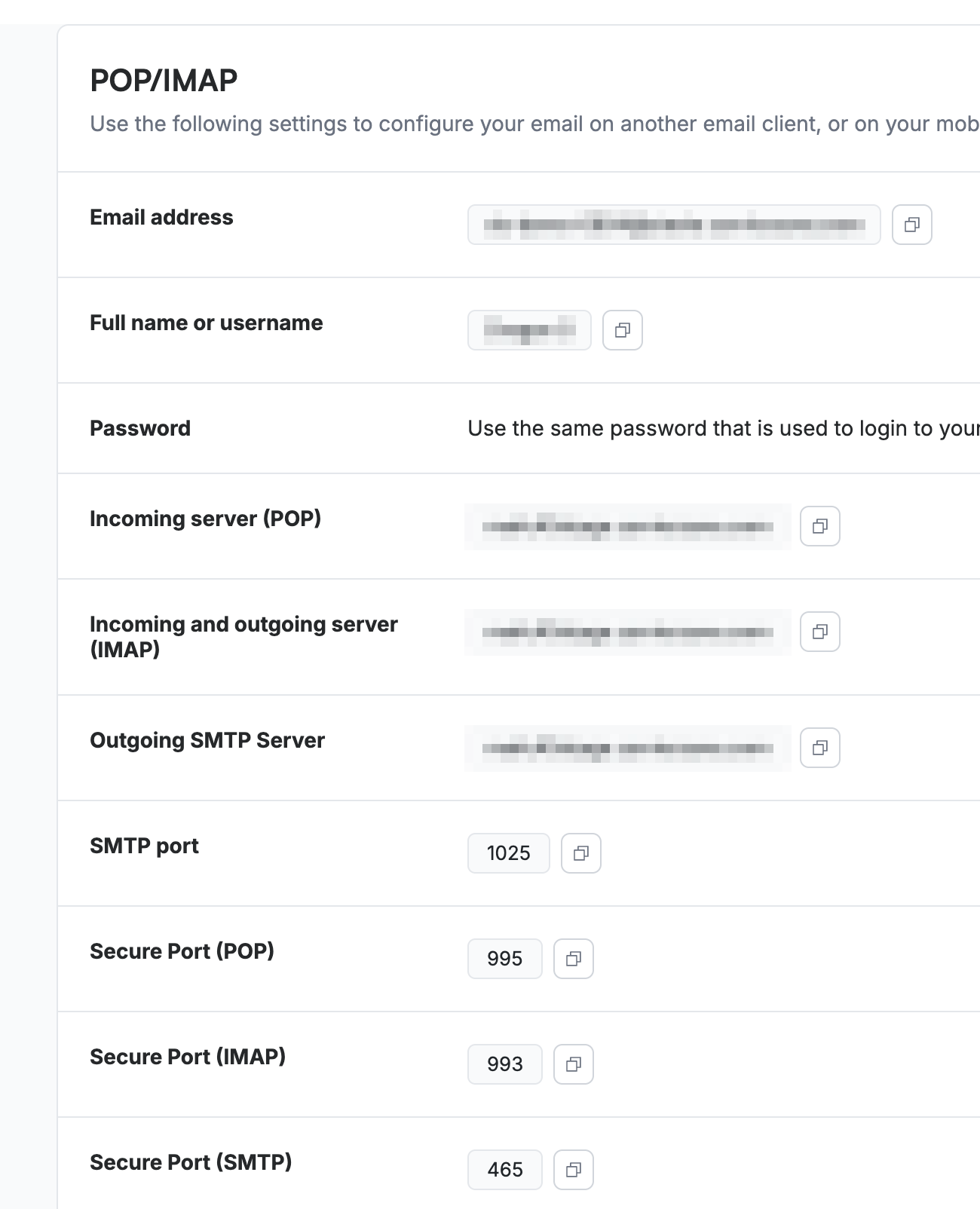
Locate the values listed on this page and copy each into your email client using the copy icon beside the field:
- Email address — your full Webmail address; most clients use it as the account name and login.
- Full name or username — your display name / username.
- Password — the same password you use to sign in to Webmail.
- Incoming server — the address shown under Incoming server (POP) or Incoming and outgoing server (IMAP), depending on which protocol you choose.
- Outgoing SMTP Server — the address shown for sending mail.
- Ports — use the Secure Port values for an encrypted connection: POP 995, IMAP 993, SMTP 465. The standard SMTP port is also listed if your client needs it.
Note: Choose POP *or* IMAP, not both. IMAP keeps your mail in sync across every device and is the better choice for most people; POP downloads messages to a single device and can remove them from the server.
Tip: Prefer the Secure Port values (995 / 993 / 465) so your username, password, and mail are encrypted in transit.
Explore our other guides to get the most out of Webmail.