If you'd rather not trust every contact, you can create rules so images always display for specific senders — for example a newsletter you trust. This guide shows how to add an image rule in the Pictures in email panel.
Step 1 — Open Settings
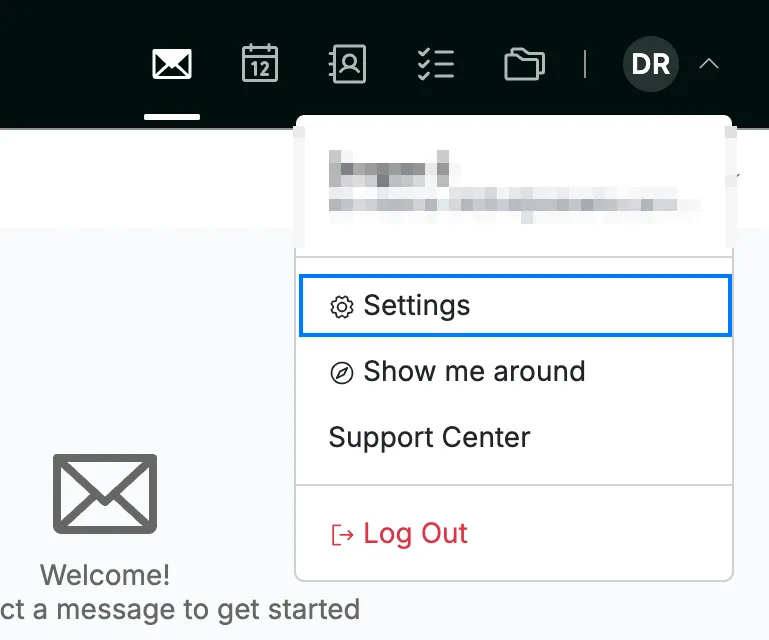
Click your avatar in the top-right corner and select Settings.
Step 2 — Open Pictures in email
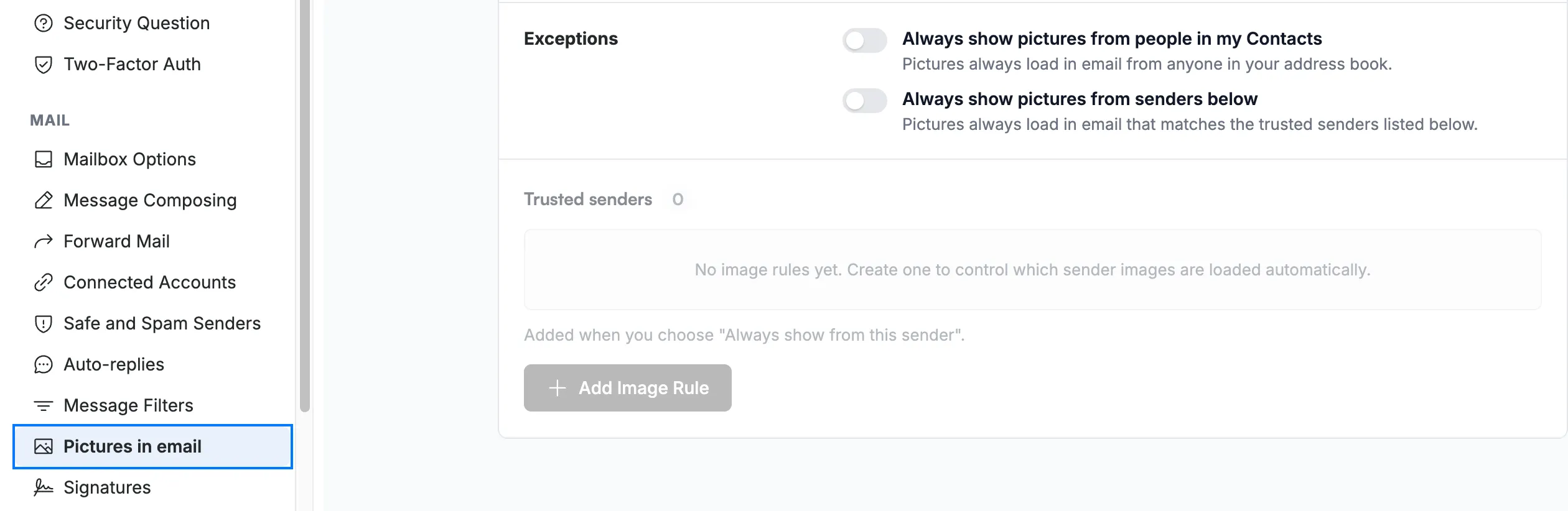
Select Pictures in email from the Mail section of the settings sidebar.
Step 3 — Create an image rule
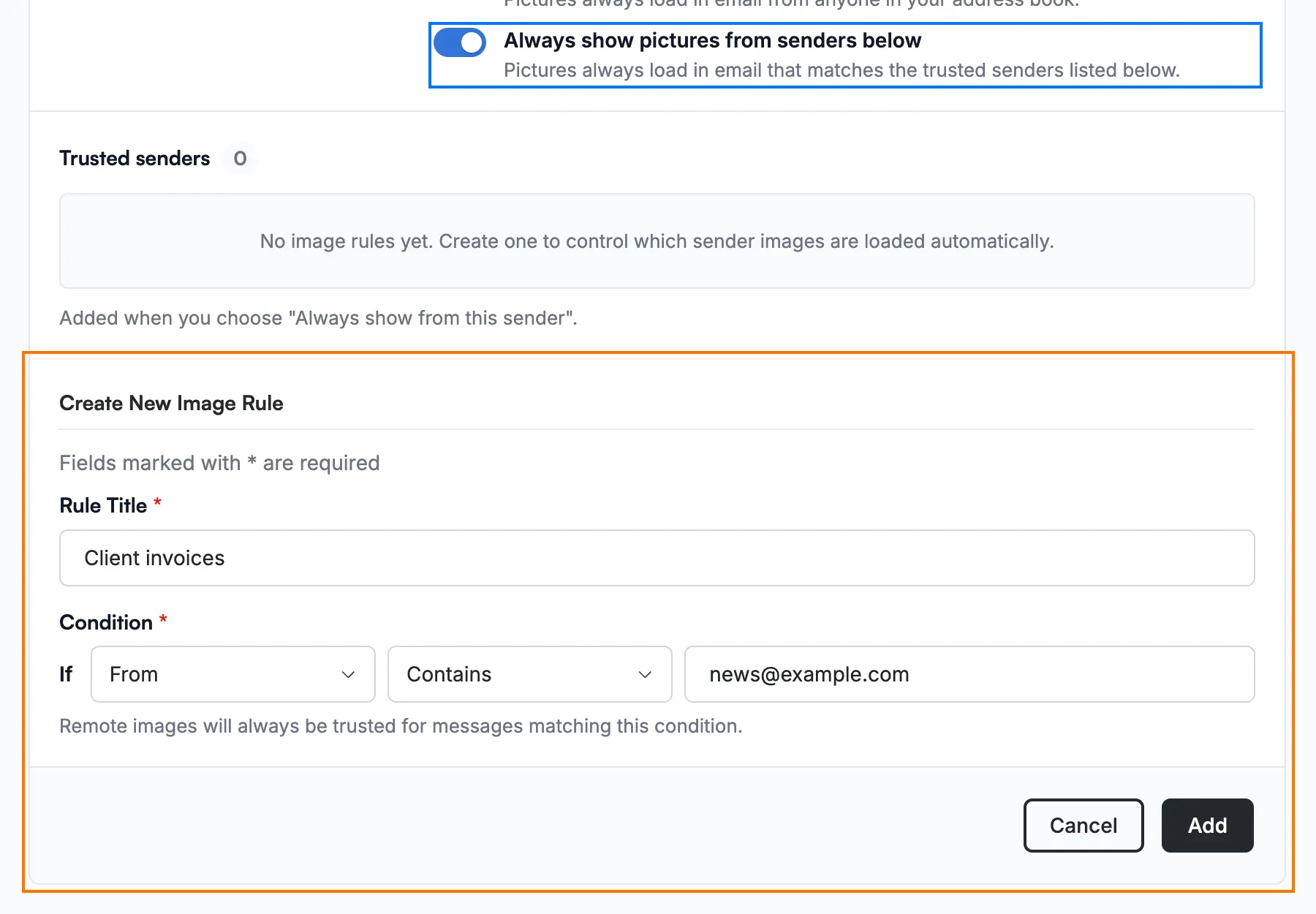
Turn on Always show pictures from senders below (blue), then click Add Image Rule and fill in the form that opens (orange):
- Rule Title — a name for the rule.
- Condition — choose a field (From, To, Cc, To or cc, or Subject) and a comparison (Contains, Equal, or Not equal), then enter the term to match.
Note: Add Image Rule is available only while Always show pictures from senders below is on. The toggle is saved as soon as you click it, so clicking Cancel on the form leaves it on.
Step 4 — Add the rule
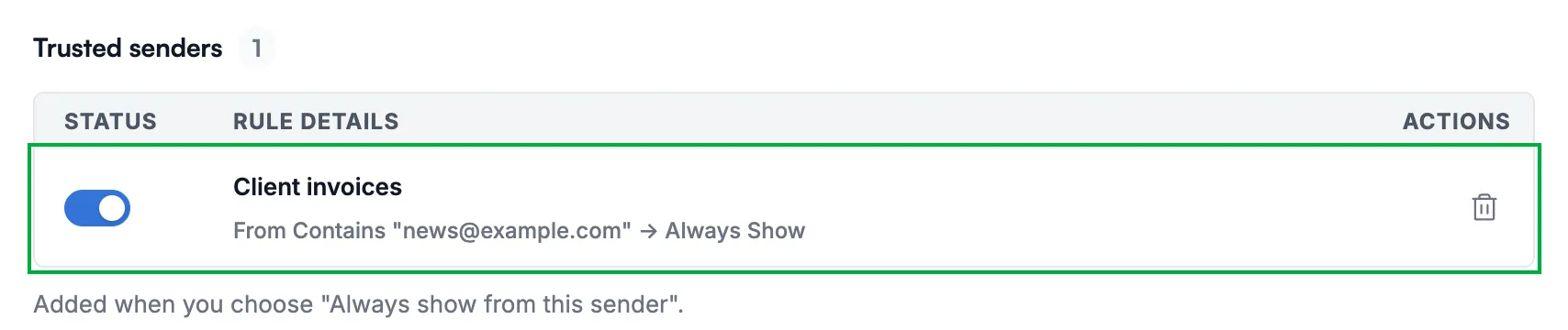
Click Add. The rule is saved straight away and appears in your Trusted senders list (green).
Explore our other guides to get the most out of Webmail.