If you'd rather not trust every contact, you can create rules so images always display for specific senders — for example a newsletter you trust. This guide shows how to add an image rule in the Image Rules panel.
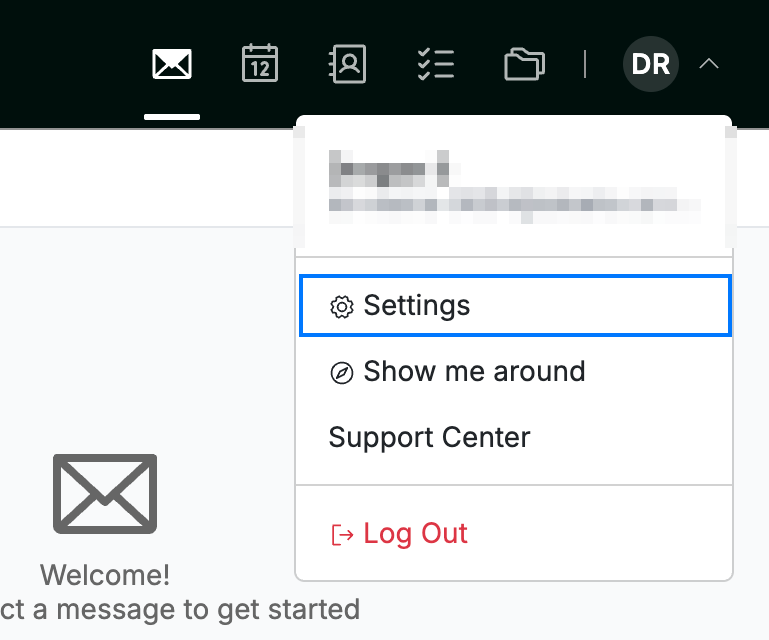
Step 1 — Open Settings
Click your avatar in the top-right corner and select Settings.
Step 2 — Open Image Rules
Select Image Rules from the Mail section of the settings sidebar.
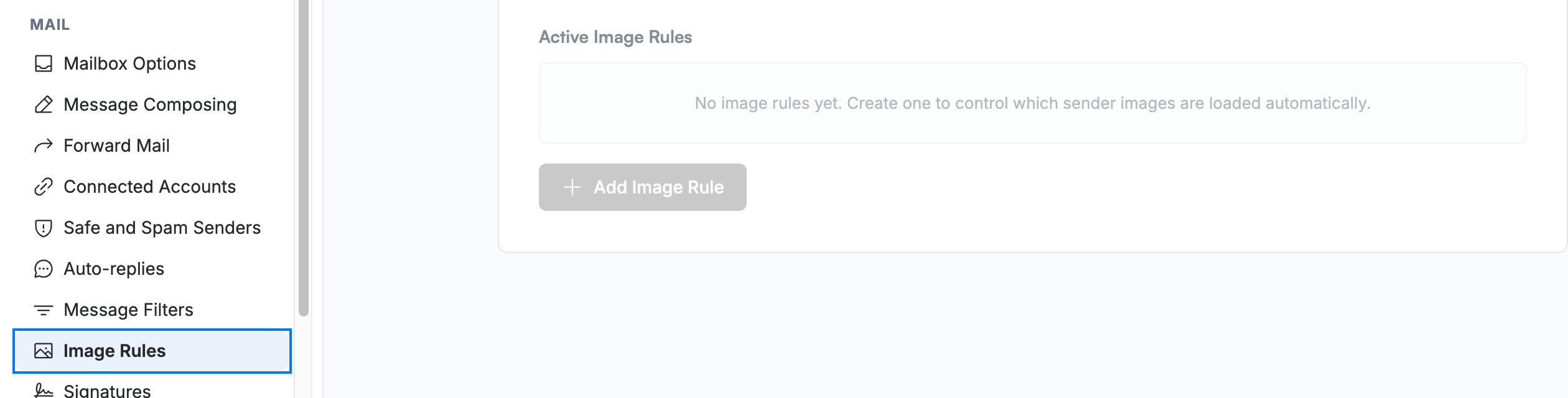
Step 3 — Create an image rule
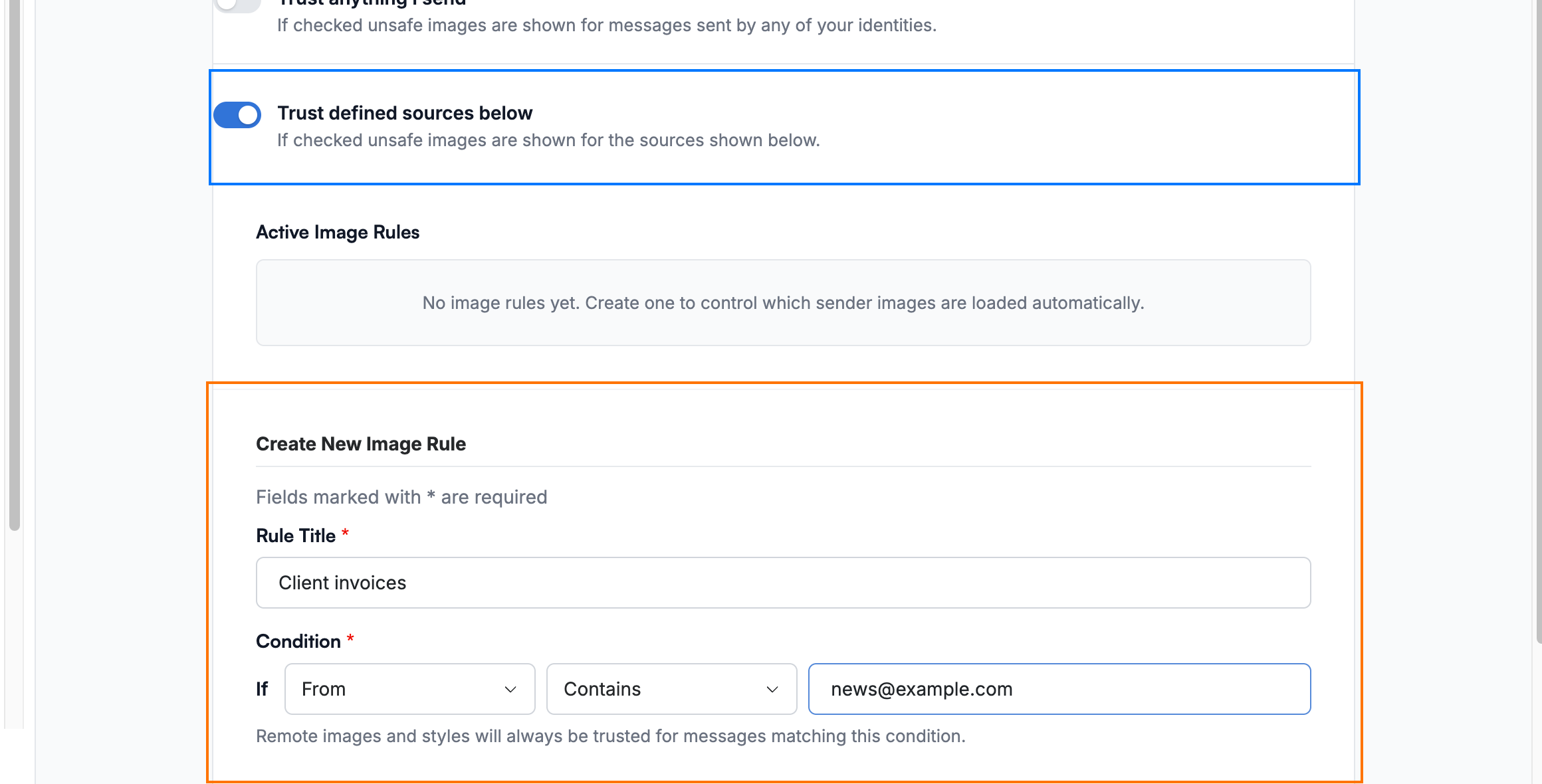
Tick Trust defined sources below (blue) to turn on per-sender rules, then click Add Image Rule and build the rule in the form that opens (orange):
- Rule Title — a name for the rule.
- Condition — choose a field (From, To, Cc, To or cc, or Subject) and a comparison (Contains, Equal, or Not equal), then enter the term to match.
Step 4 — Add the rule
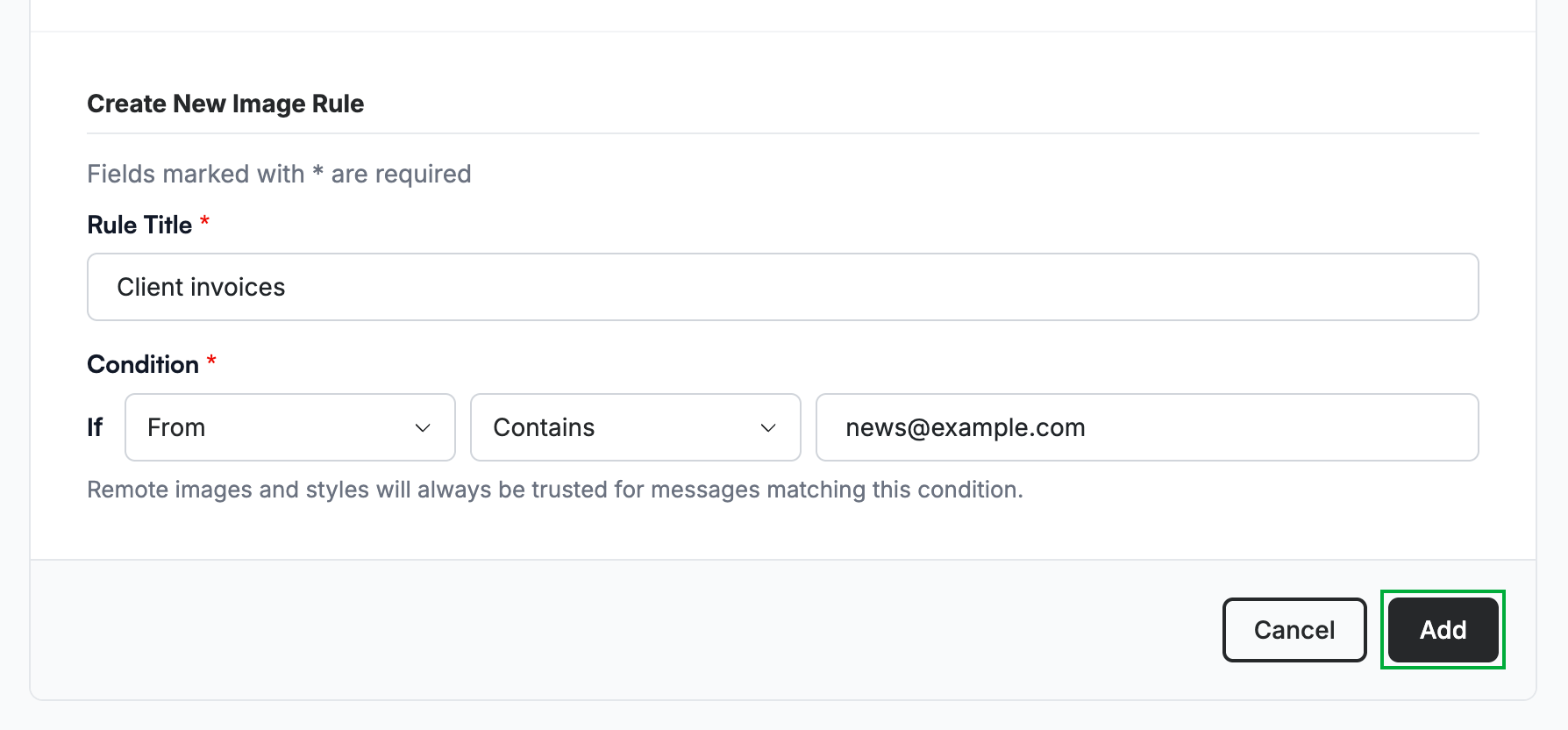
Click Add (green) to save the rule to your list. Rules apply immediately.
Explore our other guides to get the most out of Webmail.