Print a copy of any email, or save it as a PDF, using the built-in print preview. This guide shows two ways to open the preview.
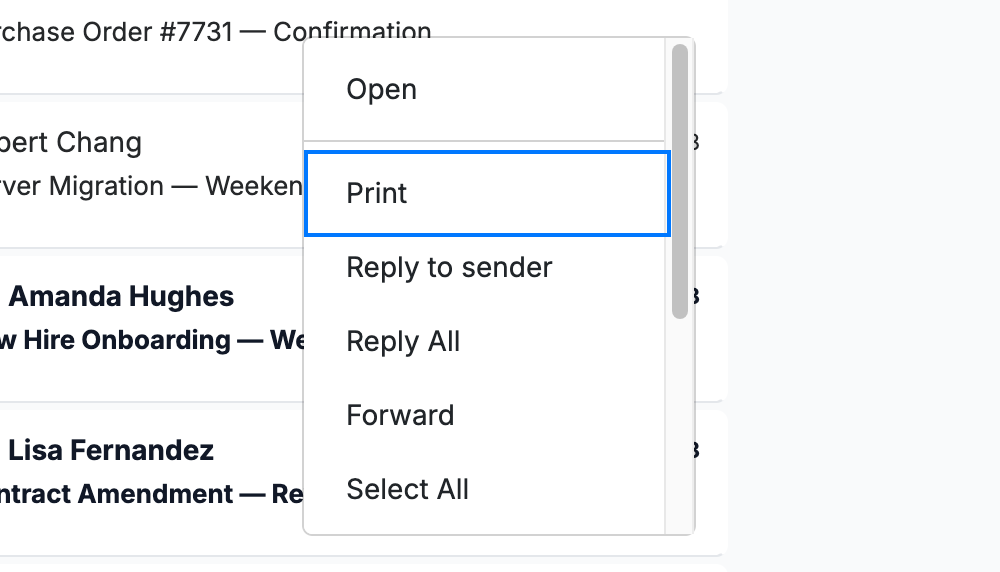
Step 1 — Right-click a message and select Print
Right-click a message in the list and select Print (blue).
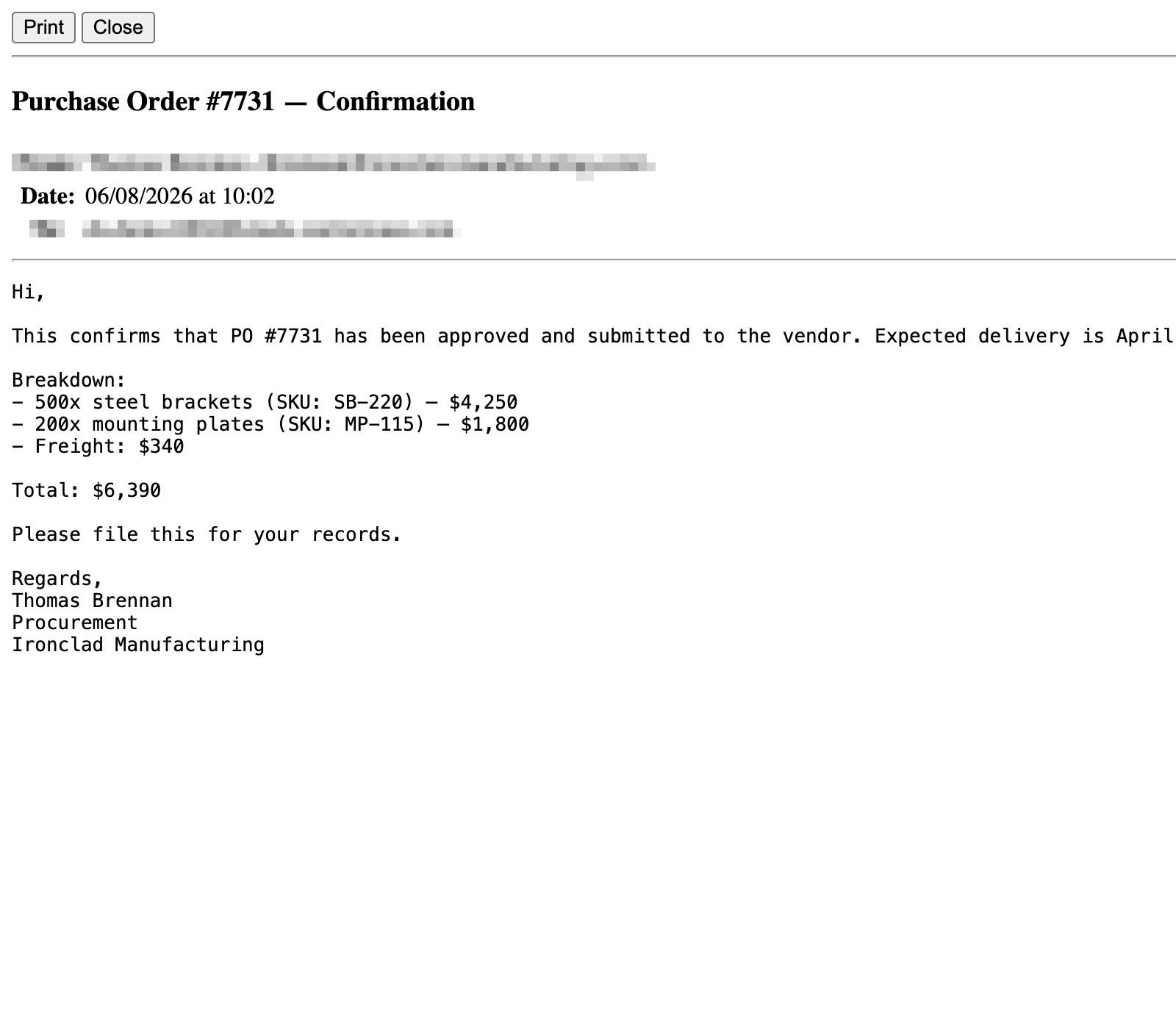
Step 2 — Review the print preview
Review the formatted message in the print preview that opens in a new window — sender, date, recipient, and body. Click Print to send it to your printer.
Tip: In your browser's print dialog you can choose Save as PDF as the destination to keep a digital copy instead of printing on paper.
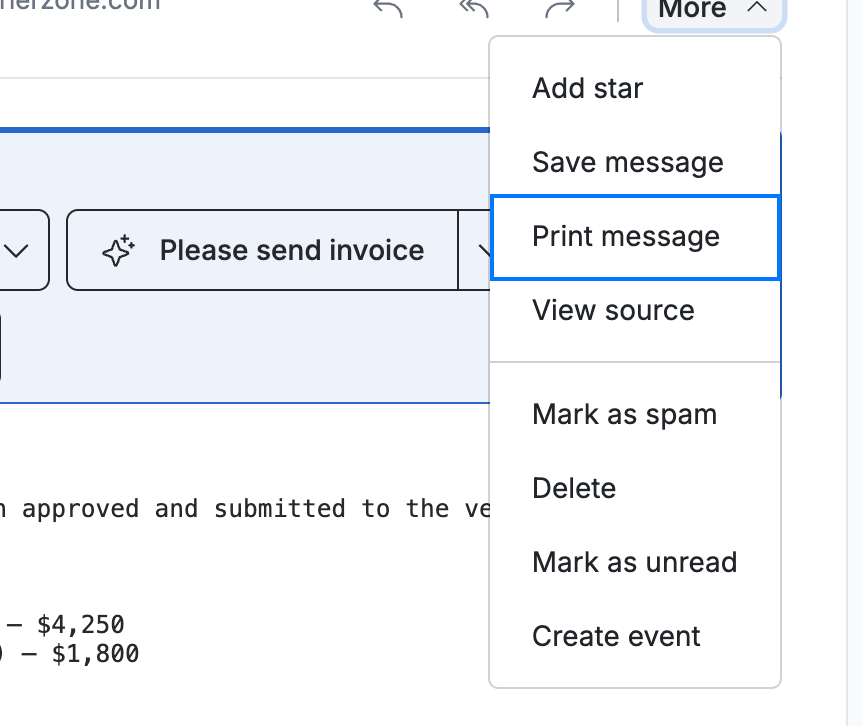
Step 3 — Print from an open message
Open a message, click More in the message header, and select Print message (blue) to open the same preview.
Explore our other guides to get the most out of Webmail.