Dragging and dropping is the fastest way to move an email from one folder to another for filing. This guide shows how to drag a message from the list onto a folder in the sidebar.
Step 1 — Click and hold the email
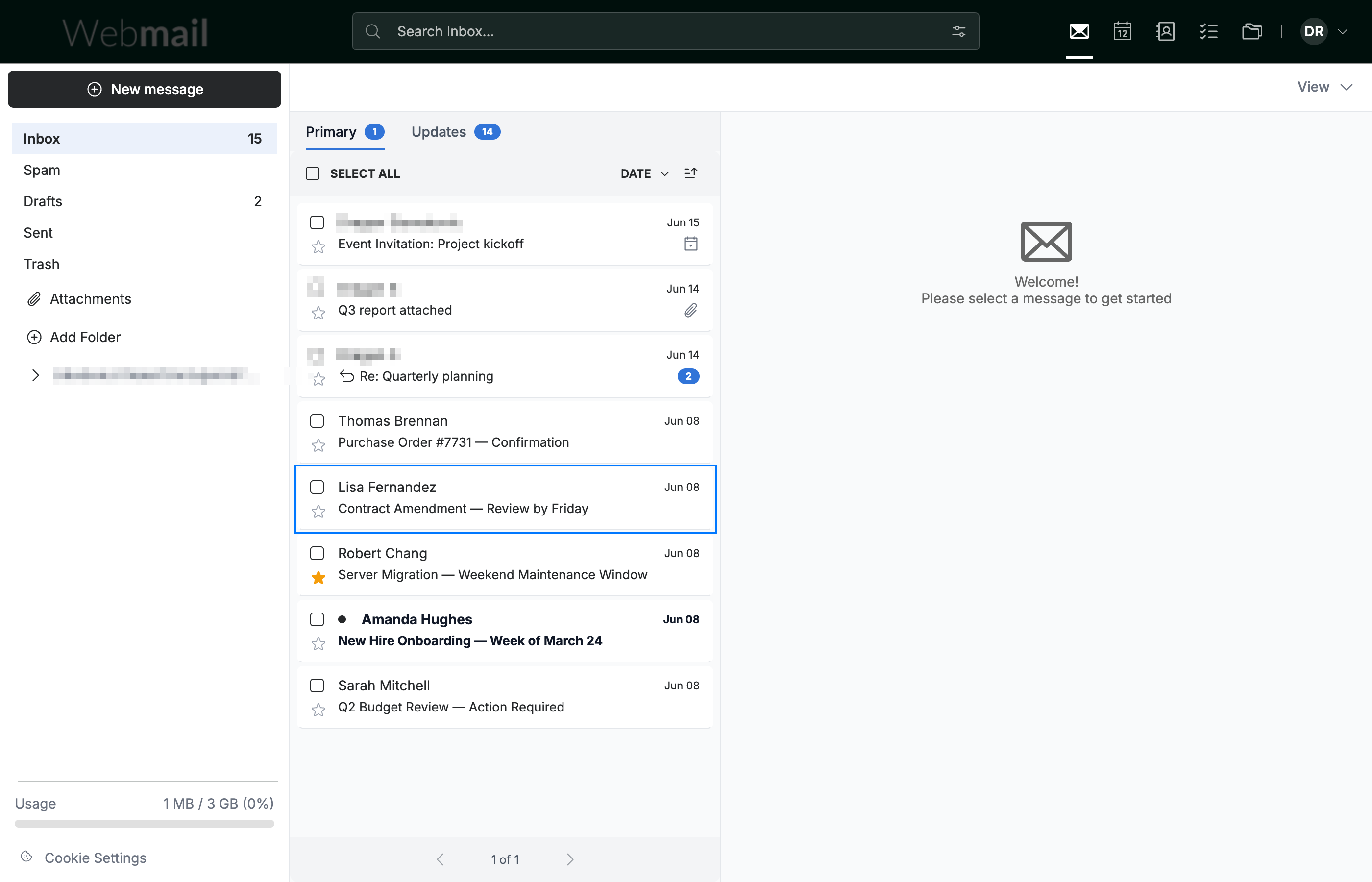
Click and hold the email you want to move in the message list (blue).
Step 2 — Drag it onto the destination folder
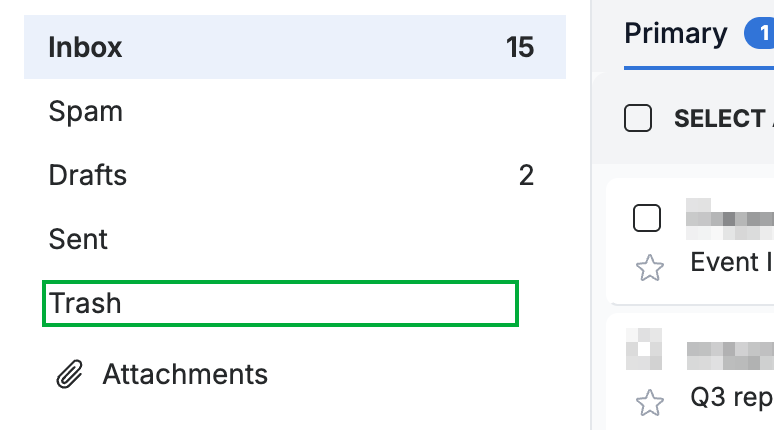
Drag the email over the destination folder in the list while holding the mouse button — here, Trash (green) — then release to drop it.
Tip: You can drop an email on any folder in the list, including folders you create yourself, to file it there.
Step 3 — The email moves to that folder
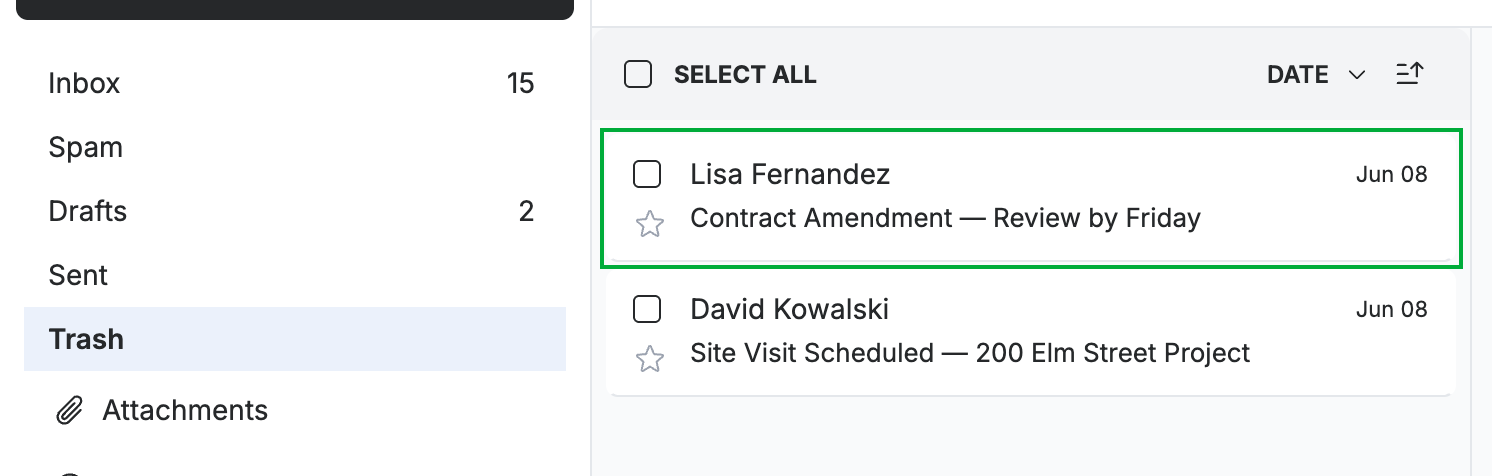
Open the destination folder to confirm the email (green) has been moved there.
Explore our other guides to get the most out of Webmail.