Learn how to create an event in the Webmail calendar — give it a title, set when it starts and ends, and save it — so you can keep track of meetings and appointments.
Step 1 — Click New Event
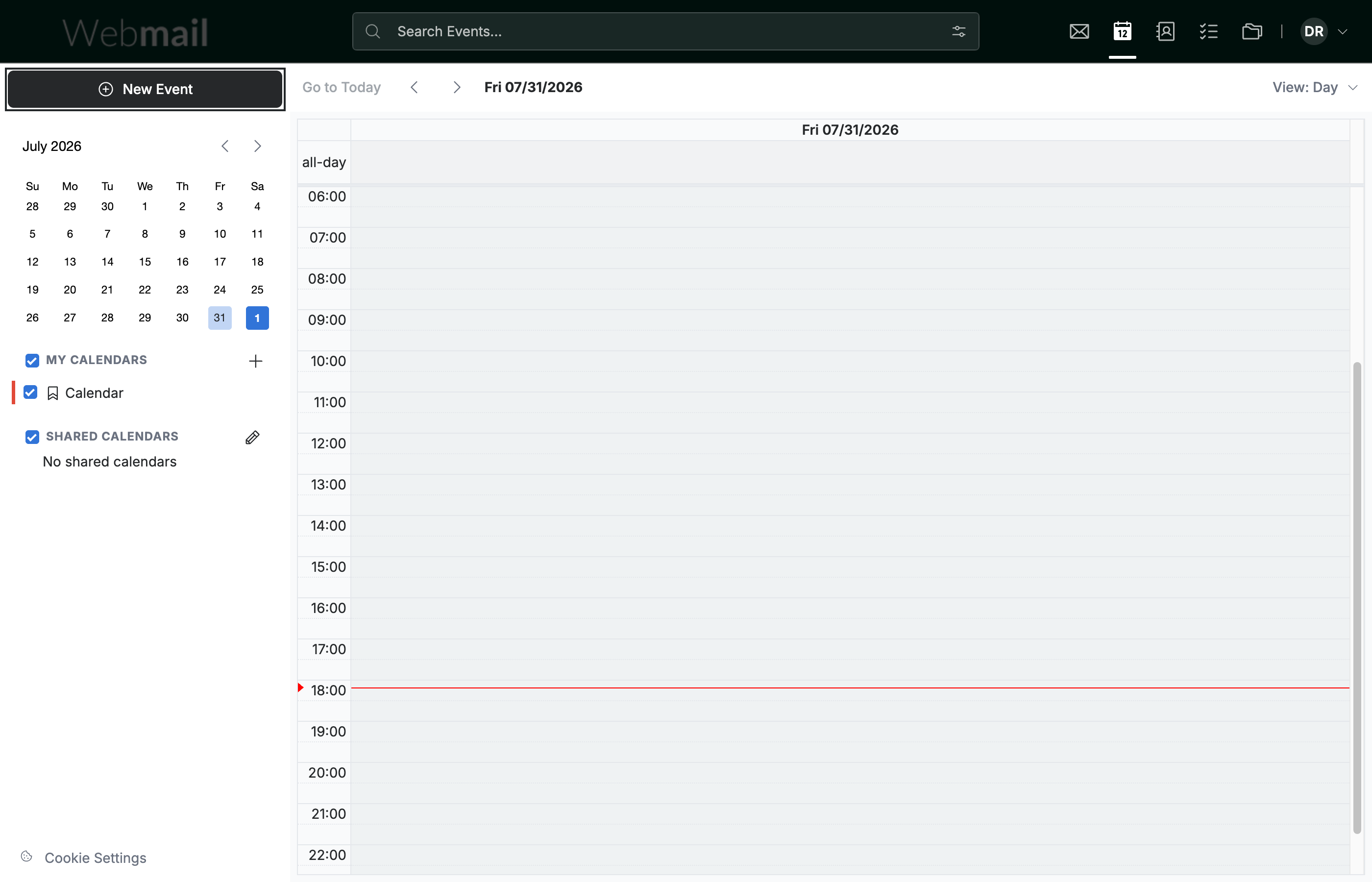
Click New Event at the top of the calendar sidebar. The event form opens.
Step 2 — Enter a title
Enter a name for your event in the Event Title field.

Step 3 — Set the start and end times
Set when the event begins and finishes using the Start Date and End Date fields.

Step 4 — Click Create
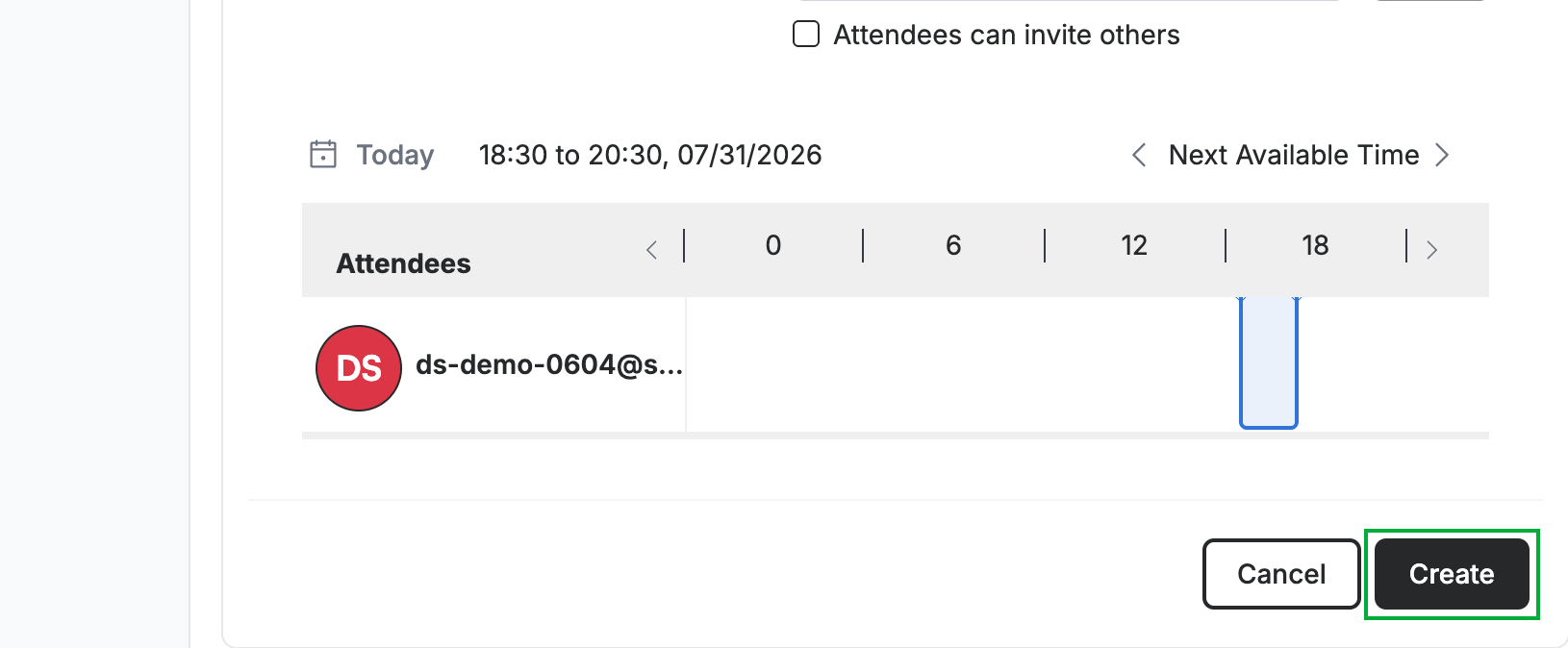
Click Create to save the event to your calendar.
Tip: Before creating, you can also add a Location, a Repeat schedule for recurring events, and Notes — or turn on All Day for an event with no set time.
Explore our other guides to get the most out of Webmail.