When another Webmail user shares a file with you, it appears in the Shared with me area of Online Storage. This guide shows where to find those files and how to open them.
Step 1 — Open Online Storage
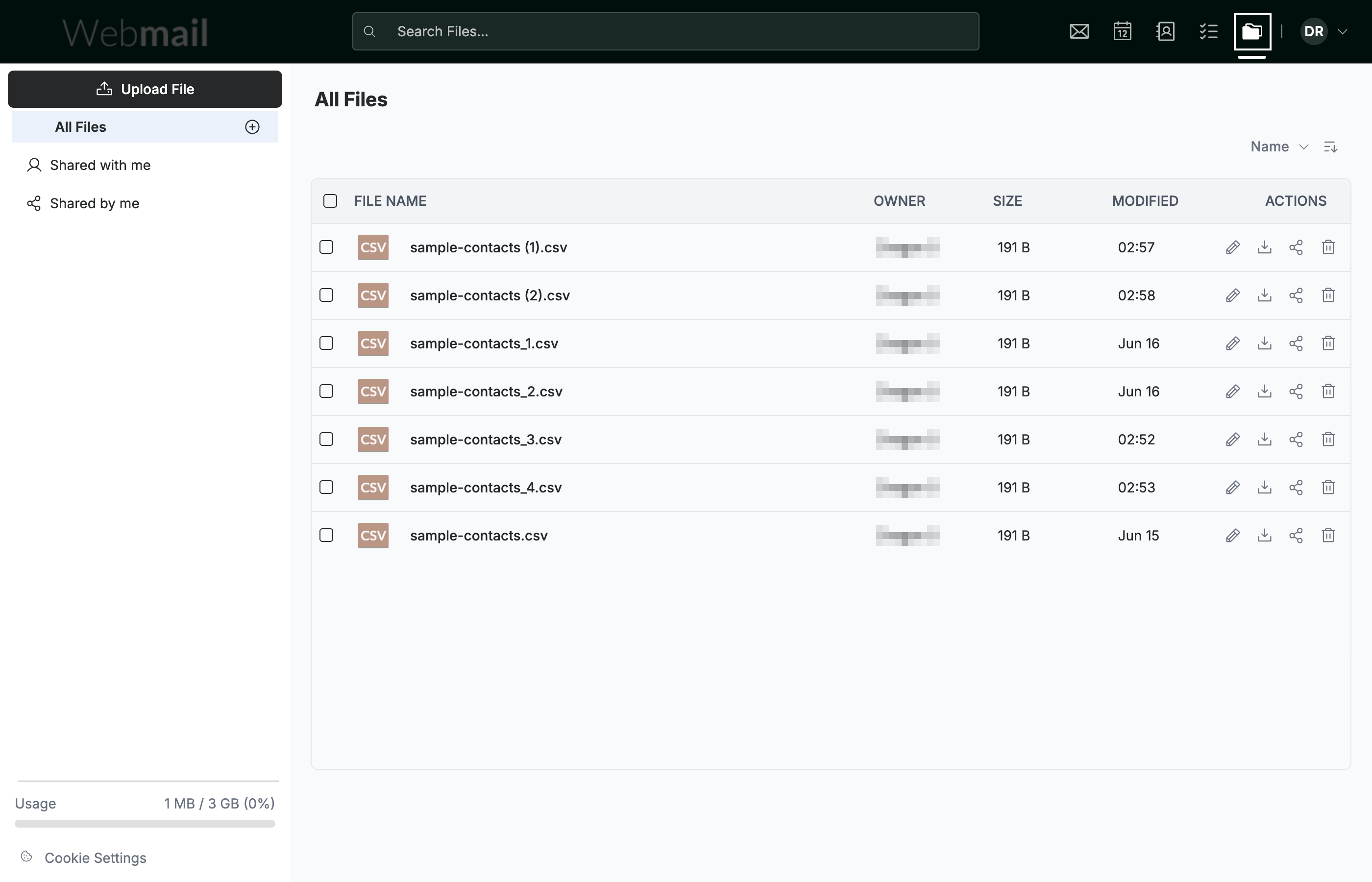
Click the Online Storage icon in the top navigation bar to open the All Files view.
Step 2 — Open Shared with me
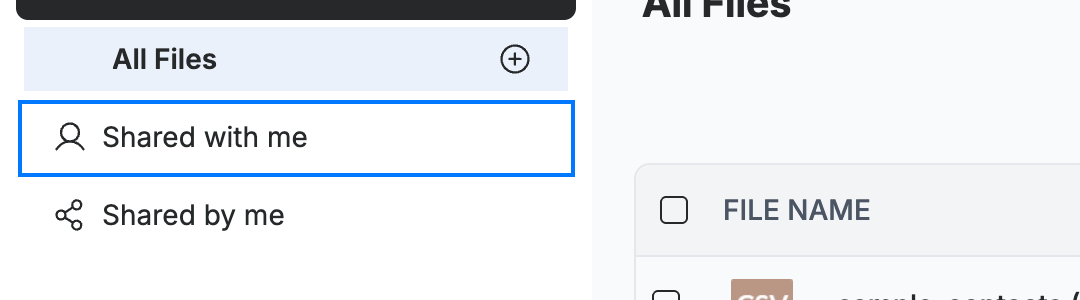
Select Shared with me (blue) in the sidebar. This view lists every file other people have shared with you, kept separate from your own All Files.
Step 3 — Open a shared file
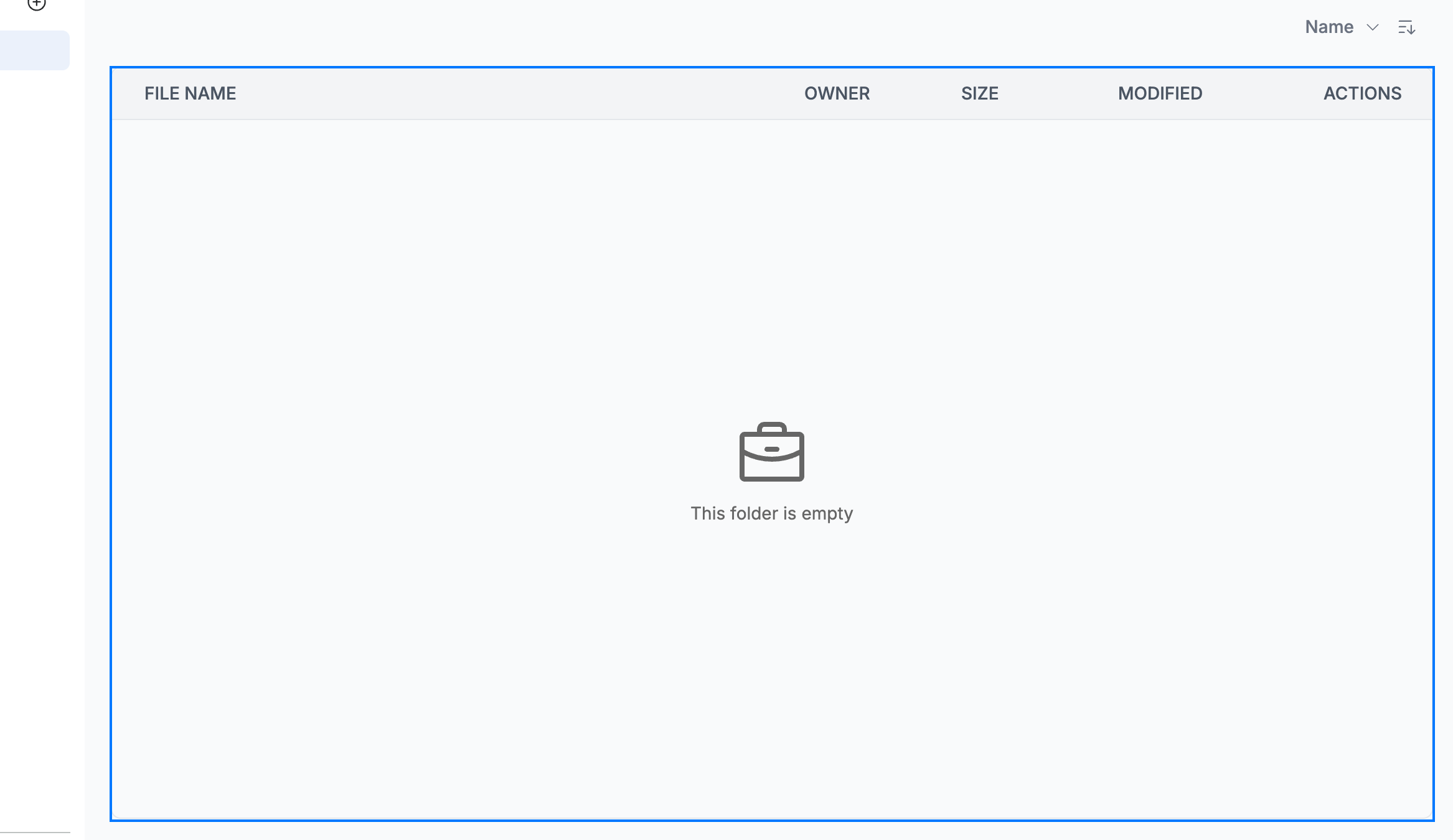
Review the list (blue) — each file shared with you appears here with its owner and the date it was modified. Use the icons in the Actions column to Download or open a file, the same way you act on your own files.
Note: If the list shows This folder is empty, no one has shared a file with you yet. Files appear here automatically as soon as someone shares them.
Explore our other guides to get the most out of Webmail.