Create an email group to message several contacts at once by typing a single group name in the To field. This guide shows how to set one up.
Step 1 — Name the group
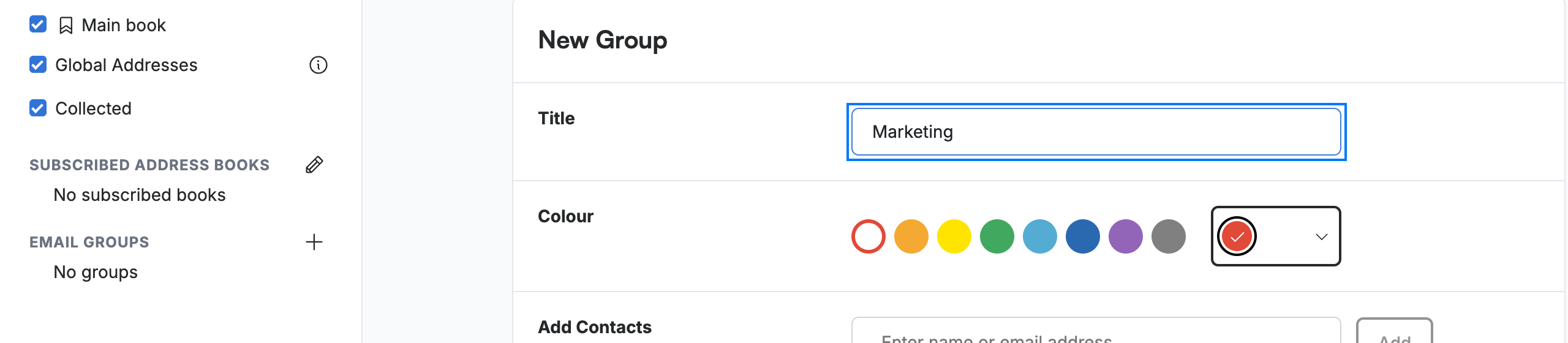
Click Add Email Group in the contacts sidebar, then enter a name in the Title field.
Step 2 — Choose a colour and add contacts
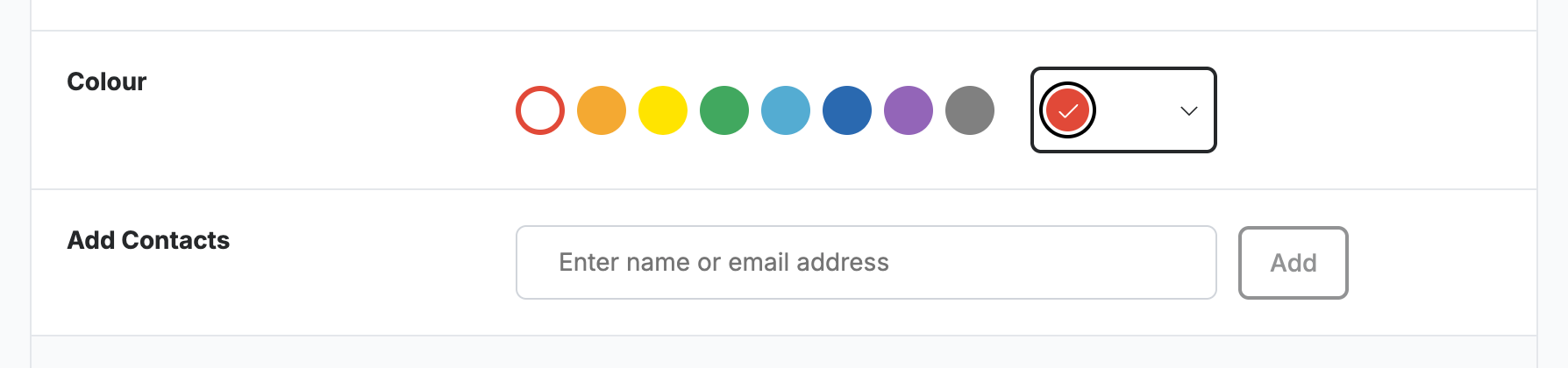
Pick a Colour to label the group, then type a name or email address in Add Contacts and click Add for each member you want to include.
Step 3 — Save the group
Click Save to create the group.
Tip: When composing, type the group's name in the To field to address everyone in it at once.

Explore our other guides to get the most out of Webmail.