Set the timezone Webmail uses for event reminders and a default location for new events, so your calendar shows the right times and pre-fills where events take place. This guide covers both settings, which live on two separate preference panels.
Step 1 — Open Settings
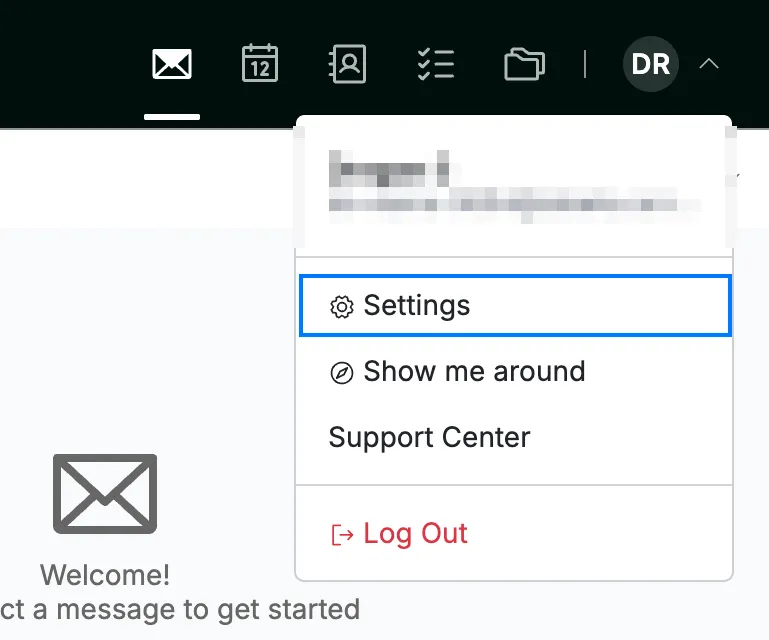
Click your avatar in the top-right corner and select Settings.
Step 2 — Open Date and Language
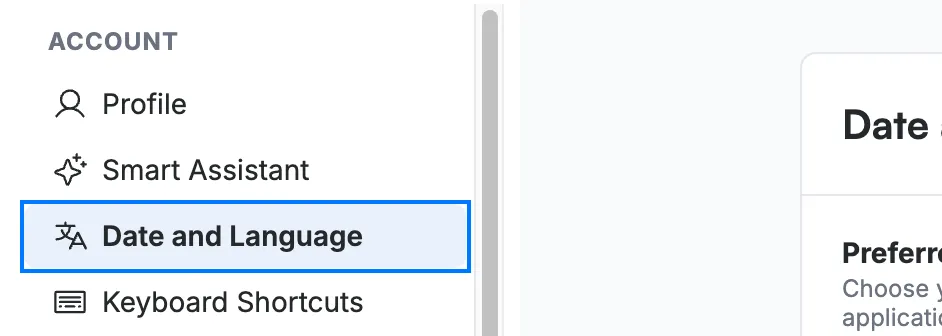
Select Date and Language from the Account section of the settings sidebar.
Step 3 — Set your timezone
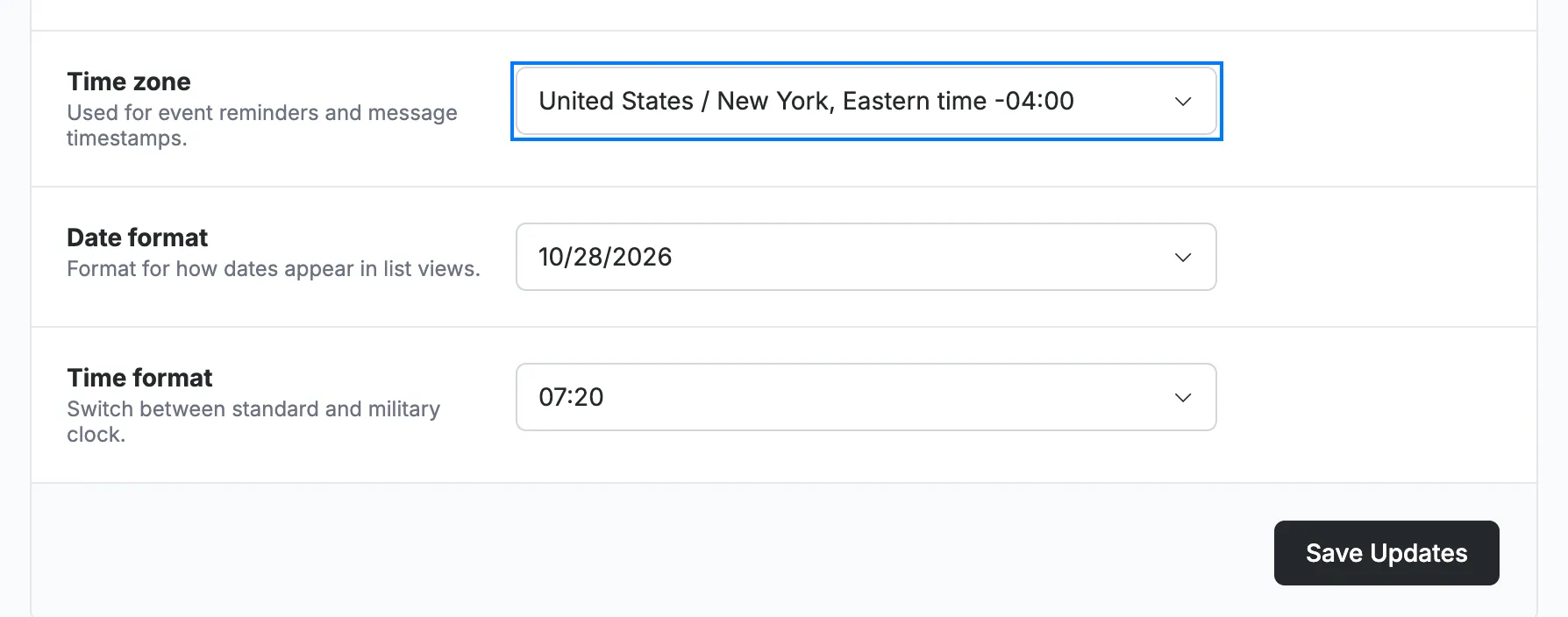
Select your zone from the Time zone dropdown (blue), then click Save Updates at the bottom of the panel to apply it. This zone is used for event reminders and message timestamps.
Step 4 — Open Setup and Location
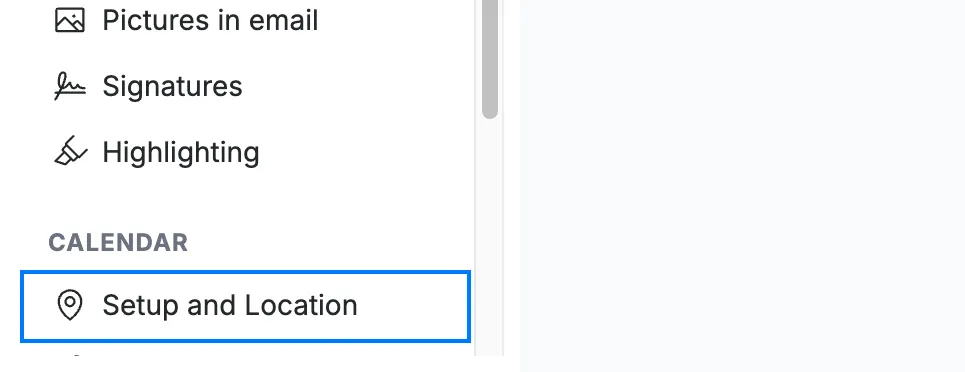
Select Setup and Location from the Calendar section of the settings sidebar.
Step 5 — Enter a default location
Enter the address or place you want pre-filled on new events in the Default location field (orange).

Step 6 — Save your changes
Click Save Updates (green) to apply the setting.

Explore our other guides to get the most out of Webmail.