When another Webmail user shares their calendar with you, it appears in your Shared Calendars list, where you can show or hide it alongside your own. This guide shows where shared calendars appear and how to control them.
Step 1 — Open the calendar
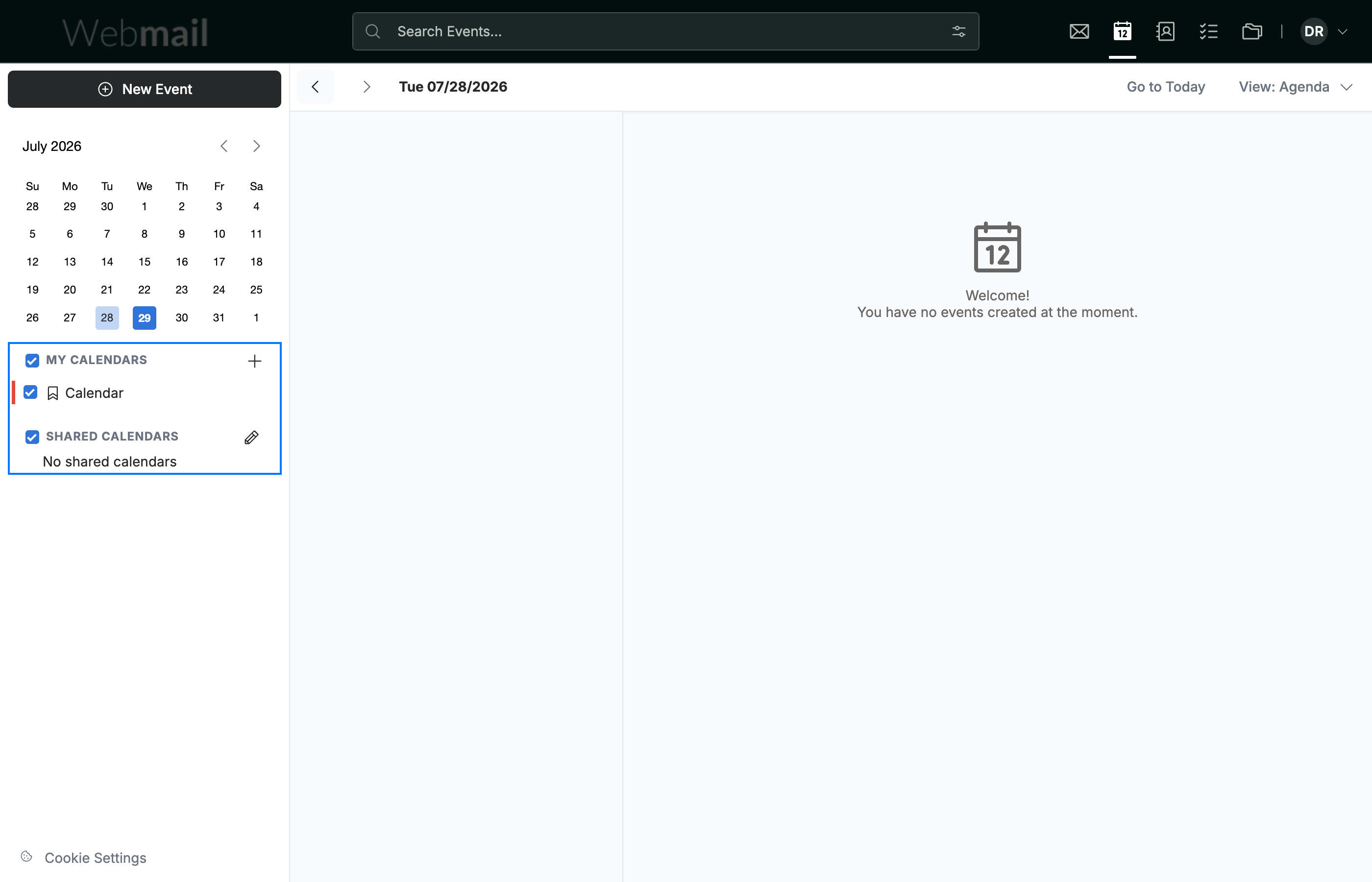
Open the calendar. The Calendars panel (blue) in the left sidebar lists My Calendars — the calendars you own — and Shared Calendars below them.
Step 2 — Find the Shared Calendars section
Locate the Shared Calendars section (blue) in the sidebar. Until someone shares a calendar with you, it shows No shared calendars.
Note: You don't add these yourself — when another user shares their calendar with you, it appears here automatically.

Step 3 — Show or hide shared calendars
Use the controls beside Shared Calendars (blue): the checkbox shows or hides shared calendars on your view, and the pencil opens the management options for them.

Explore our other guides to get the most out of Webmail.