Learn how to add a new contact to your Webmail address book and edit an existing one, so your important people are always a click away when you compose an email.
Step 1 — Click New Contact
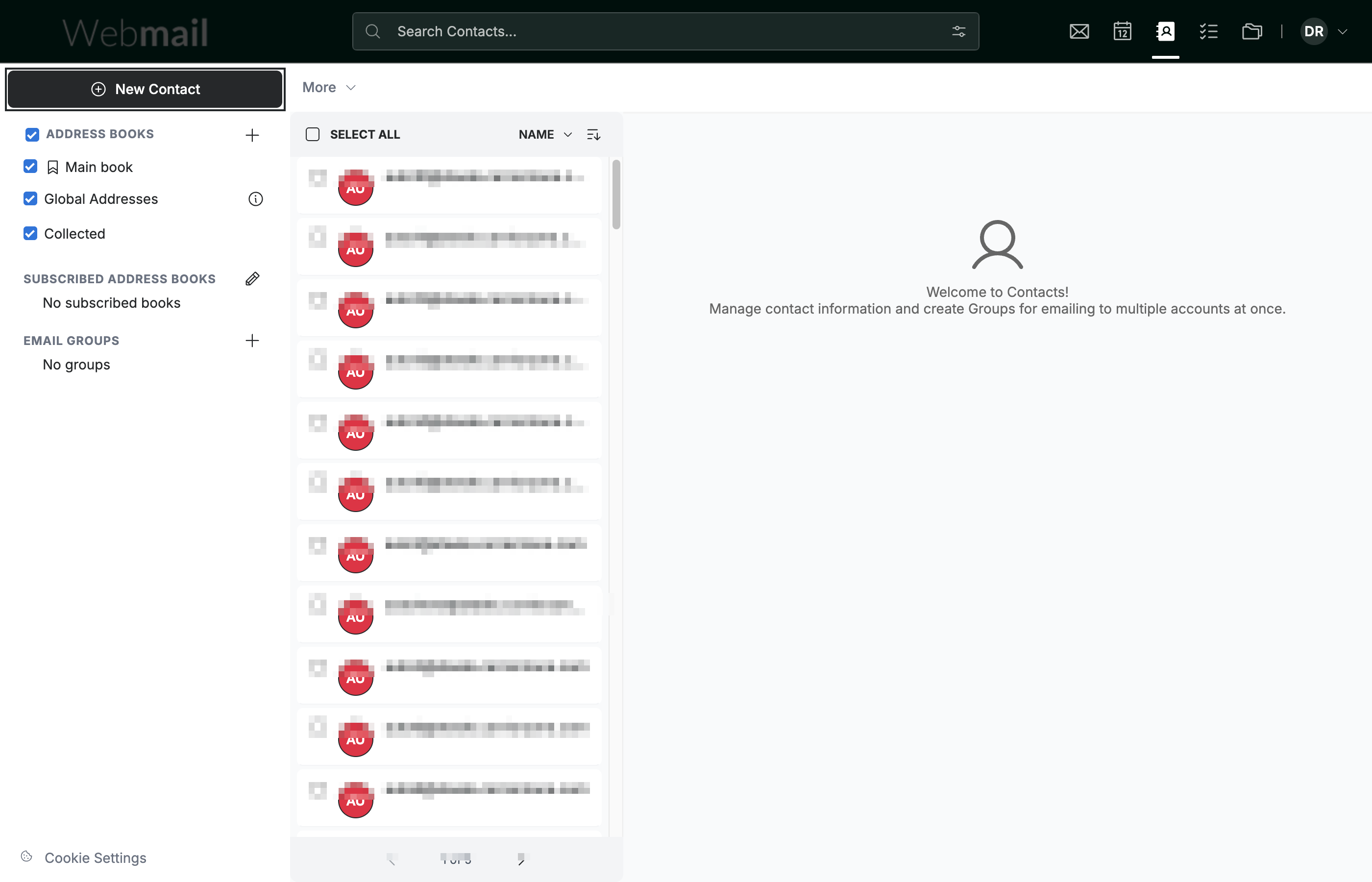
Click New Contact at the top of the contacts sidebar. A blank contact form opens.
Step 2 — Enter the name
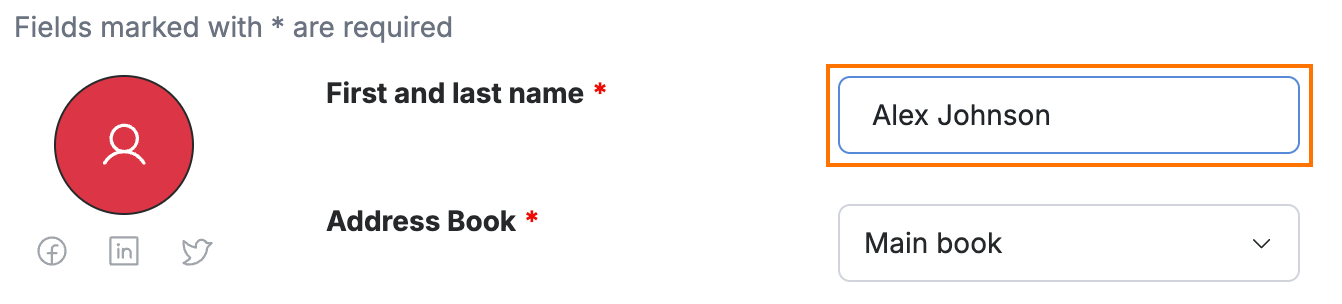
Enter the contact's name in the First and last name field.
Note: First and last name and Address Book are the only required fields, marked with an asterisk (*). The Address Book defaults to Main book, and every other field is optional.
Step 3 — Enter an email address
Enter the contact's email address in the Personal email field.
Tip: Fill in extra fields such as Company, Job Title, Birthday, and social links now — completing them up front saves editing the contact later.

Step 4 — Click Save Contact
Click Save Contact in the top toolbar to add the contact to your address book.

Step 5 — Edit an existing contact
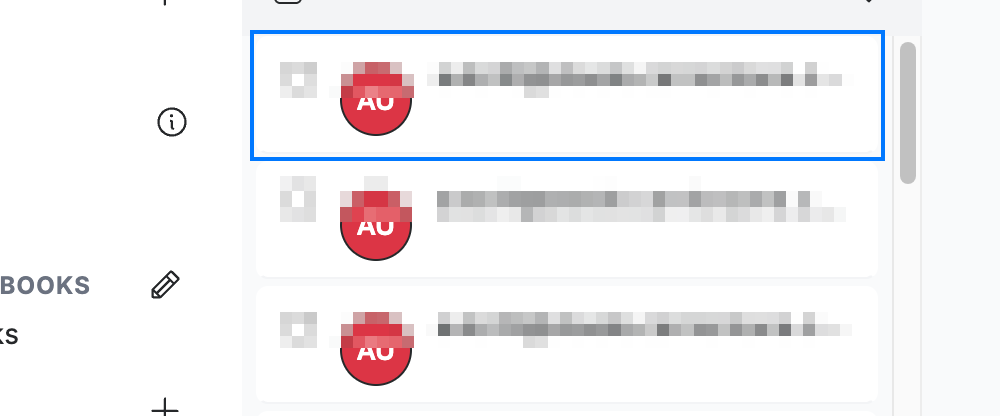
Click any contact in the list to open it, then update its details and save your changes.
Explore our other guides to get the most out of Webmail.