The Webmail inbox is divided into four main areas. This guide walks through each one so you know where to find every feature.
Step 1 — The four main areas
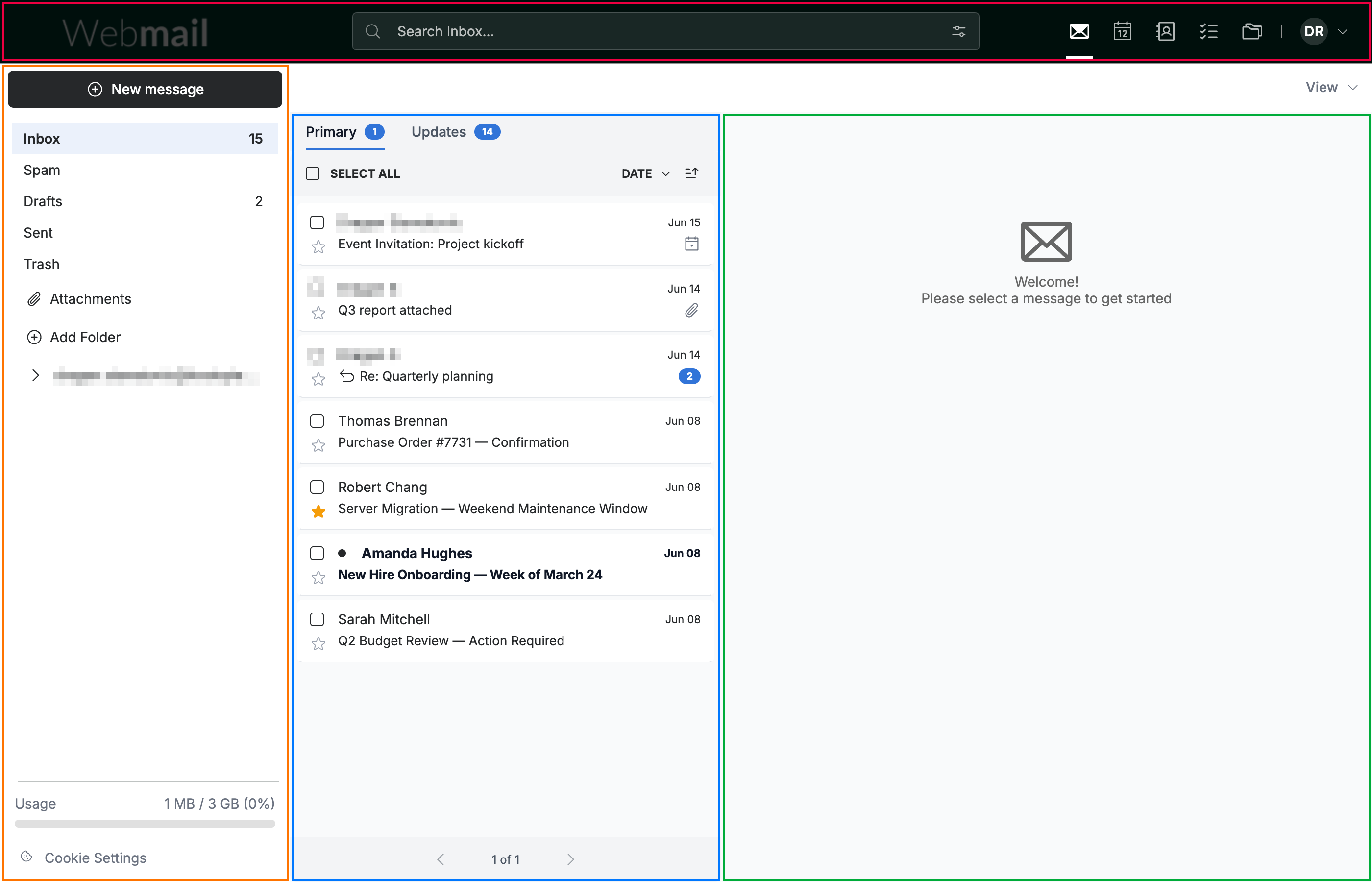
The inbox is split into four regions:
- Navigation bar (red) — the dark bar across the top, with search, the module switcher, and your account menu.
- Sidebar (orange) — the left column, with the New message button, your folders, and the storage indicator.
- Message list (blue) — the middle column, listing the messages in the selected folder. The Primary and Updates tabs at the top split incoming mail into personal correspondence and automated notifications, each with its own unread count.
- Reading pane (green) — the right area, showing the contents of the message you select.
Step 2 — The navigation bar
The navigation bar stays visible across every module:
- Search (blue) — find messages by keyword, sender, or subject.
- Module switcher (orange) — move between Mail, Calendar, Contacts, TaskBox, and Online Storage.
- Account menu (green) — open your profile, settings, and sign-out options.

Step 3 — The sidebar
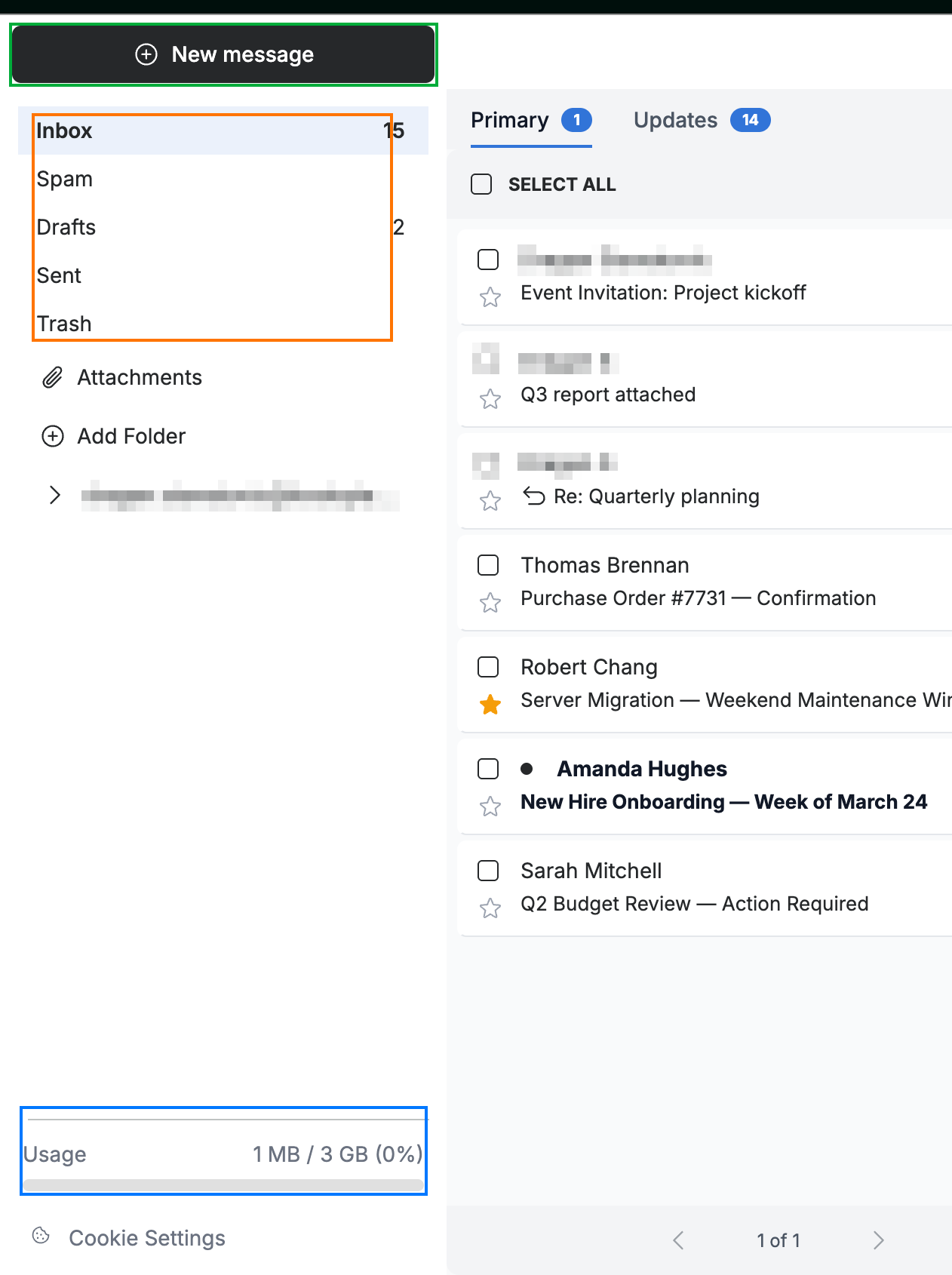
The sidebar groups your mail navigation in one column:
- New message (green) — start composing an email.
- Folder list (orange) — your Inbox, Spam, Drafts, Sent, and Trash folders, with Attachments and Add Folder below.
- Storage indicator (blue) — shows how much of your mailbox quota you have used.
Explore our other guides to get the most out of Webmail.