When a colleague shares one of their address books with you, you can subscribe to it so their contacts appear alongside your own. This guide explains where shared books appear and how to manage the ones you follow.
Before you begin: You can only subscribe once someone on your same email domain has shared a book with you. If no one has shared one, there is nothing to subscribe to yet — see *How to share your address book with another user* for the other side of this process.
Step 1 — Find your subscribed address books
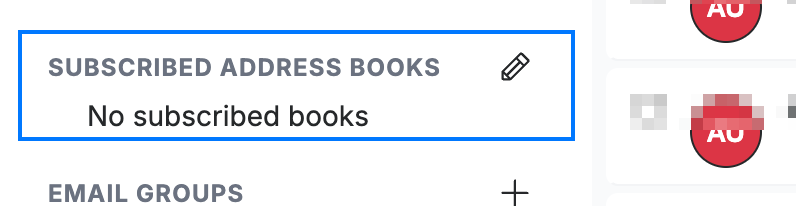
Open the Subscribed Address Books section (blue) in the Contacts sidebar. Books shared with you appear here, below your own books — until then it shows No subscribed books.
Step 2 — Manage which books you follow
Select Manage Subscribed in the sidebar to choose which shared books appear and to stop following one you no longer need.
Step 3 — Review your access level
Review the permission the owner granted you: Read only lets you view their contacts, while Add also lets you create entries in the shared book.
Note: A subscribed book stays owned by the person who shared it — you see their contacts, but the book remains theirs.
Explore our other guides to get the most out of Webmail.