Your profile image is the picture that represents you in Webmail. This guide shows how to add one from the Profile settings.
Step 1 — Open Settings
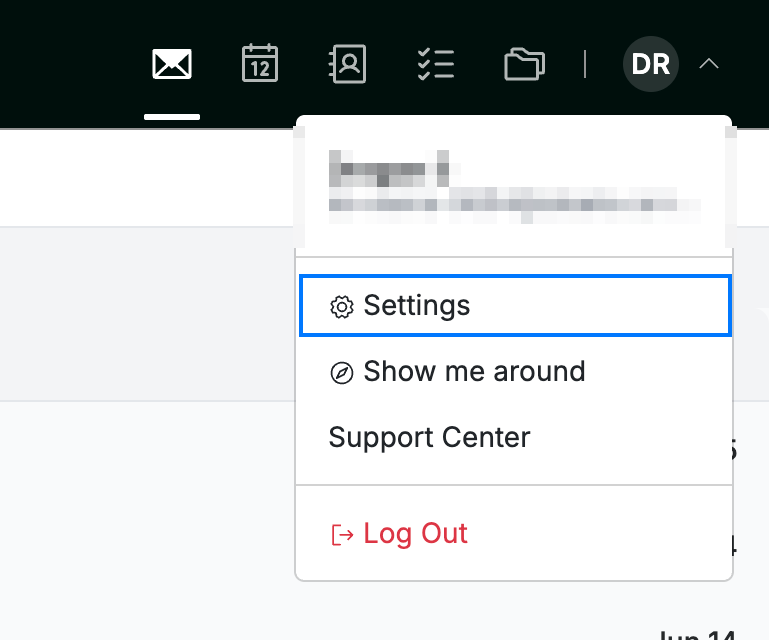
Click your avatar in the top-right corner and select Settings.
Step 2 — Open the Profile panel
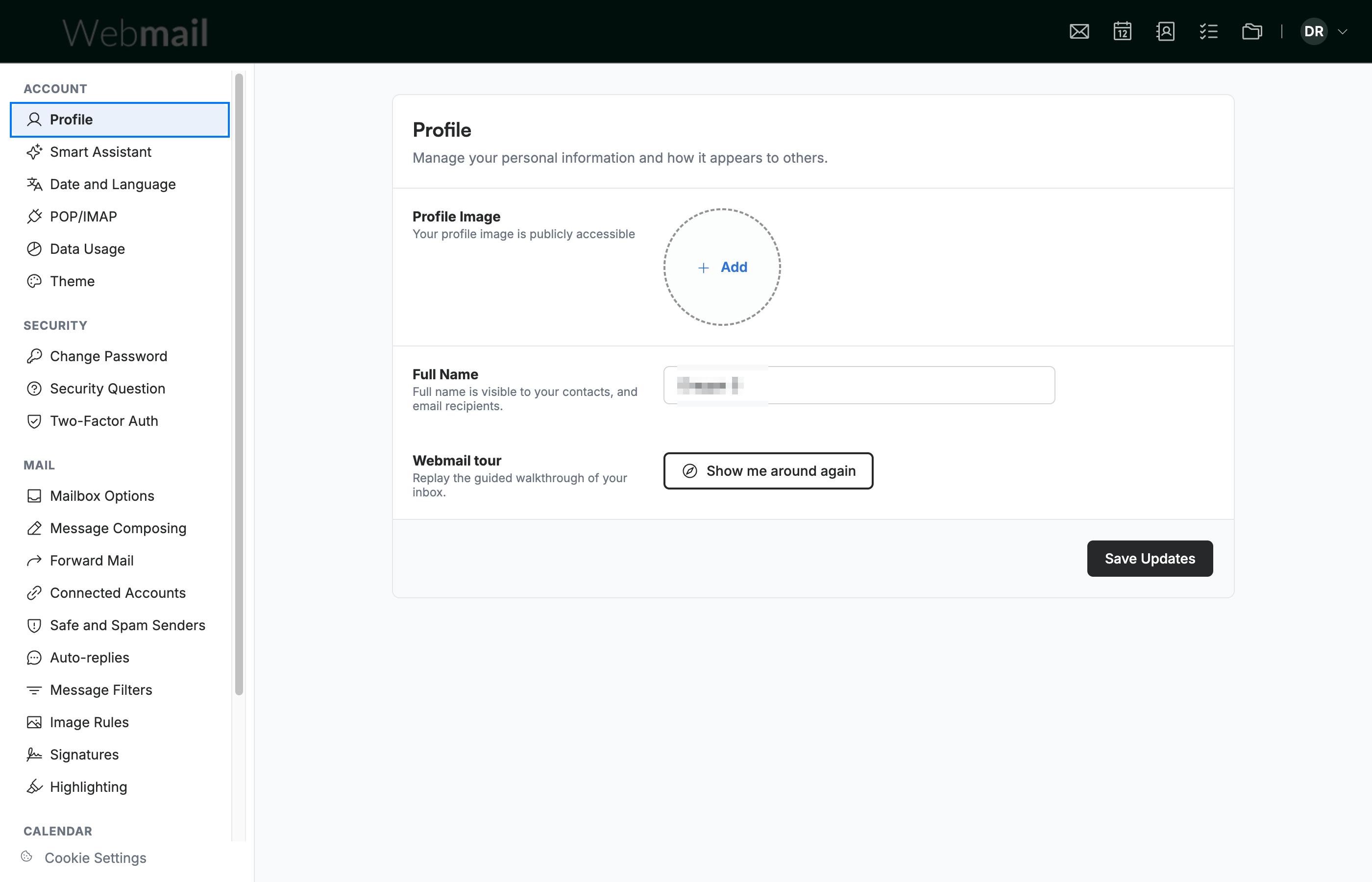
Select Profile (blue) from the Account section of the settings sidebar.
Step 3 — Add a profile image
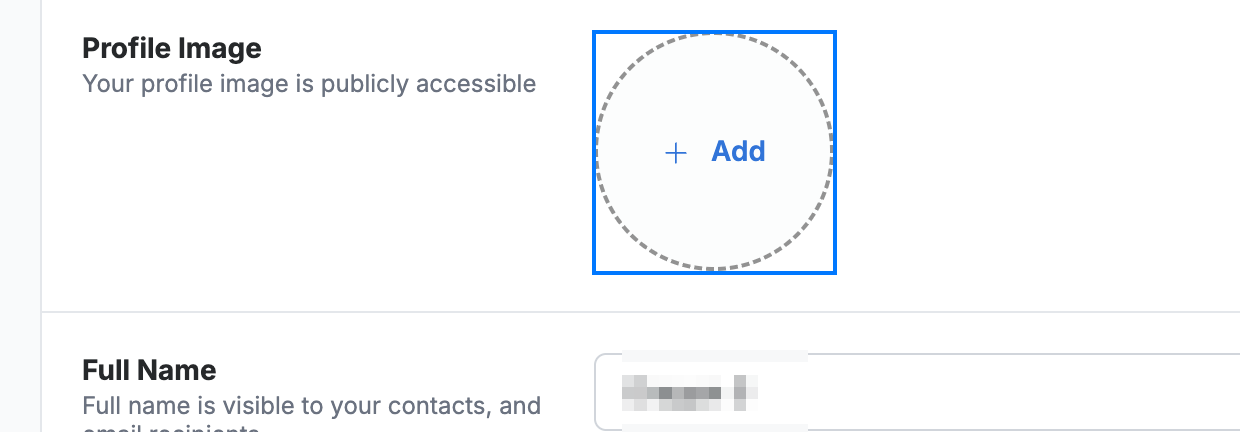
Click the + Add circle (blue) in the Profile Image section, then choose an image file from your computer.
Note: Your profile image is publicly visible to your contacts and email recipients.
Step 4 — Save your changes
Click Save Updates (green) to apply your new profile image.

Explore our other guides to get the most out of Webmail.