Subtasks break a larger task into smaller steps you can tick off one by one. This guide shows how to add subtasks to a task.
Step 1 — Open the Subtasks section
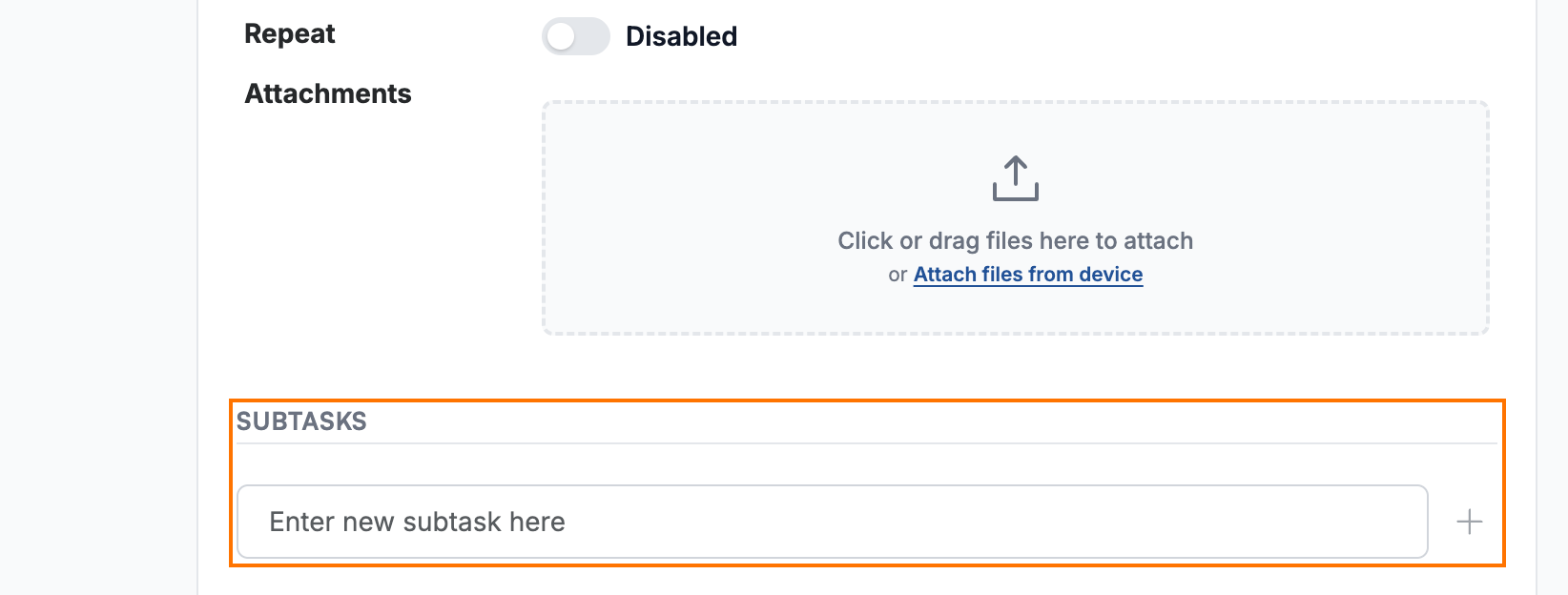
Go to the Subtasks section (orange) in a task, located below Attachments.
Step 2 — Enter a subtask
Enter a step in the Enter new subtask here field (blue), then press Enter or click the + to add it. Repeat for each subtask.

Step 3 — Review your subtask list
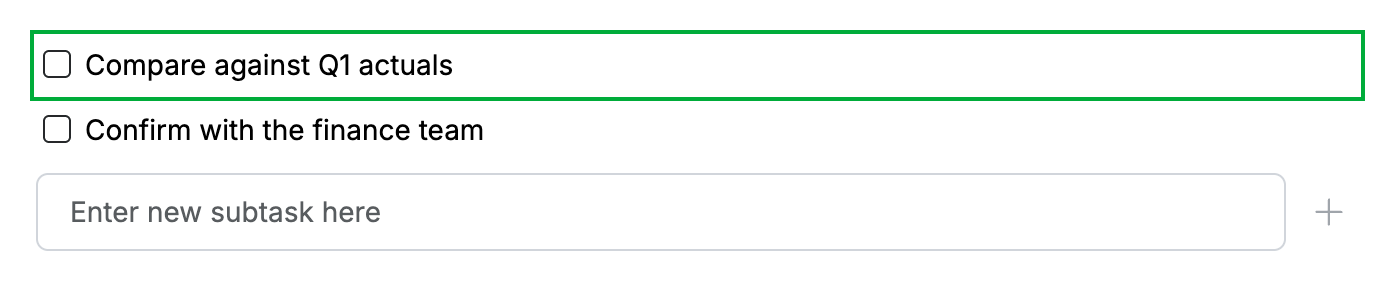
Review your subtask list (green): each subtask appears with its own checkbox. Click the checkbox to tick the subtask off as you complete it.
Explore our other guides to get the most out of Webmail.