The Reply-to Address setting controls where replies to your messages are delivered — by default, to your own address. This guide explains the setting and how to change it.
Step 1 — Open Settings
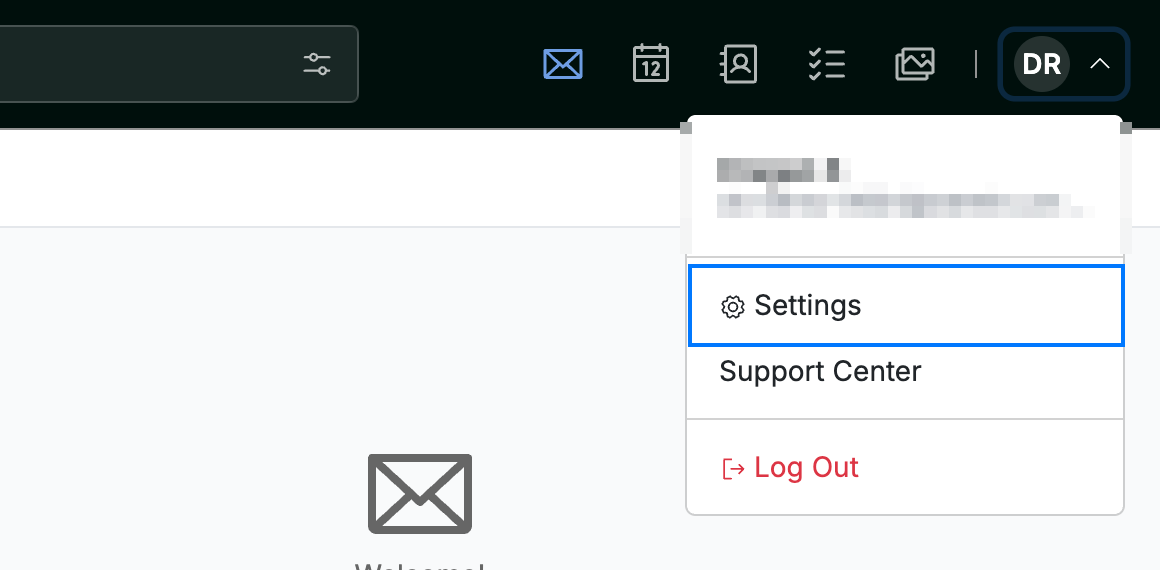
Click your avatar in the top-right corner and select Settings.
Step 2 — Select Message Composing
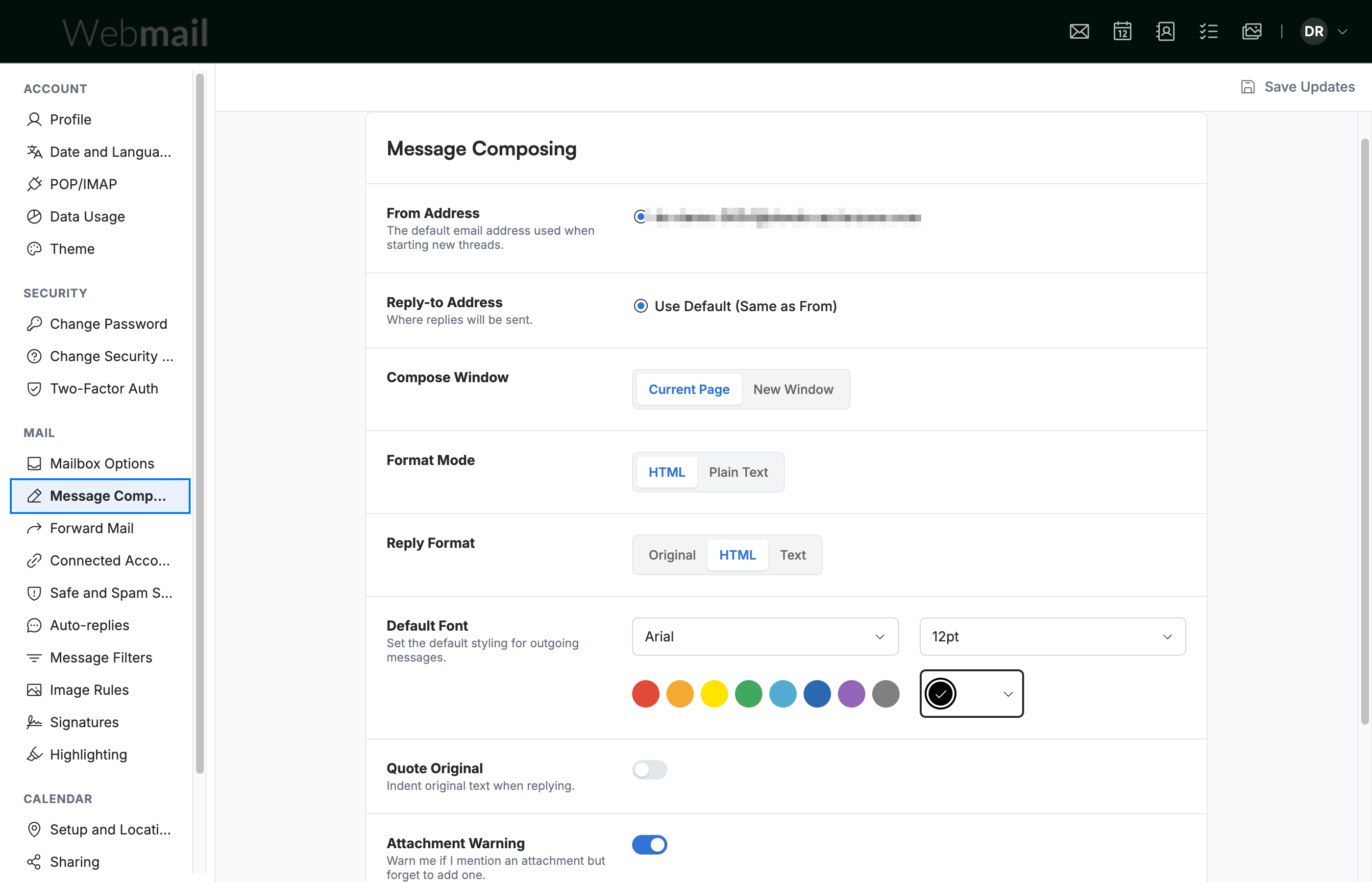
Select Message Composing from the settings sidebar.
Step 3 — Review the Reply-to Address setting
The Reply-to Address setting determines where replies to your messages are sent:
- Use Default (Same as From) — replies go to your own email address. This is selected by default.
- When your account has additional addresses available, they appear here so you can route replies to a different address.
Before you begin: To send replies to an address other than your own, that address must first be available on your account. Until then, only Use Default (Same as From) is shown.

Step 4 — Click Save Updates
Click Save Updates to apply your choice.

Explore our other guides to get the most out of Webmail.