Inbound email authentication checks (SPF and DKIM) can occasionally flag legitimate mail. You can let your Safe Senders skip those checks so their messages always get through. This guide shows how.
Step 1 — Open Settings
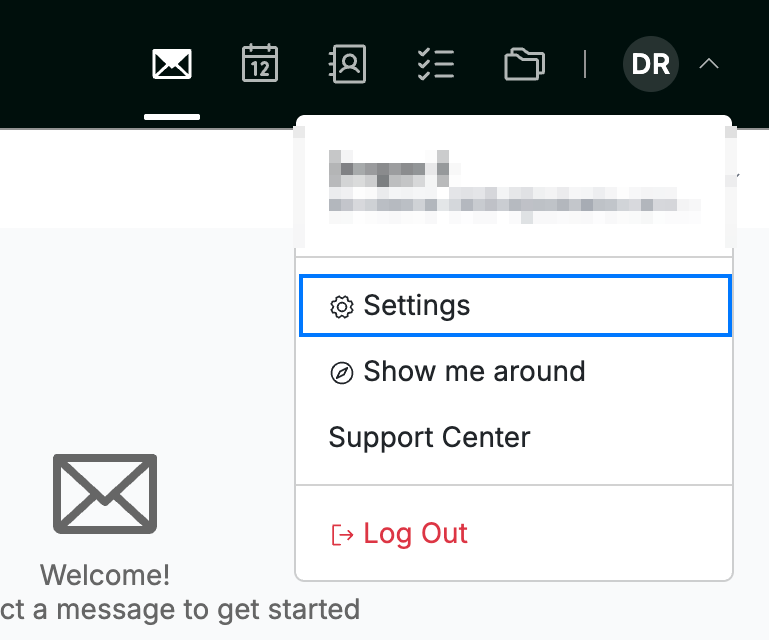
Click your avatar in the top-right corner and select Settings.
Step 2 — Open Safe and Spam Senders
Select Safe and Spam Senders (blue) from the Mail section of the settings sidebar.

Step 3 — Enable inbound email authentication
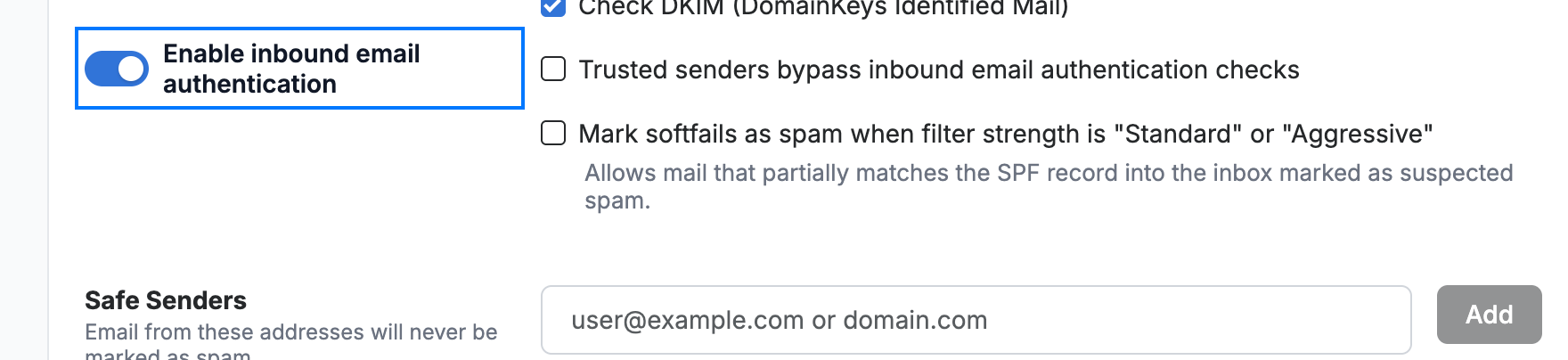
Click the Enable inbound email authentication toggle (blue) to turn it on. This reveals the SPF, DKIM, and trusted-sender options.
Step 4 — Turn on trusted-sender bypass
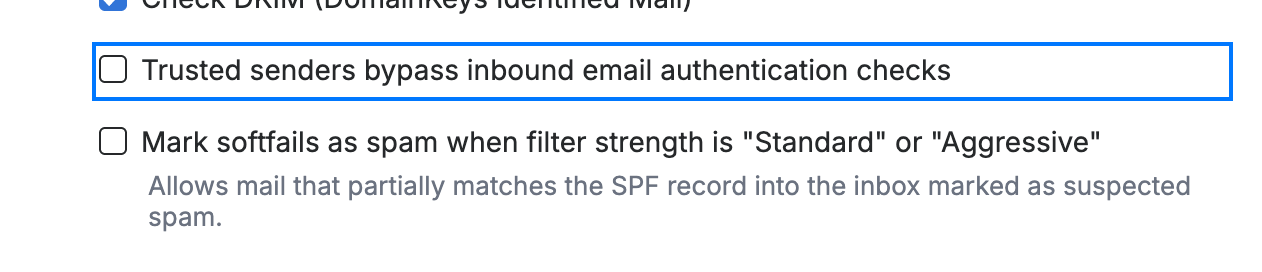
Click the Trusted senders bypass inbound email authentication checks checkbox (blue) to tick it, then click Save Updates. Mail from addresses on your Safe Senders list now skips the SPF and DKIM checks.
Note: Only enable this if you trust your Safe Senders list — bypassing authentication makes it easier to spoof those addresses.
Explore our other guides to get the most out of Webmail.