The Help me write tool drafts an email for you from a short description, so you can start from a polished draft instead of a blank page. This guide shows how to generate one.
Step 1 — Open the Help me write tool
Open a new message, then click the Help me write button (blue) — the sparkle icon at the left of the formatting toolbar.

Step 2 — Describe your email
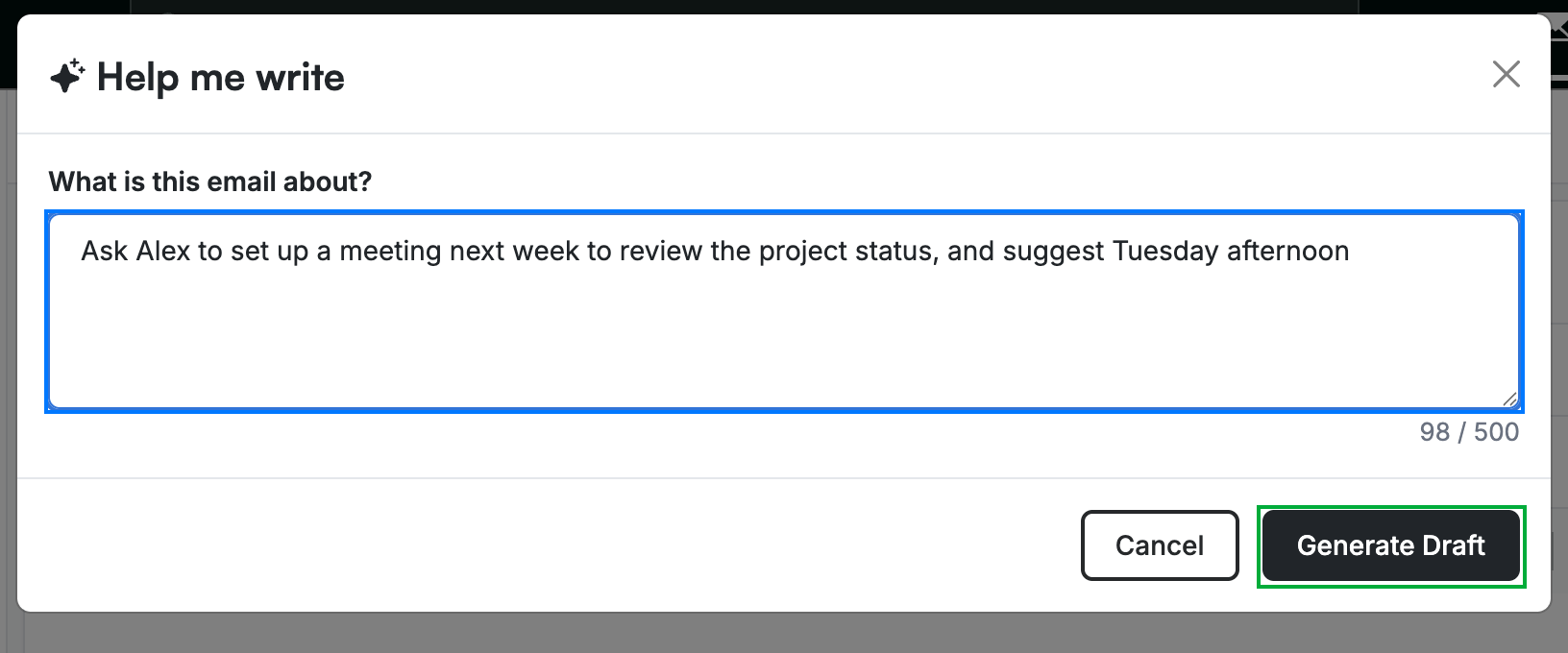
Enter what the email should say in the What is this email about? box (blue) — a sentence or two is enough. Then click Generate Draft (green).
Note: You can enter up to 500 characters. The more specific your description, the closer the draft will be to what you want.
Step 3 — Review the generated draft
Review the message body (green): the AI writes a full draft for you. Read it over and edit anything before sending — the draft is a starting point, not a final version.
Tip: Use the Refine tool next to Help me write to adjust the tone or length of the draft.

Explore our other guides to get the most out of Webmail.