Quick Replies suggest ready-made responses to an email so you can answer in a single click. Learn how to pick a suggestion, review the drafted reply, and send it.
Step 1 — Open an email
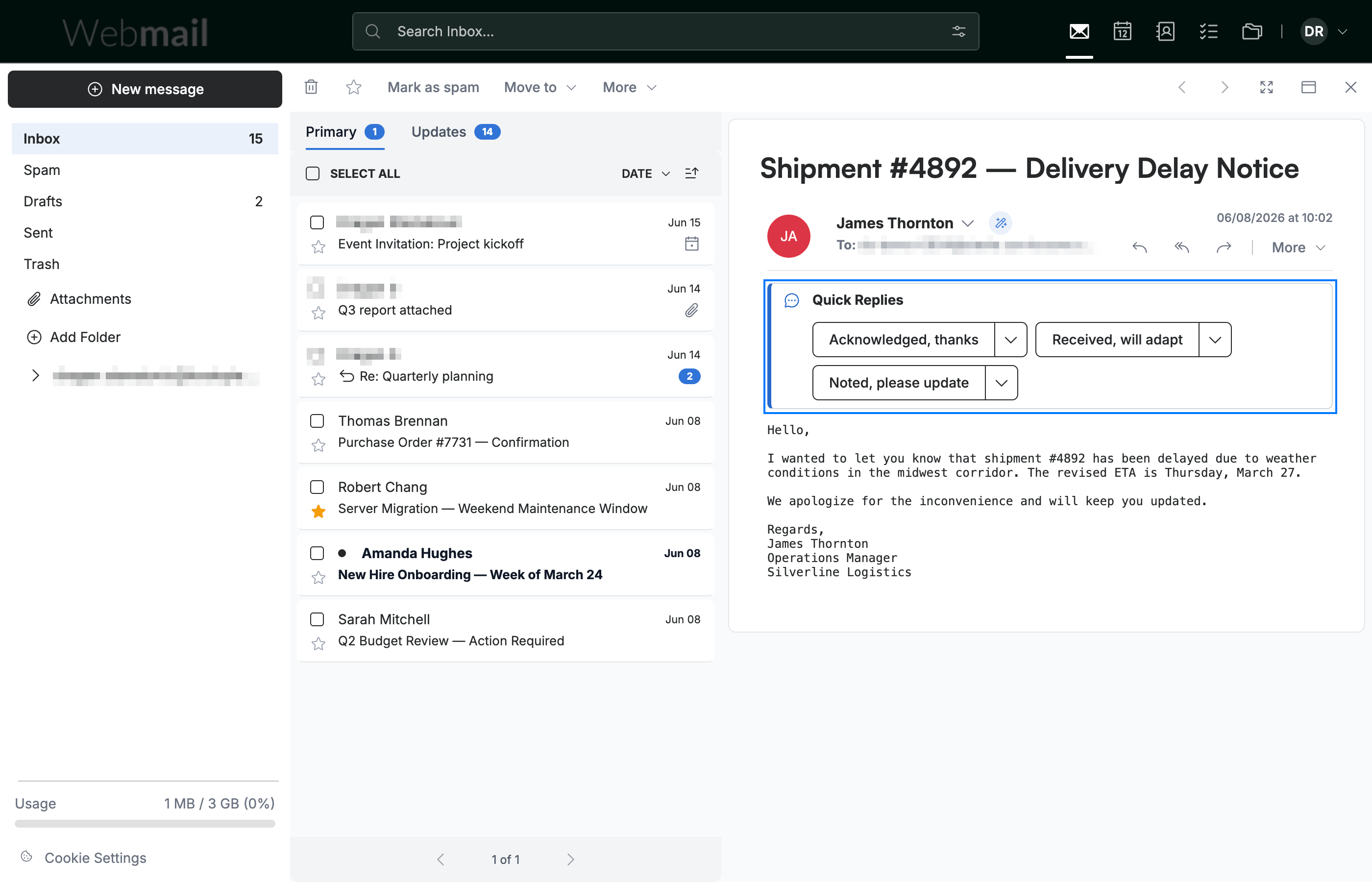
Open any email in your inbox. The Quick Replies bar (blue) appears above the message with short responses suggested from the email's content.
Step 2 — Review the suggested replies
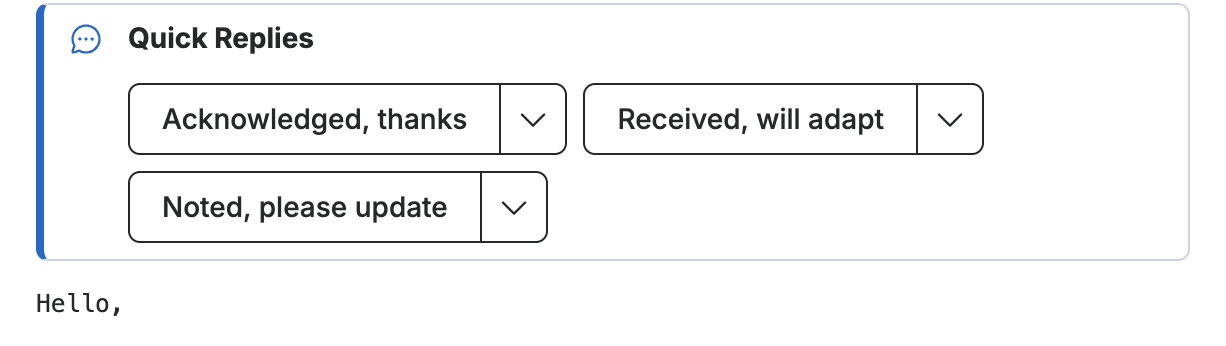
Review the AI-suggested replies in the Quick Replies bar. Each one is a ready-to-use short reply tailored to the message, and the ∨ button beside it opens a longer, full-sentence version.
Step 3 — Apply a suggestion
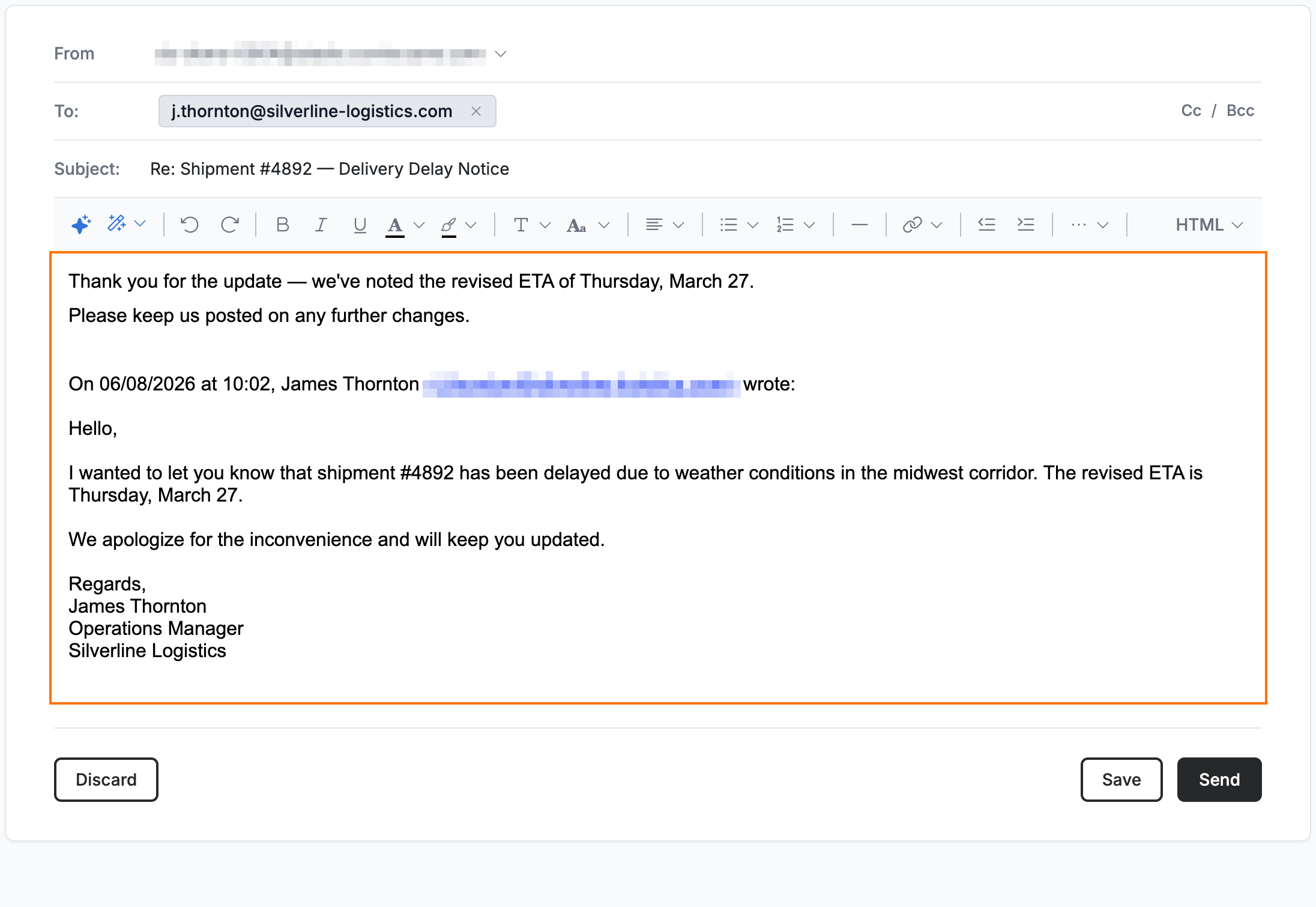
Click a suggestion to use it. A reply opens with the drafted text (orange) already filled into the message body, ready for you to review or edit.
Tip: Click the ∨ button next to a suggestion, instead of the short reply itself, to start from a longer, more complete draft.
Step 4 — Review and send
Review the reply and make any edits, then click Send (green) to send it.
Note: Quick Replies are generated by the Smart Assistant. If you don't see them, enable the Smart Assistant in Preferences > Smart Assistant.

Explore our other guides to get the most out of Webmail.