Learn how to mark a calendar event as all-day in Webmail — useful for birthdays, holidays, and deadlines that span a whole day rather than a set time.
Step 1 — Turn on All Day
Click the All Day toggle in the event form.
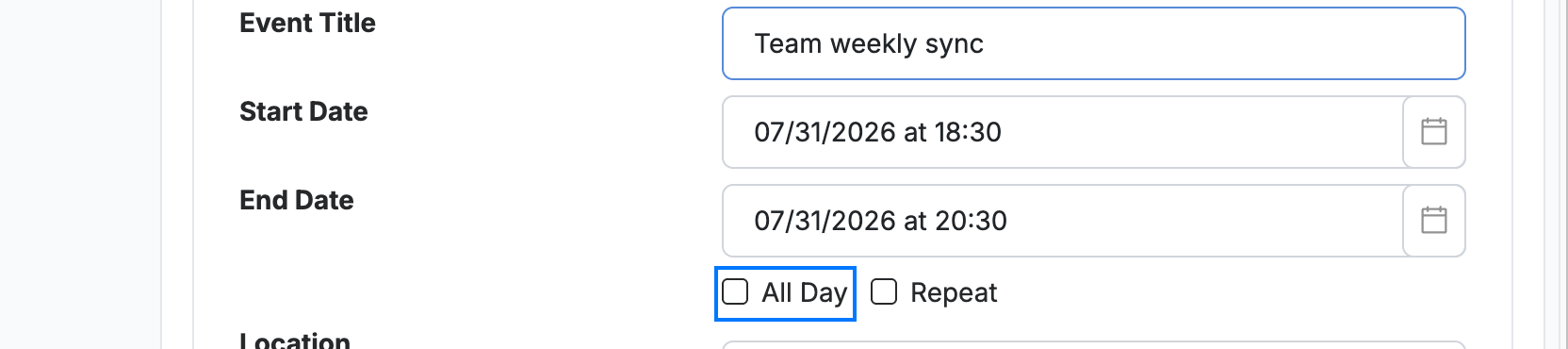
Step 2 — Set the date
Set the event date in the Start Date field. With All Day on, the Start Date and End Date fields show only a date — the time is removed.
Tip: For an event that spans several days, set a later End Date while All Day stays on.

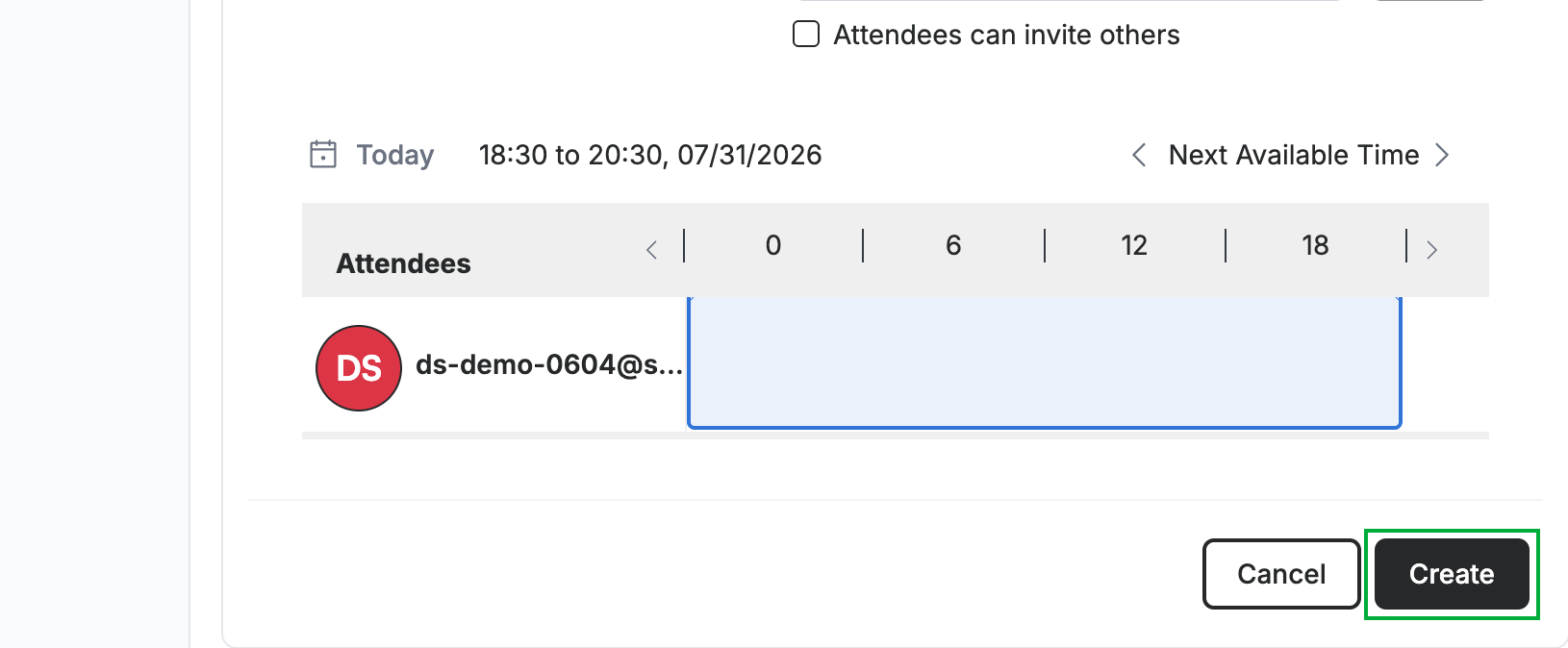
Step 3 — Click Create
Click Create to add the all-day event to your calendar.
Explore our other guides to get the most out of Webmail.