The Smart Assistant is Webmail's built-in AI suite — it drafts emails, refines your wording, and suggests replies. Learn how to turn it on and where to find each tool.
Step 1 — Enable the Smart Assistant
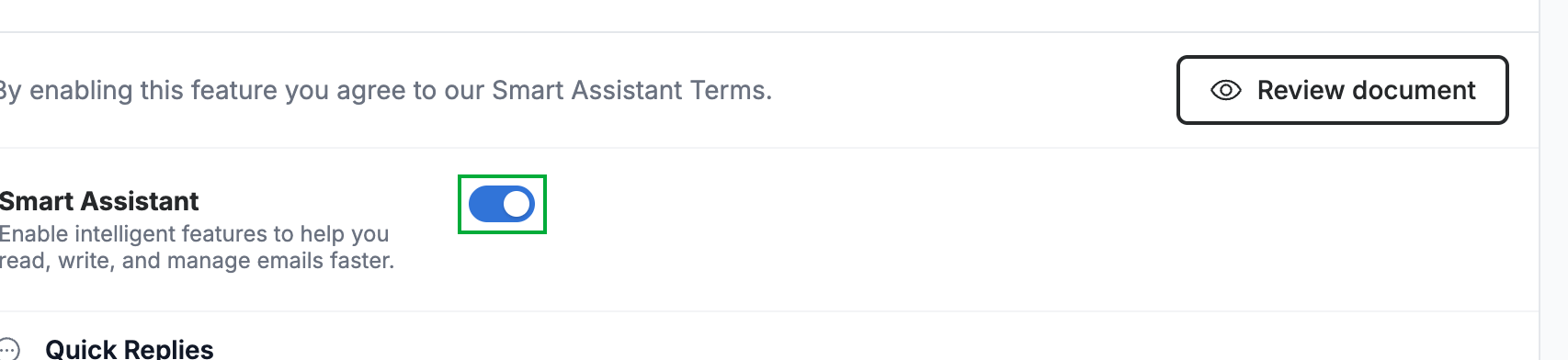
Go to Preferences > Smart Assistant and turn on the Smart Assistant toggle (green).
Note: Turning on the Smart Assistant means you agree to the Smart Assistant Terms.
Step 2 — Draft an email with Help me write
Click Help me write in the compose window — the sparkle icon at the left of the formatting toolbar. Describe what your email is about and the Smart Assistant generates a draft. For the full walkthrough, see How to Draft an Email with AI (Help me write).

Step 3 — Refine your wording
Click Refine, just to the right of Help me write, to rework text you have already written. The options are Improve Grammar, Make it more professional, Make it more casual, and Shorten. For the full walkthrough, see How to Refine Email Text with AI.

Step 4 — Reply with Quick Replies
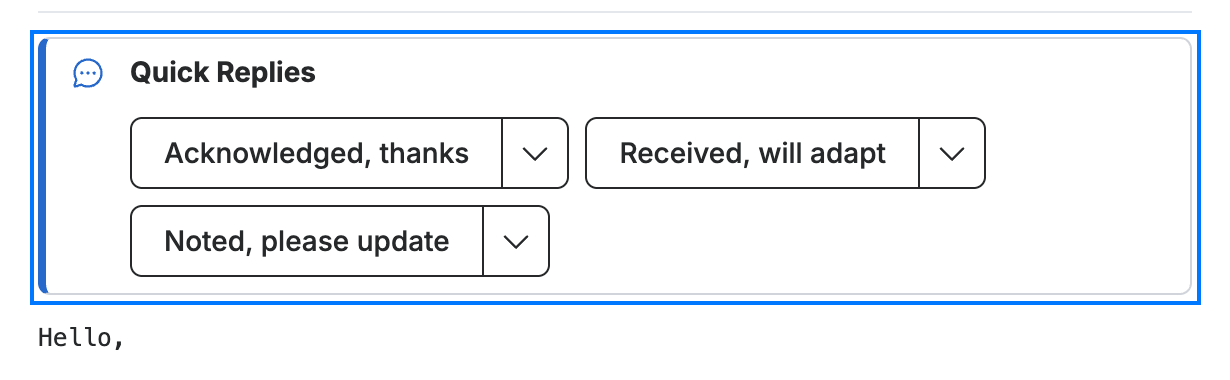
Open an email to see the Quick Replies bar (blue) with suggested responses. Click a suggestion to drop it into a reply. For the full walkthrough, see How to Reply Faster with Quick Replies.
Explore our other guides to get the most out of Webmail.