You can open and read an email attachment right inside Webmail, without saving it to your device first. This guide shows how to preview an attachment and use the controls in the preview window.
Step 1 — Open the attachment in a message
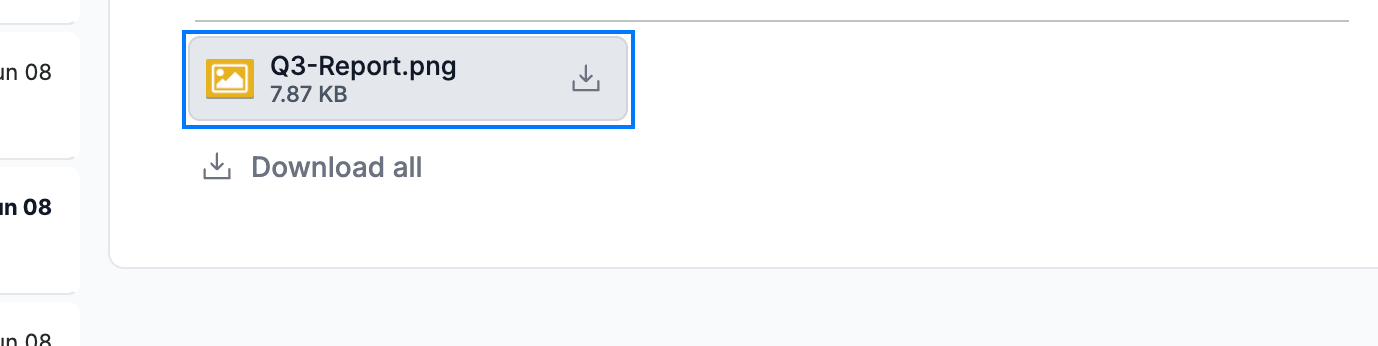
Open the message, then find the attachment at the bottom (blue). Click the attachment to preview it — or use Download or Download all if you want to save it instead.
Step 2 — Preview the attachment
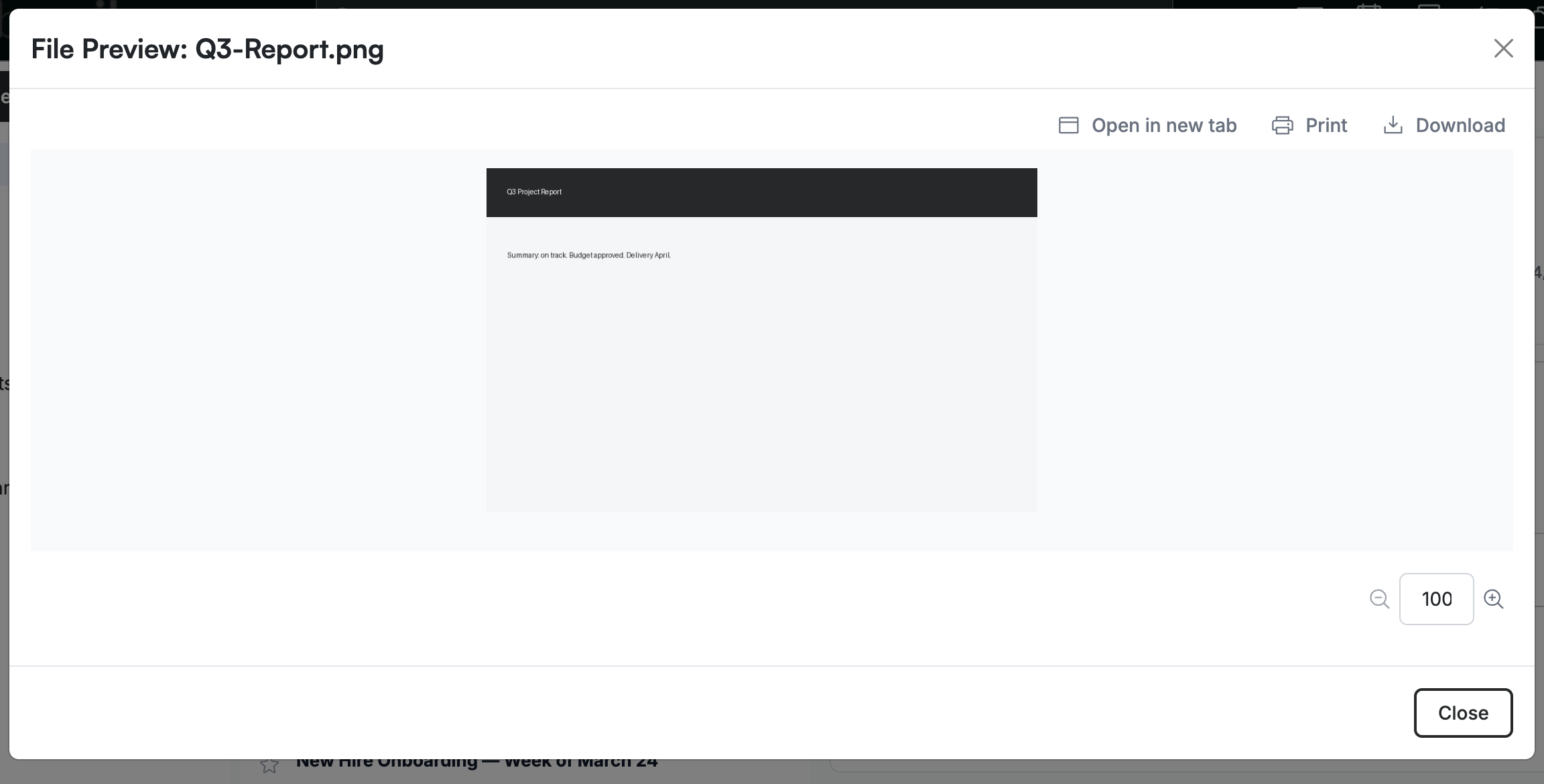
Review the file's contents in the File Preview window that opens. Use the zoom controls at the bottom to enlarge or shrink the view, and click Close when you are done.
Step 3 — Use the preview tools
Use the toolbar at the top of the preview (blue) to act on the file without leaving Webmail: Open in new tab to view it full-screen, Print to send it to a printer, or Download to save a copy.

Explore our other guides to get the most out of Webmail.