The first time you sign in to Webmail, a Terms & Conditions screen asks you to review the AI features consent document before you reach your inbox. This guide walks through signing in and responding to that screen.
Step 1 — Log in
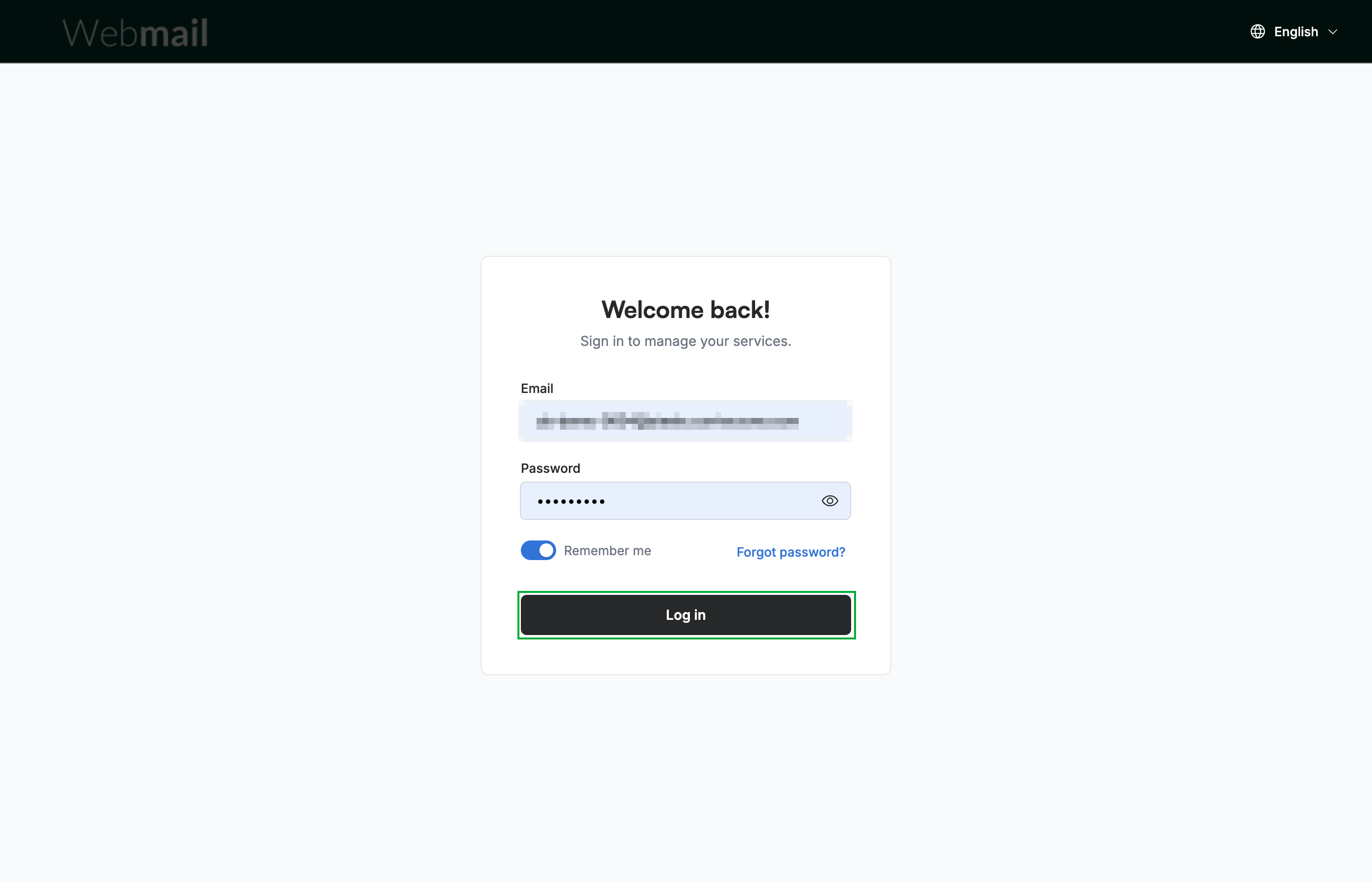
Enter your email and password on the login screen, then click Log in.
Step 2 — Review the Terms & Conditions
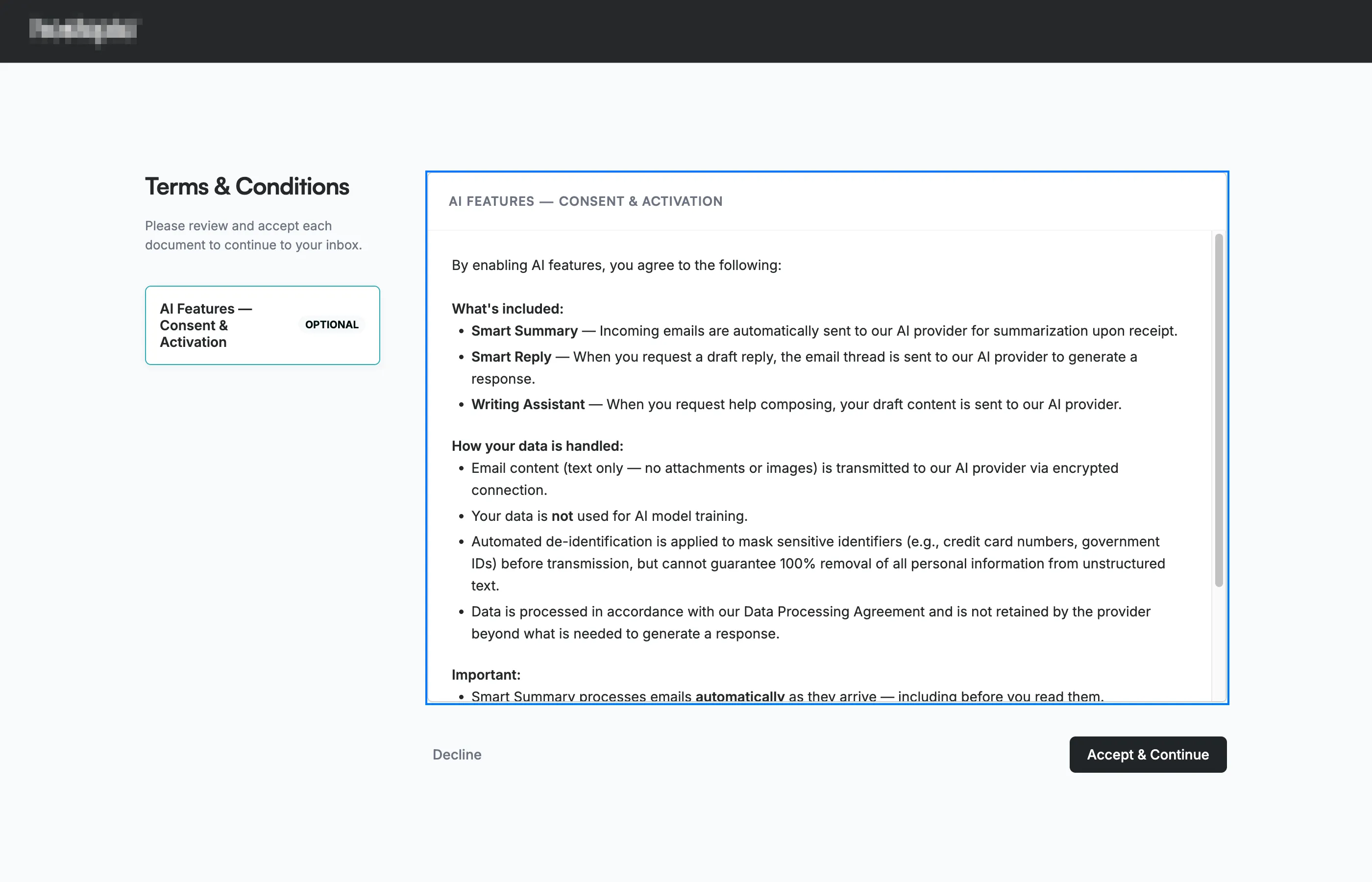
Review the Terms & Conditions screen that appears after your first sign-in. The selected document's full text appears in the main panel; scroll through it to read what the AI features do, how your email content is handled, and how to turn them off later.
Note: You cannot reach your inbox until you respond to this screen.
Step 3 — Select the document
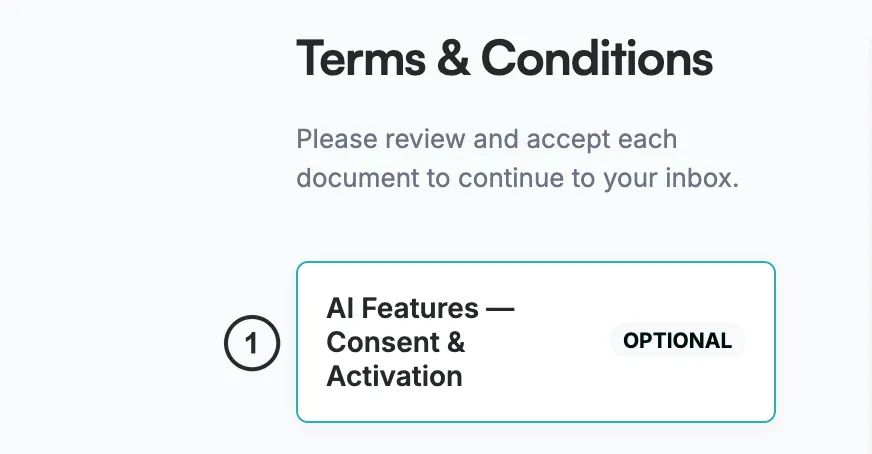
Select AI Features — Consent & Activation ① in the left panel to open and read it in the main panel. The document is marked Optional; it covers the Smart Summary, Smart Reply, and Writing Assistant tools.
Step 4 — Accept and continue
Click Accept & Continue to consent to the AI features and open your inbox. To continue without enabling them, click Decline and confirm — your refusal is recorded and you still reach your inbox.
Tip: You can change this later at any time in Settings > Smart Assistant.

Explore our other guides to get the most out of Webmail.