The first time you sign in to Webmail, a Terms & Conditions screen asks you to review and accept the required documents before you reach your inbox. This guide walks through signing in and accepting the terms.
Step 1 — Log in
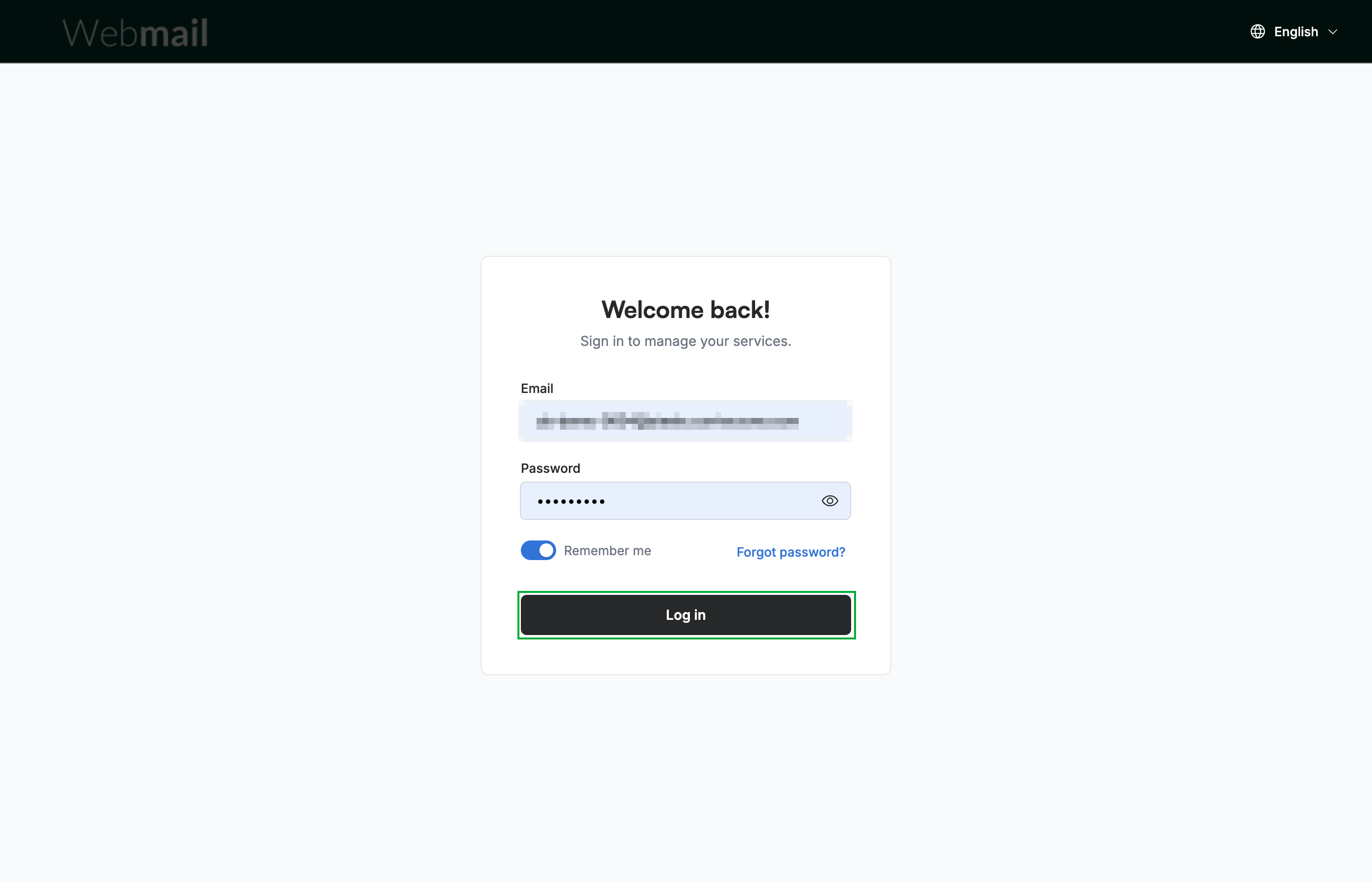
Enter your email and password on the login screen, then click Log in.
Step 2 — Review the Terms & Conditions
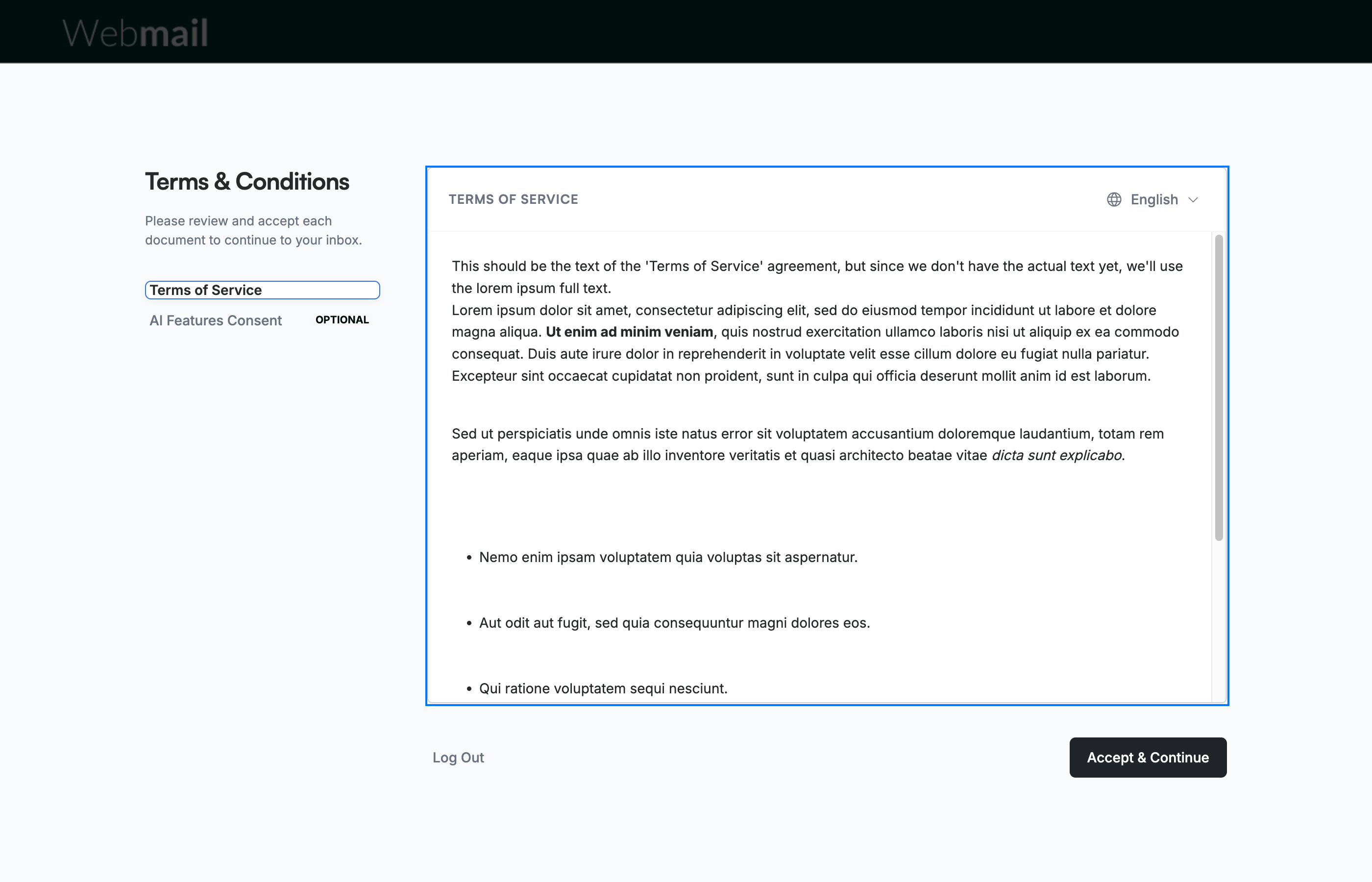
Review the Terms & Conditions screen that appears after your first sign-in. The selected document's full text appears in the main panel; scroll through it to read the complete document, and use the language selector at the top-right of the panel to read it in another language.
Note: You cannot reach your inbox until you accept the required documents.
Step 3 — Select each document
Select each document listed in the left panel — Terms of Service ① and AI Features Consent ② — to open and read it in the main panel. AI Features Consent is marked Optional; it covers the AI writing tools and is not required to continue.

Step 4 — Accept and continue
Click Accept & Continue to accept the terms and open your inbox. To sign in with a different account instead, click Log Out.

Explore our other guides to get the most out of Webmail.