Tell Webmail which hours you are available so it suggests event times within your working day. This guide shows how to turn on custom hours and set your availability window in Setup and Location.
Step 1 — Open Settings
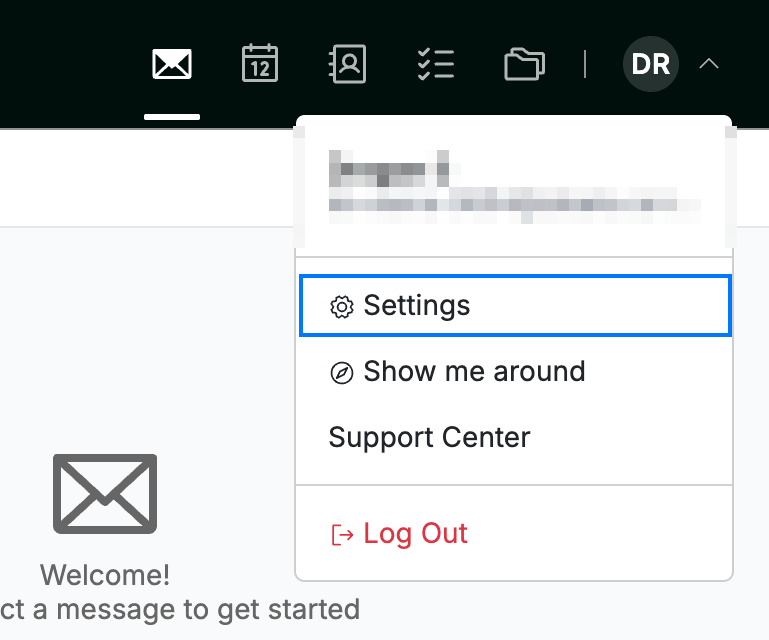
Click your avatar in the top-right corner and select Settings.
Step 2 — Open Setup and Location
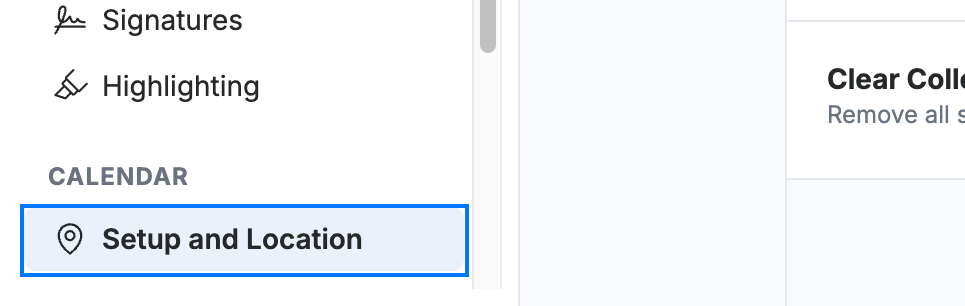
Select Setup and Location from the Calendar section of the settings sidebar.
Step 3 — Turn on custom hours
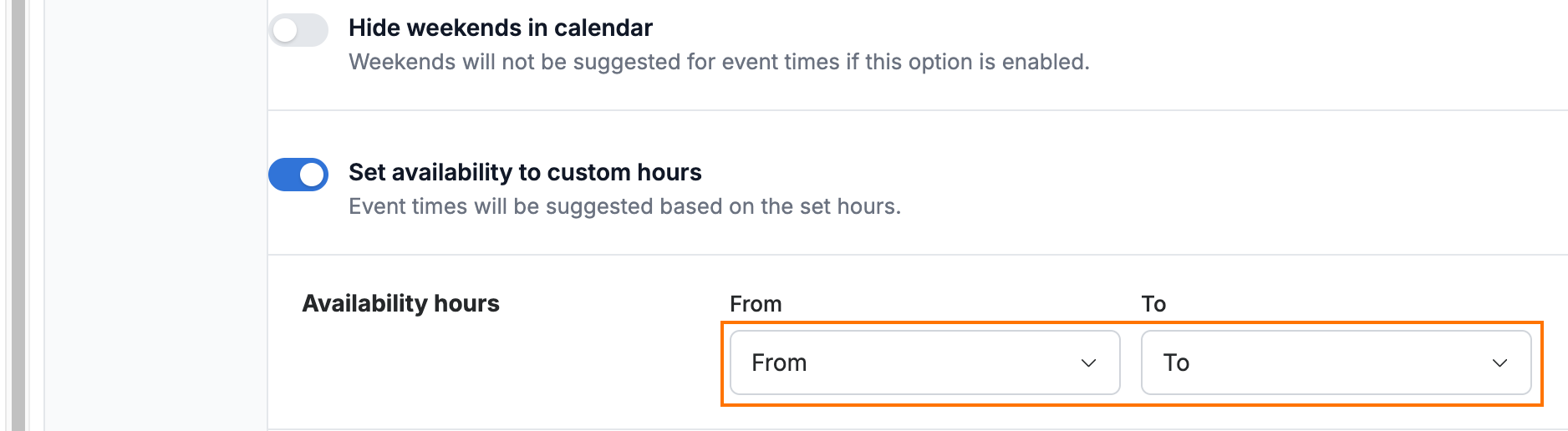
Click the Set availability to custom hours toggle (blue) to turn it on. Webmail then suggests event times based on the hours you set.

Step 4 — Set your availability window
Select your start time from the From dropdown and your end time from the To dropdown (orange).
Step 5 — Save your changes
Click Save Updates (green) to apply the setting.

Explore our other guides to get the most out of Webmail.