Choose the typeface, text size, and colour applied to every new message you write. This guide shows how to set your default font styling from settings.
Step 1 — Open Settings
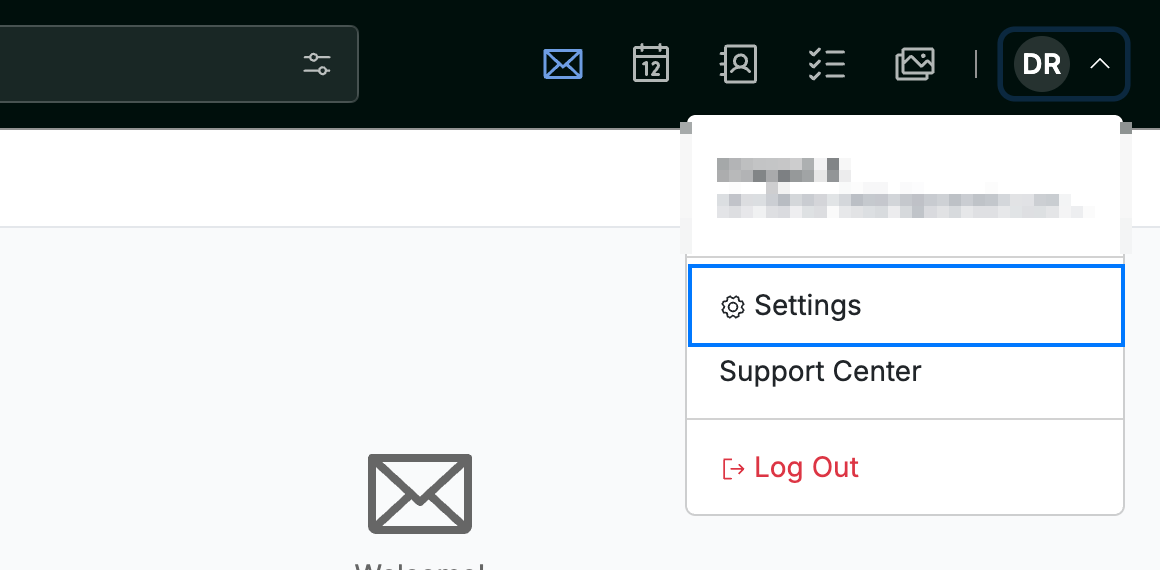
Click your avatar in the top-right corner and select Settings.
Step 2 — Select Message Composing
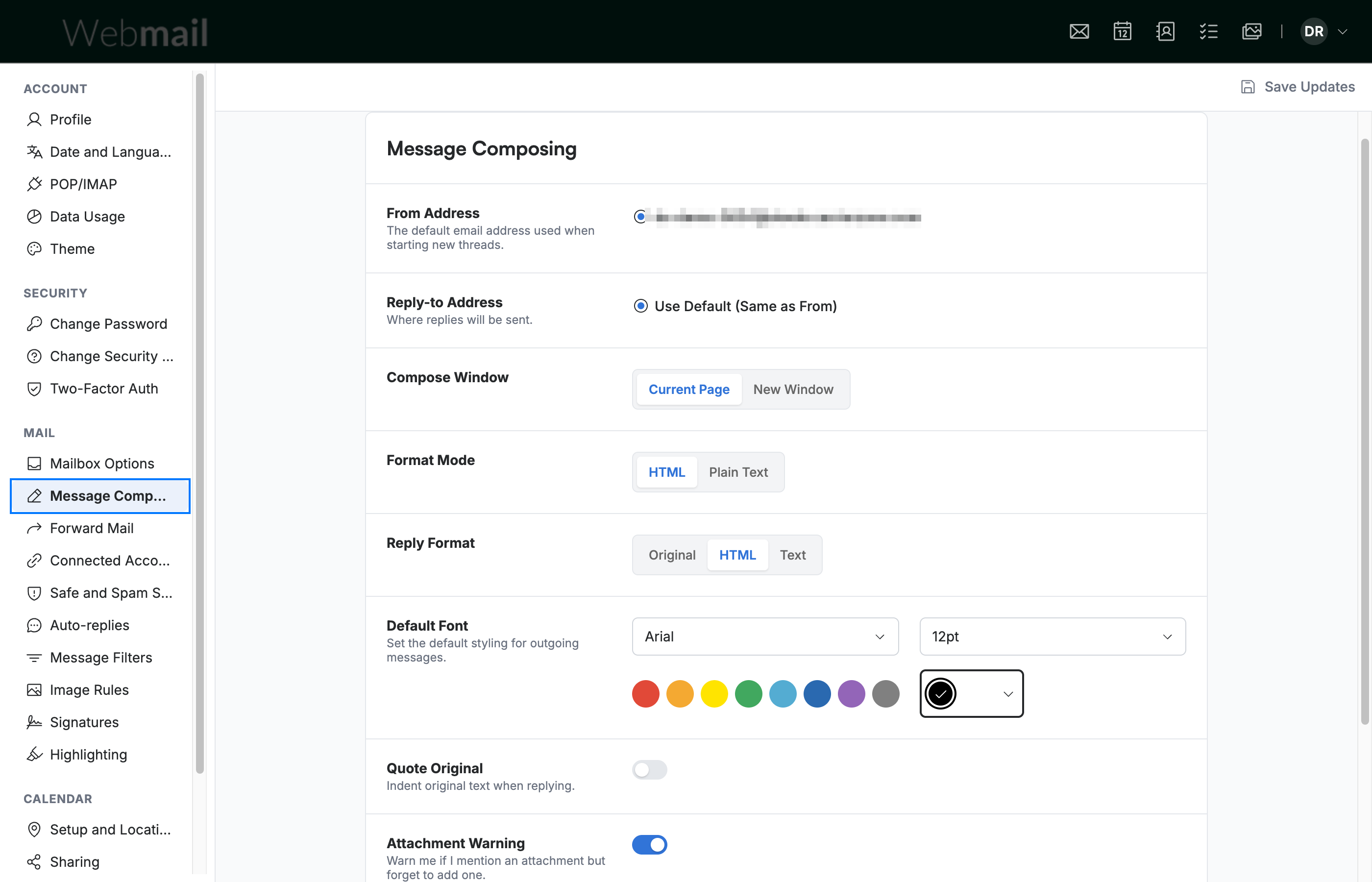
Select Message Composing from the settings sidebar.
Step 3 — Set the default font, size, and colour
Set your defaults under Default Font. The Font dropdown sets the typeface, the Size dropdown sets the text size, and the colour swatches set the text colour — the current colour is shown in the box to the right.

Step 4 — Choose a typeface
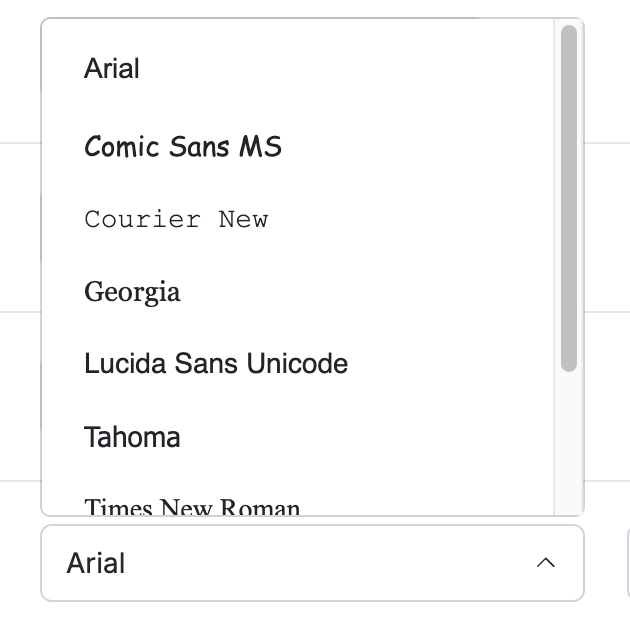
Open the Font dropdown to choose a typeface. Available typefaces include Arial, Comic Sans MS, Courier New, Georgia, Lucida Sans Unicode, Tahoma, and Times New Roman.
Tip: Stick to a common typeface such as Arial or Georgia so your message looks the same in the recipient's email program.
Step 5 — Click Save Updates
Click Save Updates to apply your default font.

Explore our other guides to get the most out of Webmail.