The formatting toolbar in the compose window holds every tool for styling text, adding structure, and inserting content into your email. This guide groups the tools by what they do so you can find any of them at a glance.
Step 1 — Open the formatting toolbar
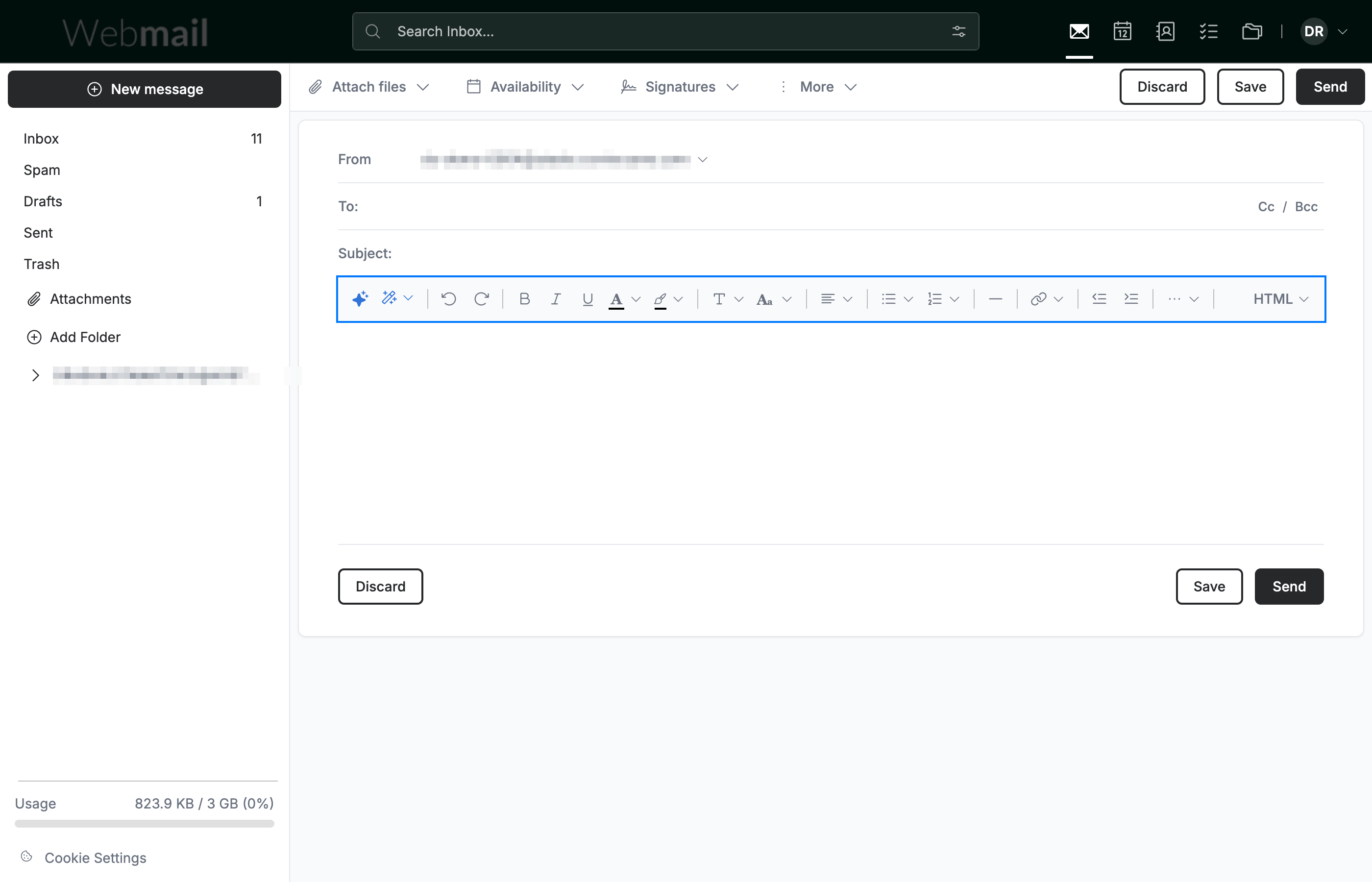
Click New message in the sidebar, then click inside the message body. The formatting toolbar (blue) appears above the body and stays in view while you type. When the window is narrow the toolbar tucks its last few tools into a ··· menu at the right end, so a tool's exact position can shift — use the groups below to find each tool by what it does rather than where it sits.
Step 2 — Styling and writing tools
These tools change how your text looks and help you write it. Each function group is outlined in its own colour:
- Writing assistance (blue) — Help me write generates a draft from a short prompt; Refine rewrites or improves the selected text.
- Text styling (orange) — Font Family and Font Size; Bold, Italic, and Underline; Text Color and Background Color.
- Editing (green) — Undo and Redo. Remove Formatting, which strips styling from the selected text, sits in the ··· menu (see Step 4).
Tip: Use Ctrl + B / Ctrl + I / Ctrl + U (⌘ + B / I / U on Mac) to apply bold, italic, and underline without leaving the keyboard.

Step 3 — Layout, insert, and source tools
These tools structure the message and add content to it. Each function group is outlined in its own colour:
- Paragraphs and lists (blue) — Text alignment; Bulleted list and Numbered list; Decrease Indent and Increase Indent.
- Inserting content (orange) — Insert Link. Insert Image, Insert table, and Special Characters are in the ··· menu (see Step 4).
- Dividers and more (green) — Horizontal Line adds a divider; ··· opens the overflow tools (see Step 4); the HTML control switches the composition mode between rich text and plain text.
Tip: Press Ctrl + K (⌘ + K on Mac) to add a link to the selected text without opening the menu.

Step 4 — Open the More menu
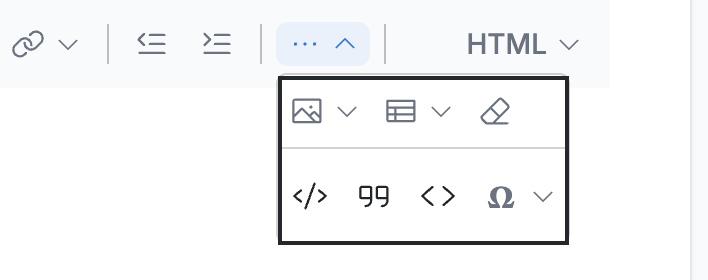
Click ··· at the right end of the toolbar to open the overflow menu. It holds Insert Image, Insert table, and Remove Formatting on the top row, and Code Block, Quote, Inline Code, and Insert Special Character below.
Note: On a wider browser window the top-row tools appear directly in the formatting toolbar, and only the structured-content tools remain under ···.
Explore our other guides to get the most out of Webmail.