You can share a file from your Online Storage with other people, either by sending it to their email address or by generating a link. This guide shows both ways from the Share Items dialog.
Step 1 — Open Online Storage
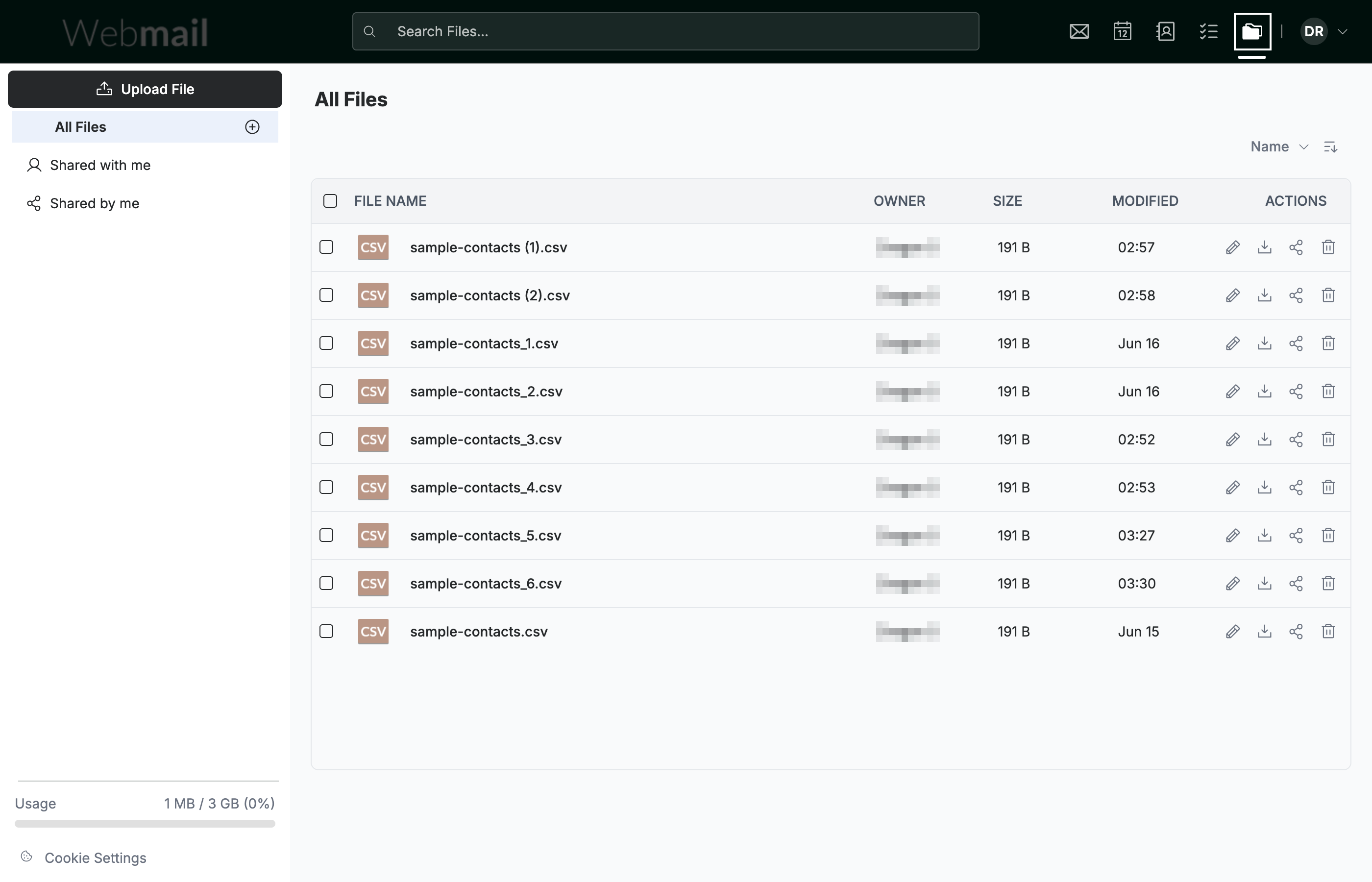
Click the Online Storage icon in the top navigation bar to open the All Files view.
Step 2 — Click the Share icon
Click the Share icon (blue) in the Actions column of the file you want to share. The Share Items dialog opens.

Step 3 — Choose how to share
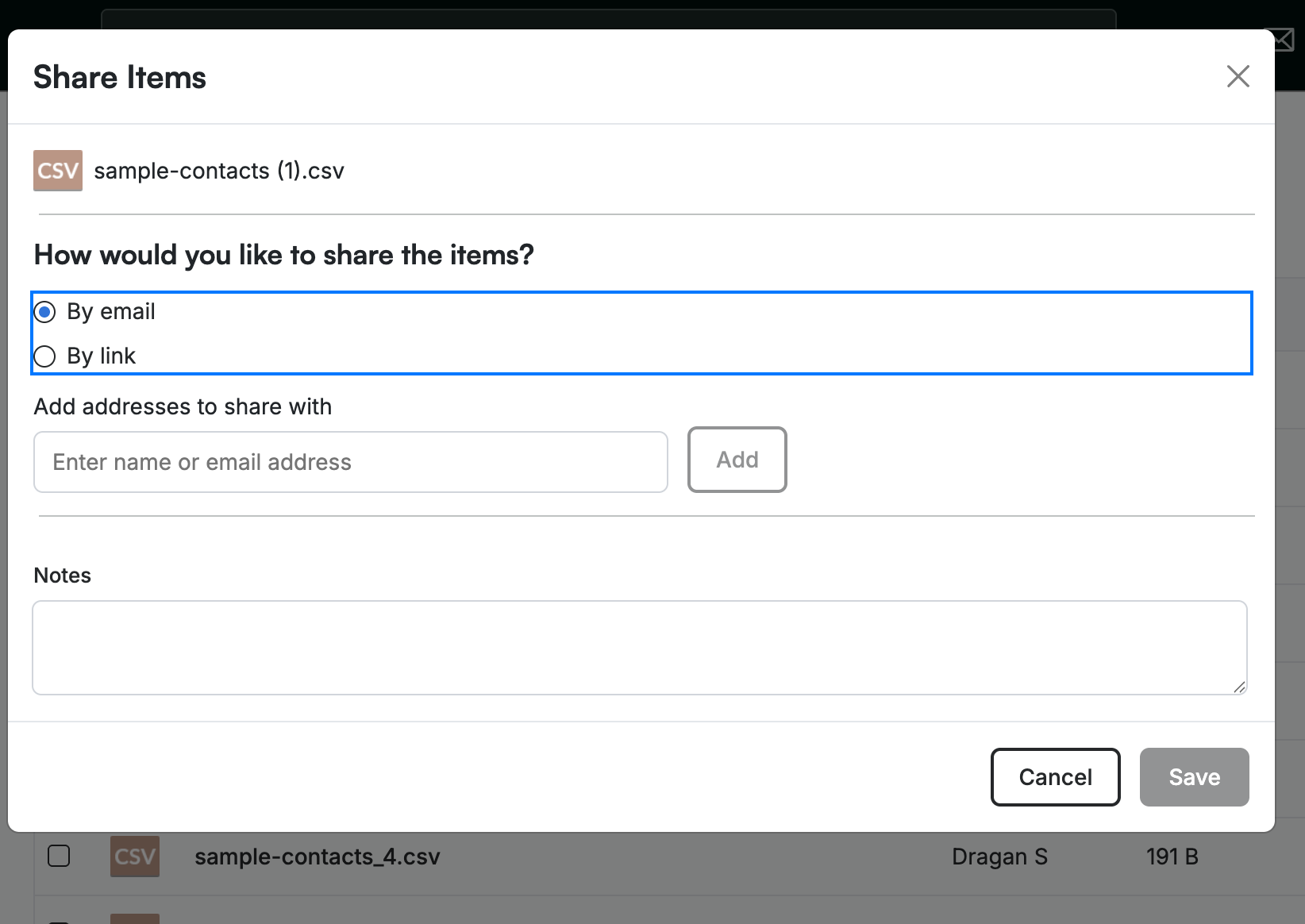
In the Share Items dialog, pick how you want to share the file:
- By email (blue) — enter the recipient's name or email address, click Add, add an optional message, then click Save to send them access.
- By link — instead of emailing, you can create a shareable link and set how long it stays valid before it expires.
Tip: Use By link when you want to paste a shareable link into a chat or document. Set an expiry so the link stops working after a set time.
Explore our other guides to get the most out of Webmail.