Move an event to a different time or day by dragging it directly on the calendar — no need to open and edit it. This guide shows how to reschedule an event by dragging.
Step 1 — Open a day or week view
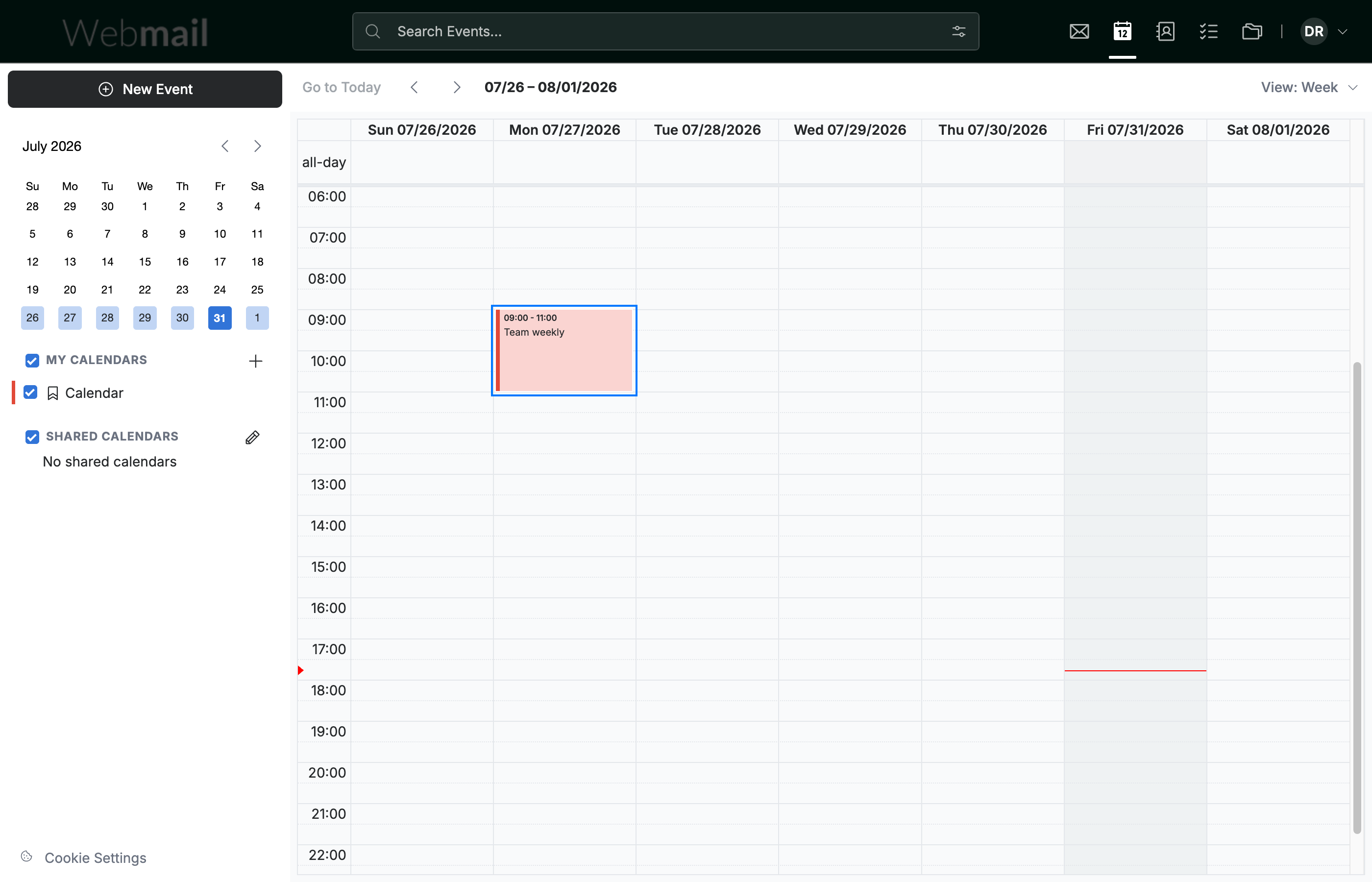
Open Day or Week view, where each event appears as a block you can drag.
Step 2 — Drag the event to a new slot
Drag the event to a different time or day.
Tip: Click and hold the event, move it to the new slot, then release the mouse button.
Step 3 — Review the rescheduled event
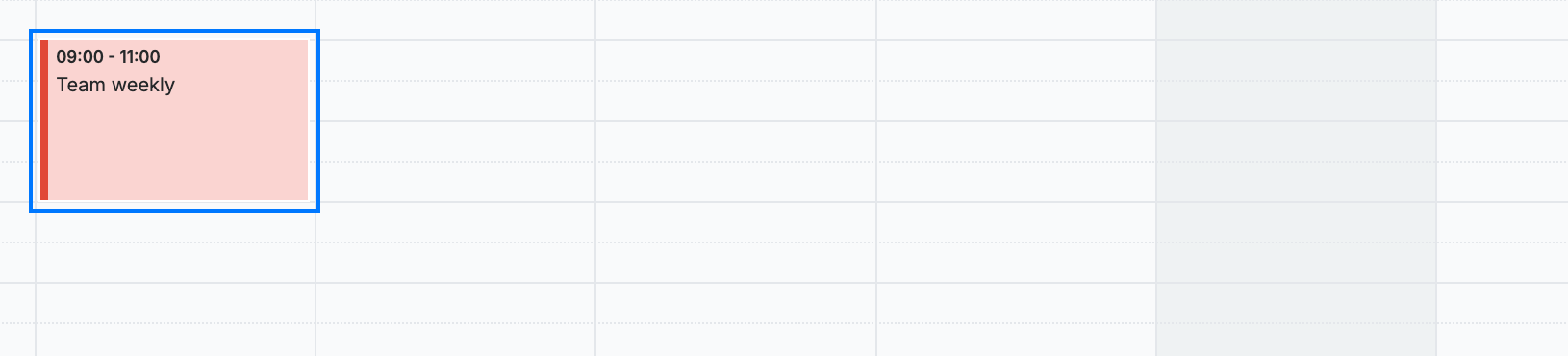
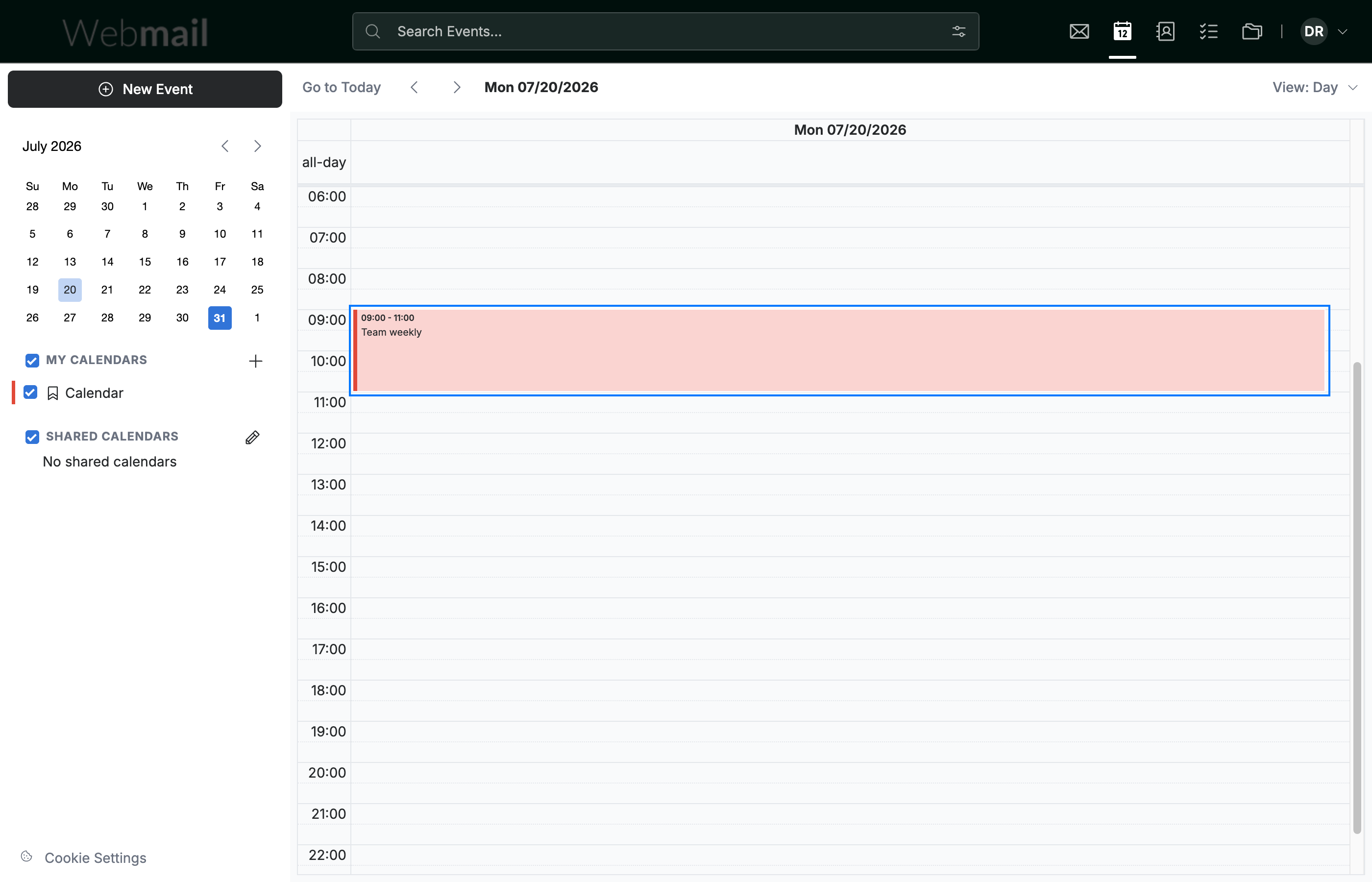
Review the event in its new slot. It is rescheduled to wherever you drop it.
Explore our other guides to get the most out of Webmail.