If you have saved signatures, you can drop one into a message while you're writing it. This guide shows how to pick a signature from the compose window.
Before you begin: You need at least one saved signature. To create one, go to Settings > Signatures.
Step 1 — Open the Signatures menu
Click Signatures (blue) in the compose toolbar. A list of your saved signatures opens, plus None.

Step 2 — Select a signature
Click the signature you want to add (blue). Choose None instead if you want to remove a signature you already added.

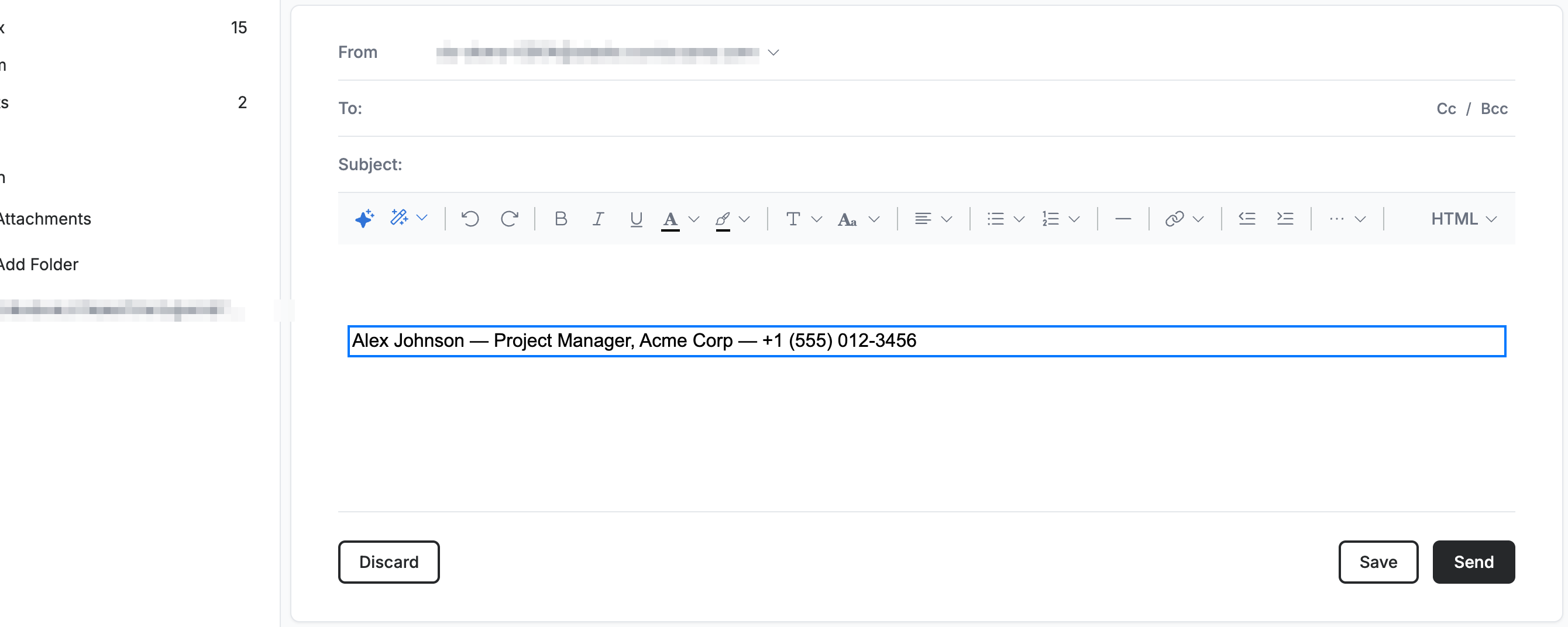
Step 3 — Review the inserted signature
Review the signature added to your message (blue). Carry on writing — the signature stays at the bottom of the message.
Explore our other guides to get the most out of Webmail.