Emptying the Spam or Trash folder permanently removes everything inside it, freeing up mailbox space. This guide shows how to clear a folder from the folder list.
Step 1 — Open the folder context menu
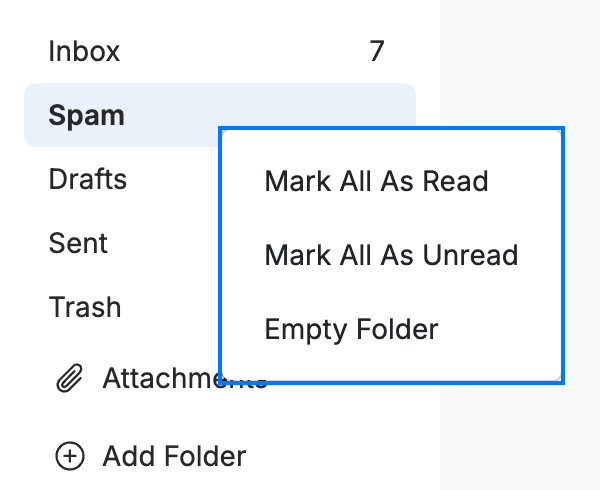
Right-click the Spam or Trash folder in the folder list. A menu (blue) appears with Mark All As Read, Mark All As Unread, and Empty Folder.
Step 2 — Click Empty Folder
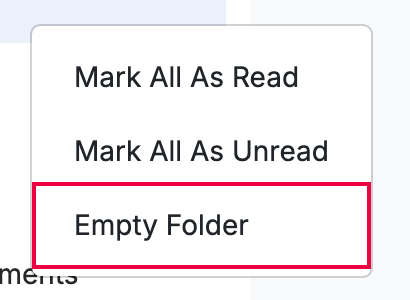
Click Empty Folder (red) at the bottom of the menu.
Step 3 — Confirm the action
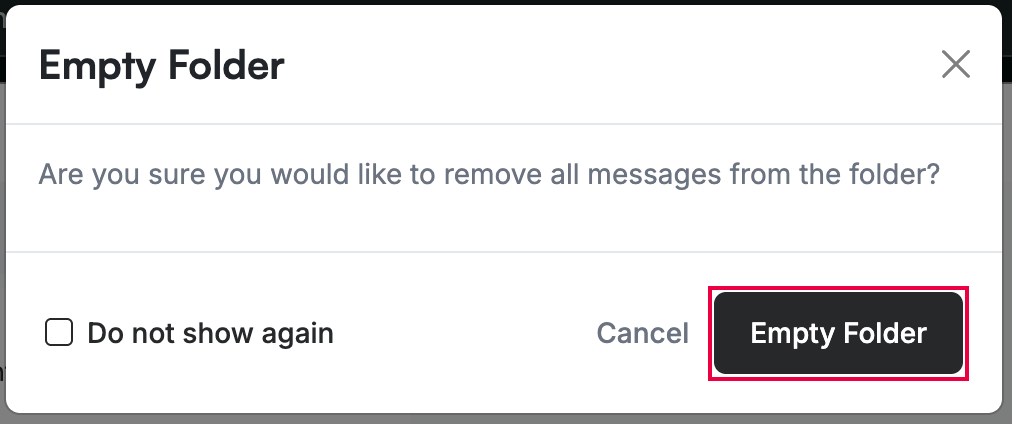
Click Empty Folder (red) in the confirmation dialog to remove every message in the folder.
Note: Emptying a folder is permanent — the messages cannot be recovered afterward. Check Do not show again if you no longer want this confirmation prompt.
Explore our other guides to get the most out of Webmail.