The reading pane is where an open message is displayed. Choose the layout that suits your screen and reading style — a side-by-side split, a top-and-bottom split, or a full-page view. This guide shows how to switch between the three options.
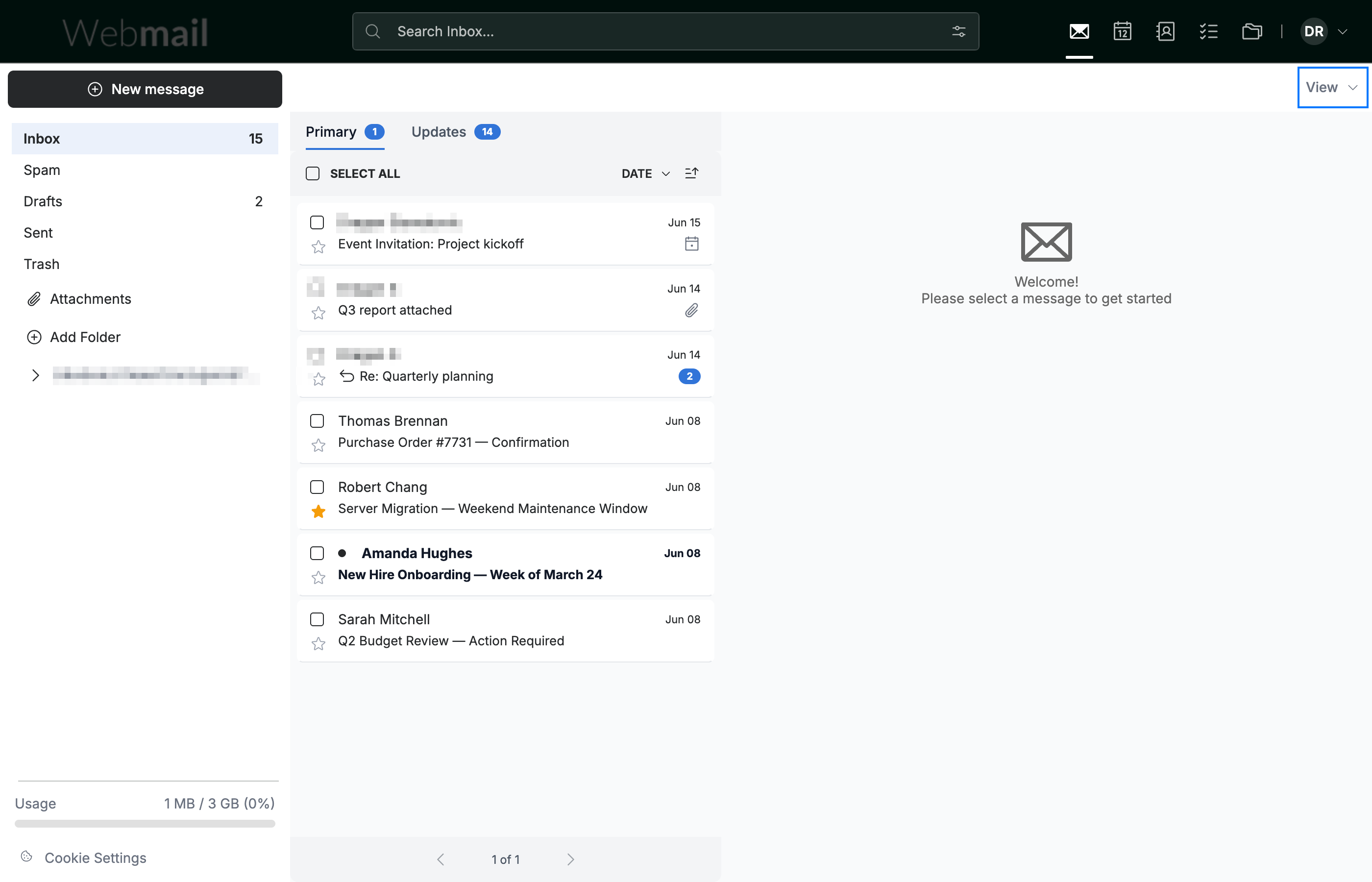
Step 1 — Open the View menu
Click View (blue) at the right end of the toolbar above the message list.
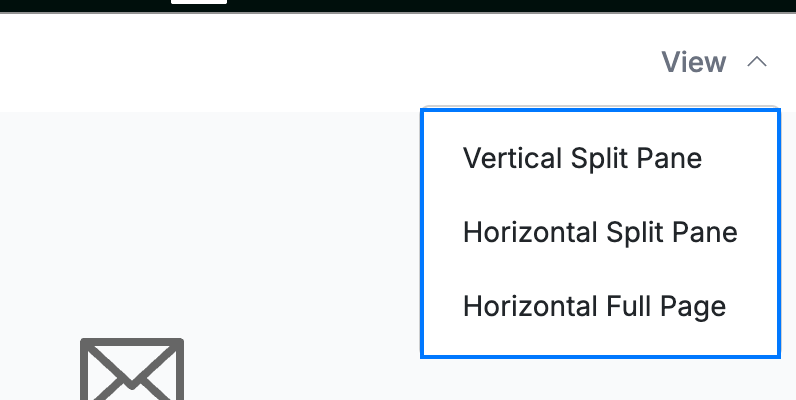
Step 2 — Choose a layout
Select one of the three layouts in the View menu (blue): Vertical Split Pane, Horizontal Split Pane, or Horizontal Full Page.
Note: The View menu is only available when no message is open. Return to the message list to change the layout.
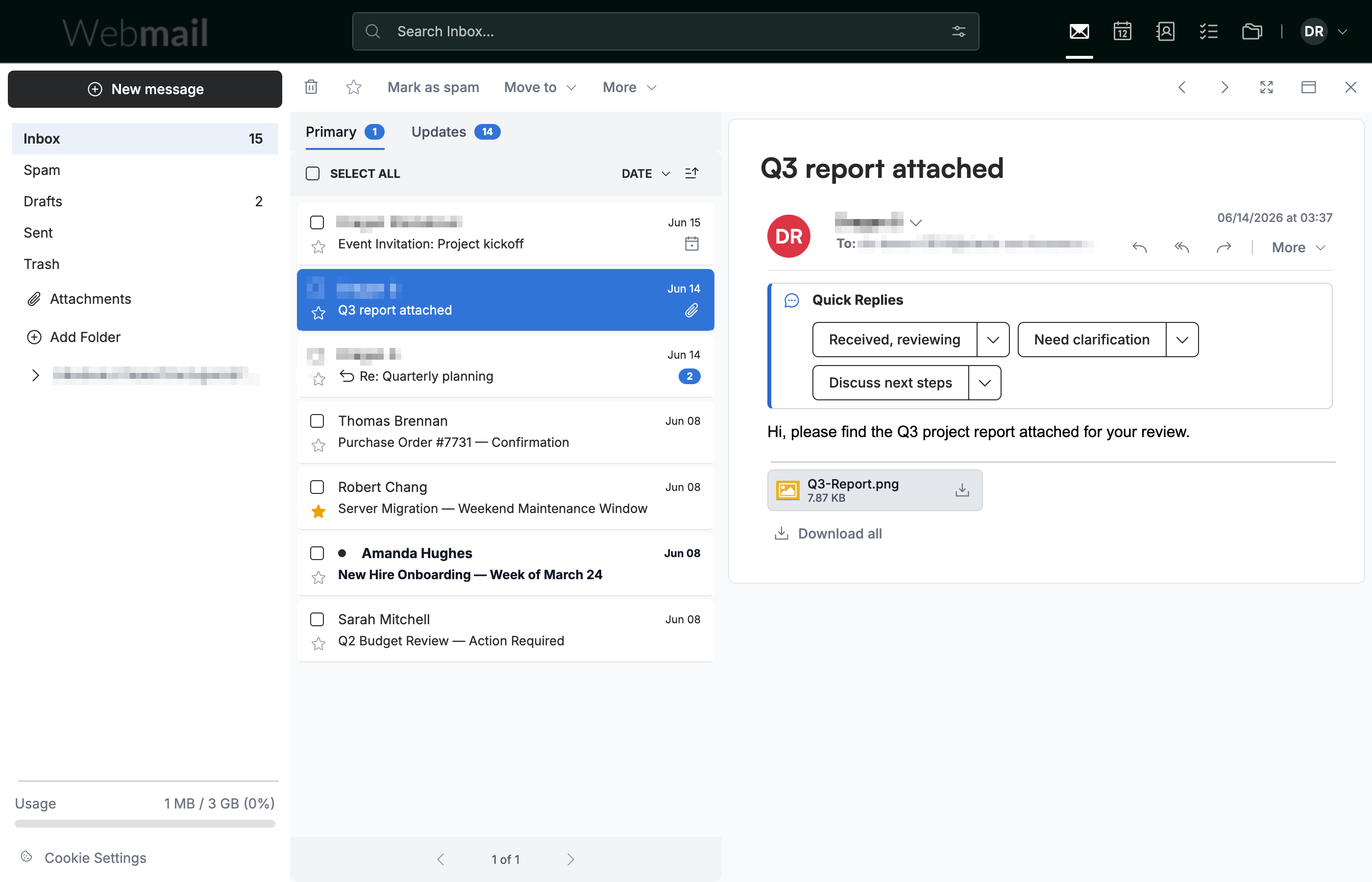
Step 3 — Vertical Split Pane
Select Vertical Split Pane to place the message list on the left and the reading pane on the right. This is the default layout and works well on wide screens.
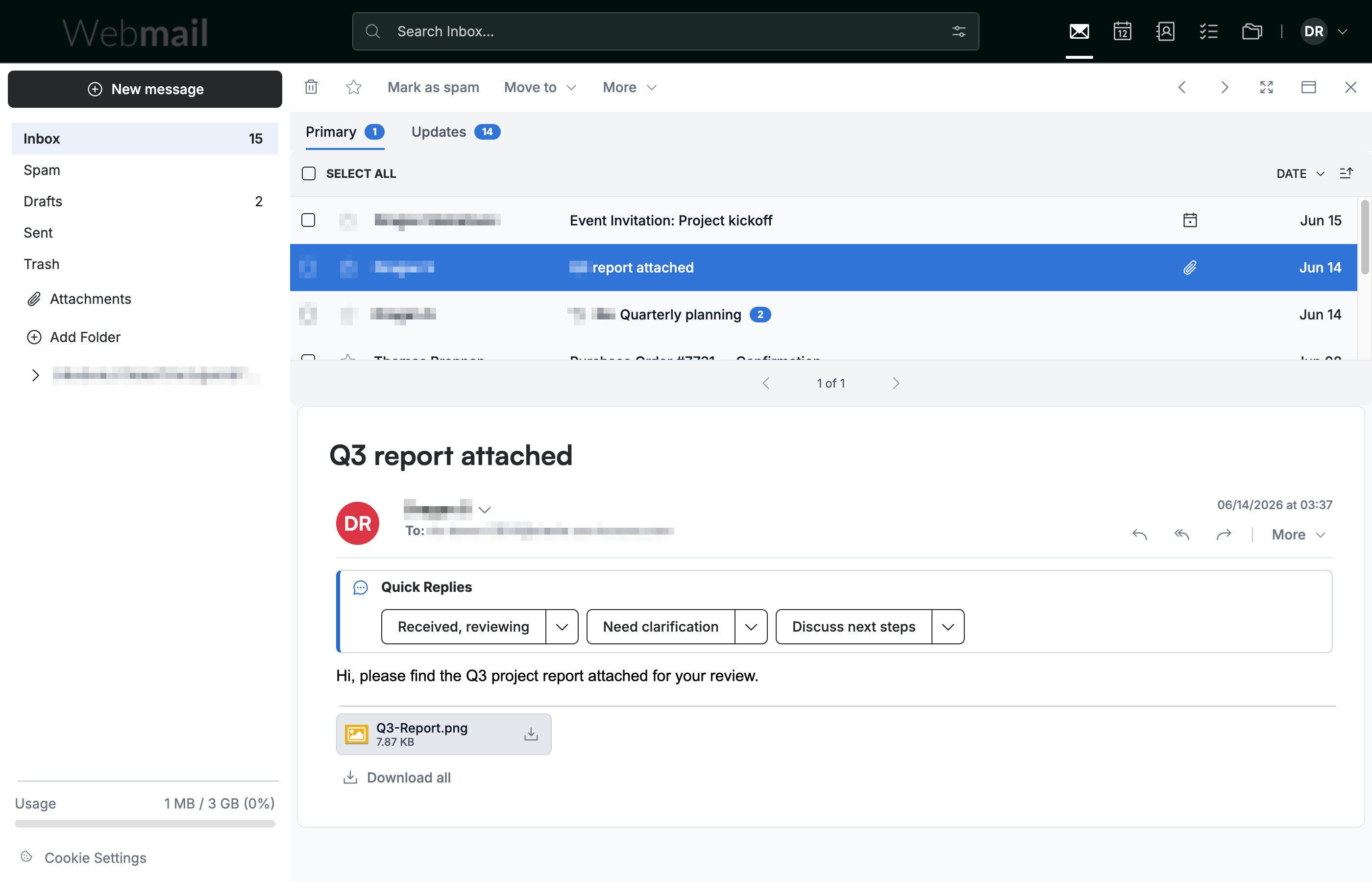
Step 4 — Horizontal Split Pane
Select Horizontal Split Pane to place the message list across the top and the reading pane below it.
Step 5 — Horizontal Full Page
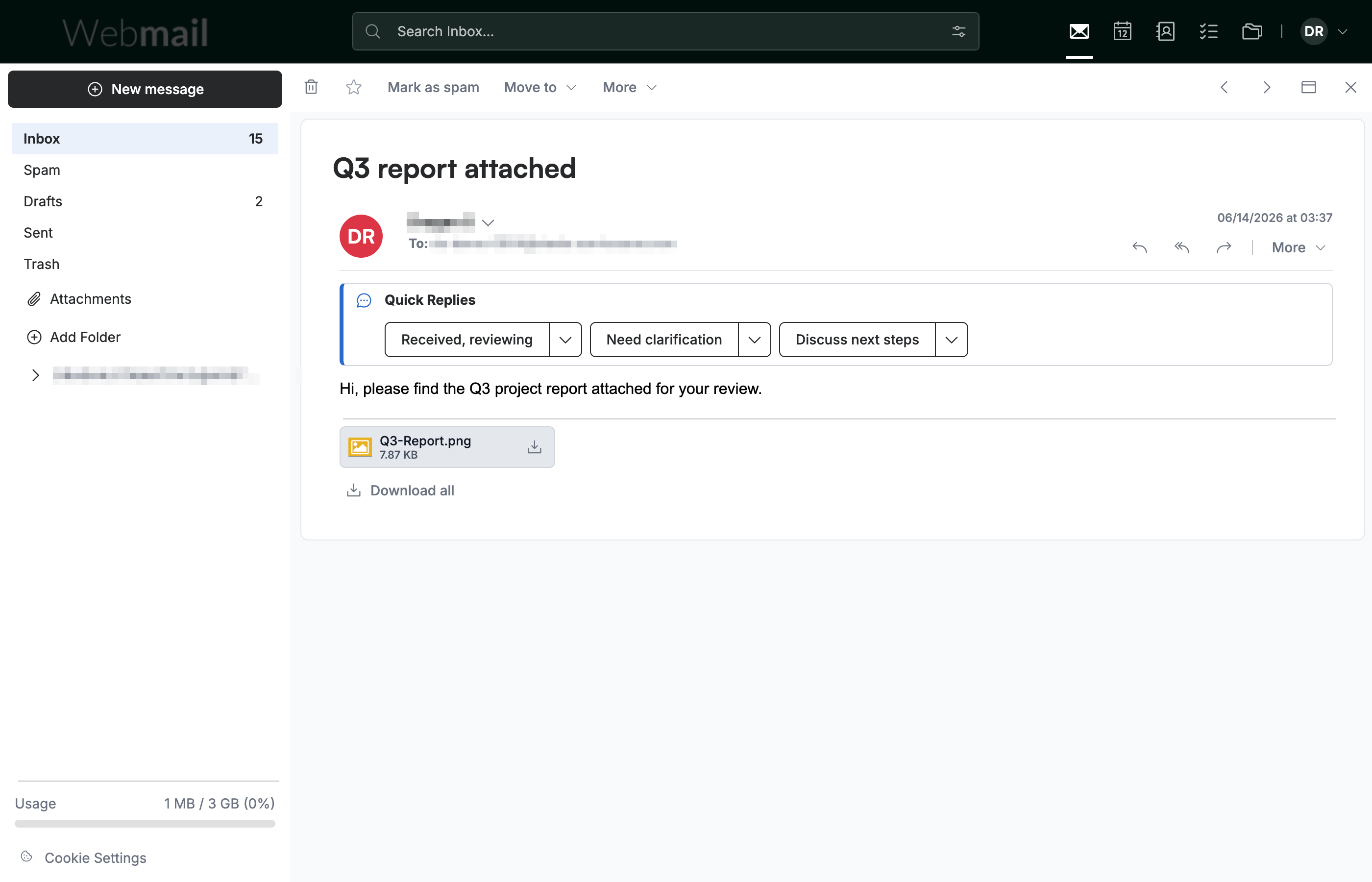
Select Horizontal Full Page to open each message on its own full-width page instead of a split pane. Use the back control to return to the message list.
Tip: Full Page gives the most room for reading long messages and wide content such as tables or large images.
Explore our other guides to get the most out of Webmail.