Remove emails you no longer need by deleting them to the Trash folder, then permanently clear that folder by emptying it. This keeps your inbox tidy and frees up storage.
Step 1 — Delete an email
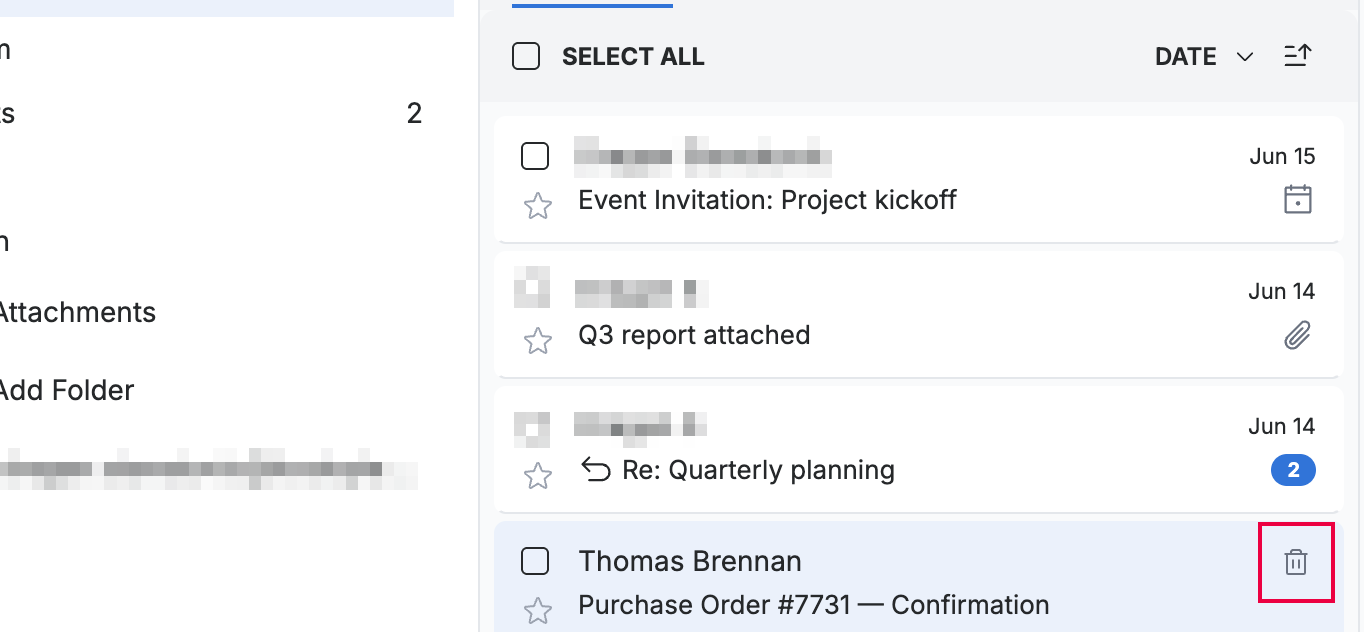
Hover over a message in the list and click the Delete button (red) that appears at the end of the row. The message moves to the Trash folder.
Tip: You can also right-click a message and choose Delete from the menu.
Step 2 — Open the Trash folder
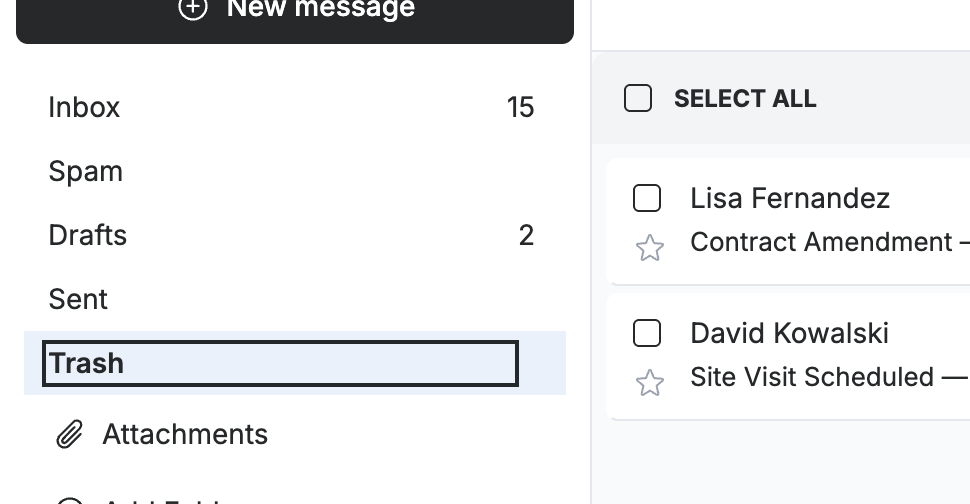
Click Trash in the sidebar. Deleted messages stay here until you empty the folder, so you can still recover them in the meantime.
Step 3 — Empty the Trash
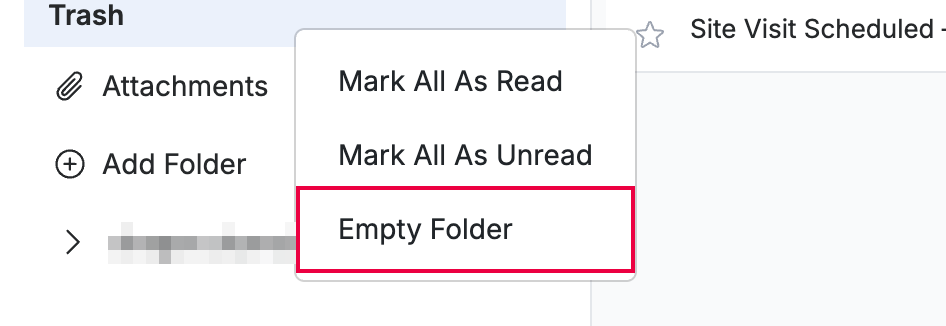
Right-click the Trash folder and select Empty Folder (red).
Step 4 — Confirm emptying the folder
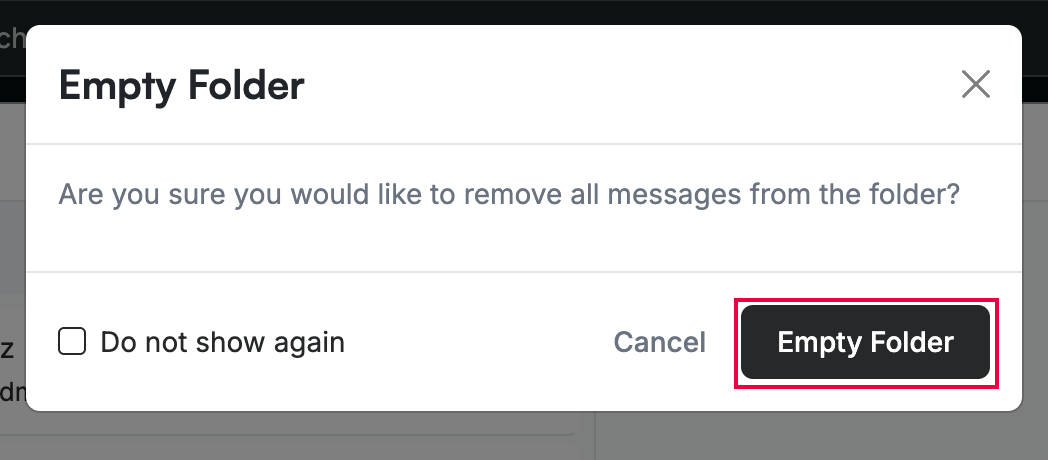
Click Empty Folder (red) in the confirmation dialog to remove every message in the Trash. Click Cancel to keep them.
Note: Emptying the Trash permanently deletes its messages — this cannot be undone.
Explore our other guides to get the most out of Webmail.