Email groups let you message several contacts at once, and a colour label makes each group easy to spot. This guide shows how to create a group and give it a colour.
Step 1 — Create a new group
Click the + beside Email Groups in the sidebar to open the New Group form, then enter a name in the Title field (blue).

Step 2 — Choose a colour label
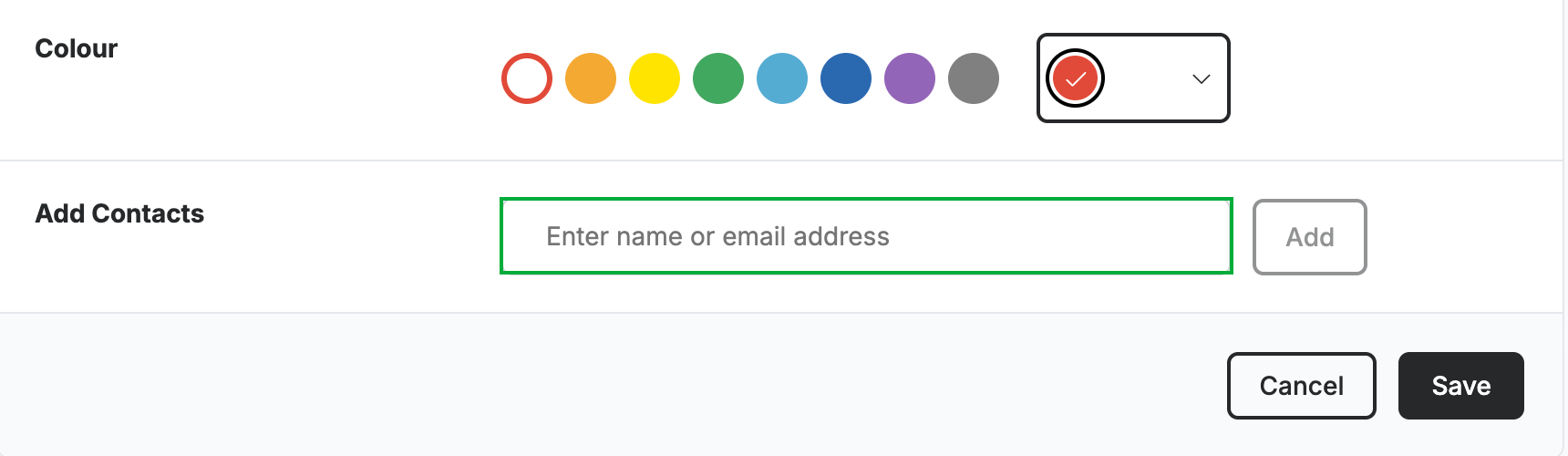
Click a swatch in the Colour row (blue) to colour-code the group. The selected colour shows in the box on the right.

Step 3 — Add contacts and save
Enter names or email addresses in Add Contacts (green) and click Add for each, then click Save to create the group.
Explore our other guides to get the most out of Webmail.