Two-factor authentication adds a second step to sign-in: as well as your password, you enter a code from an authenticator app. This guide shows how to turn it on.
Before you begin: Install an authenticator app on your phone first — Google Authenticator, Duo Mobile, or Authy all work.
Step 1 — Open Settings
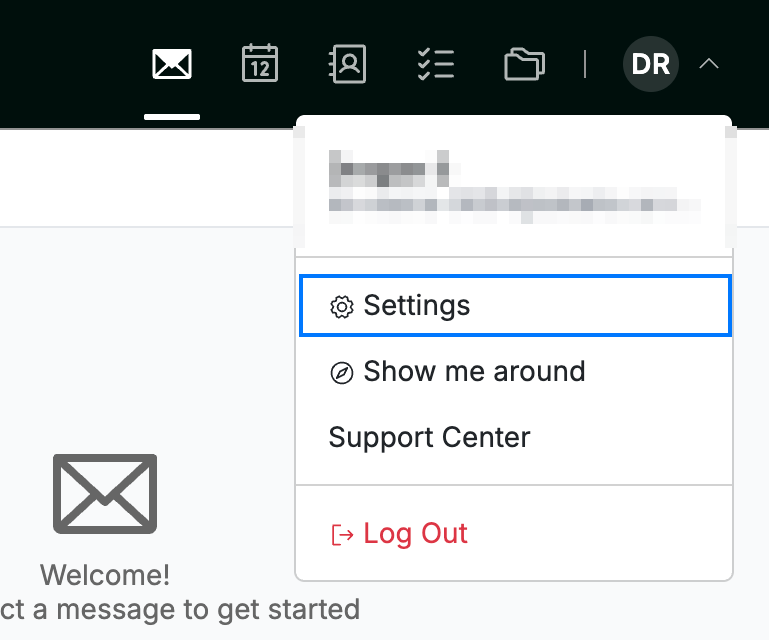
Click your avatar, then select Settings.
Step 2 — Open Two-Factor Auth
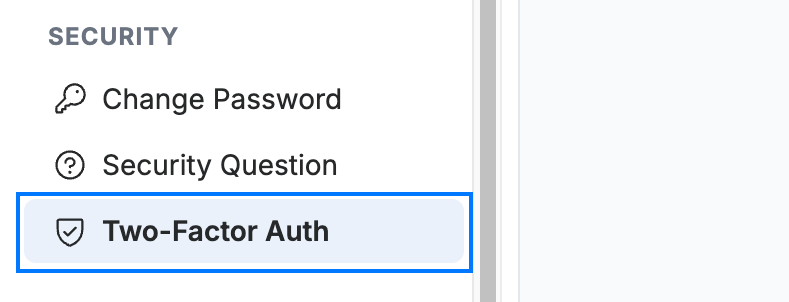
Click Two-Factor Auth in the settings sidebar.
Step 3 — Scan the QR code
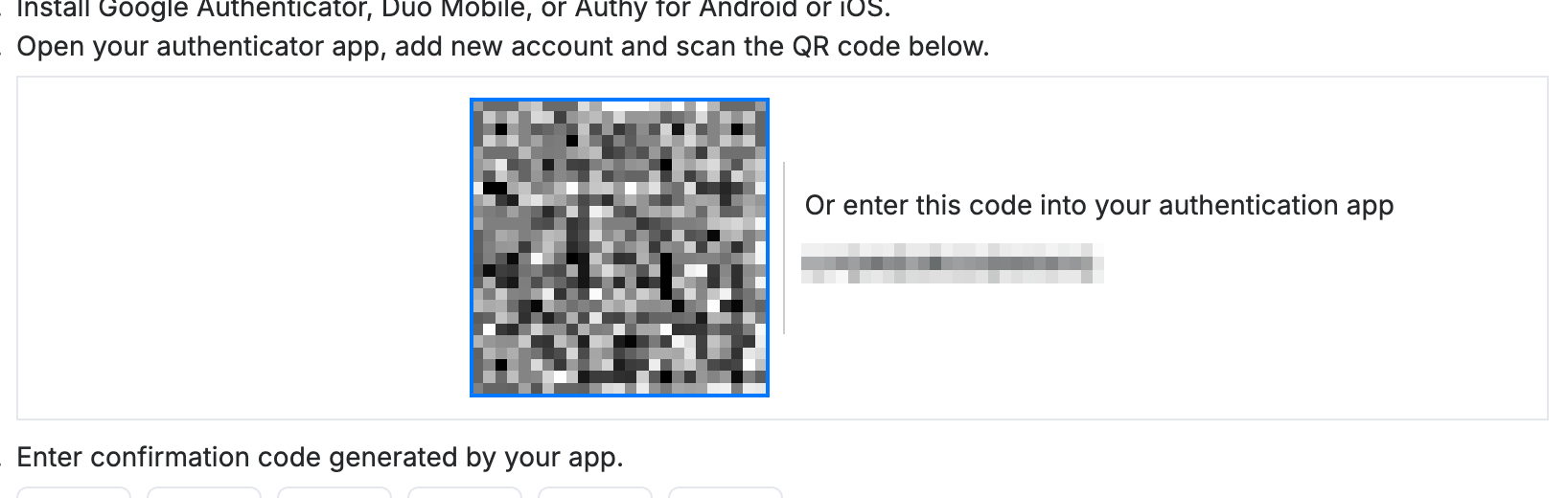
Open your authenticator app, add a new account, and scan the QR code (blue). If you can't scan, enter the code shown beside it manually.
Step 4 — Enter the confirmation code
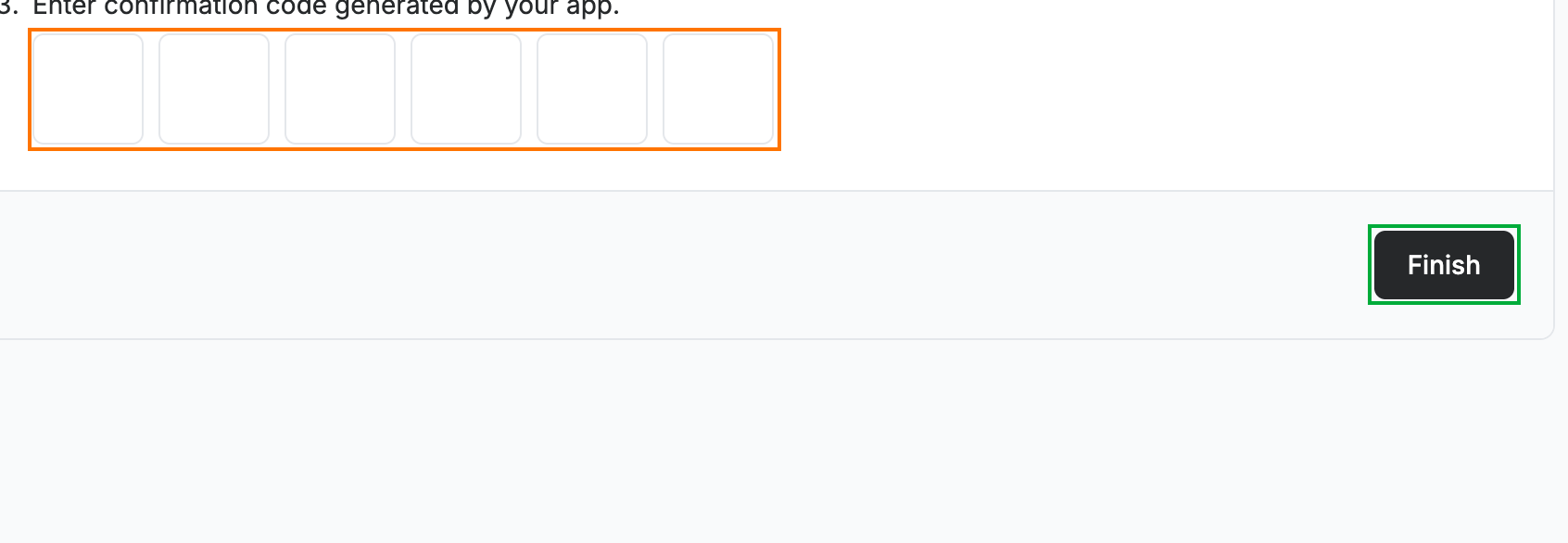
Enter the 6-digit code generated by your authenticator app into the six boxes (orange), then click Finish (green). Two-factor authentication is now active on your account.
Note: Keep your authenticator app safe — you'll need it every time you sign in.
Explore our other guides to get the most out of Webmail.