Learn how to create your own folders in Webmail and manage their contents, so you can keep related emails together and your inbox tidy.
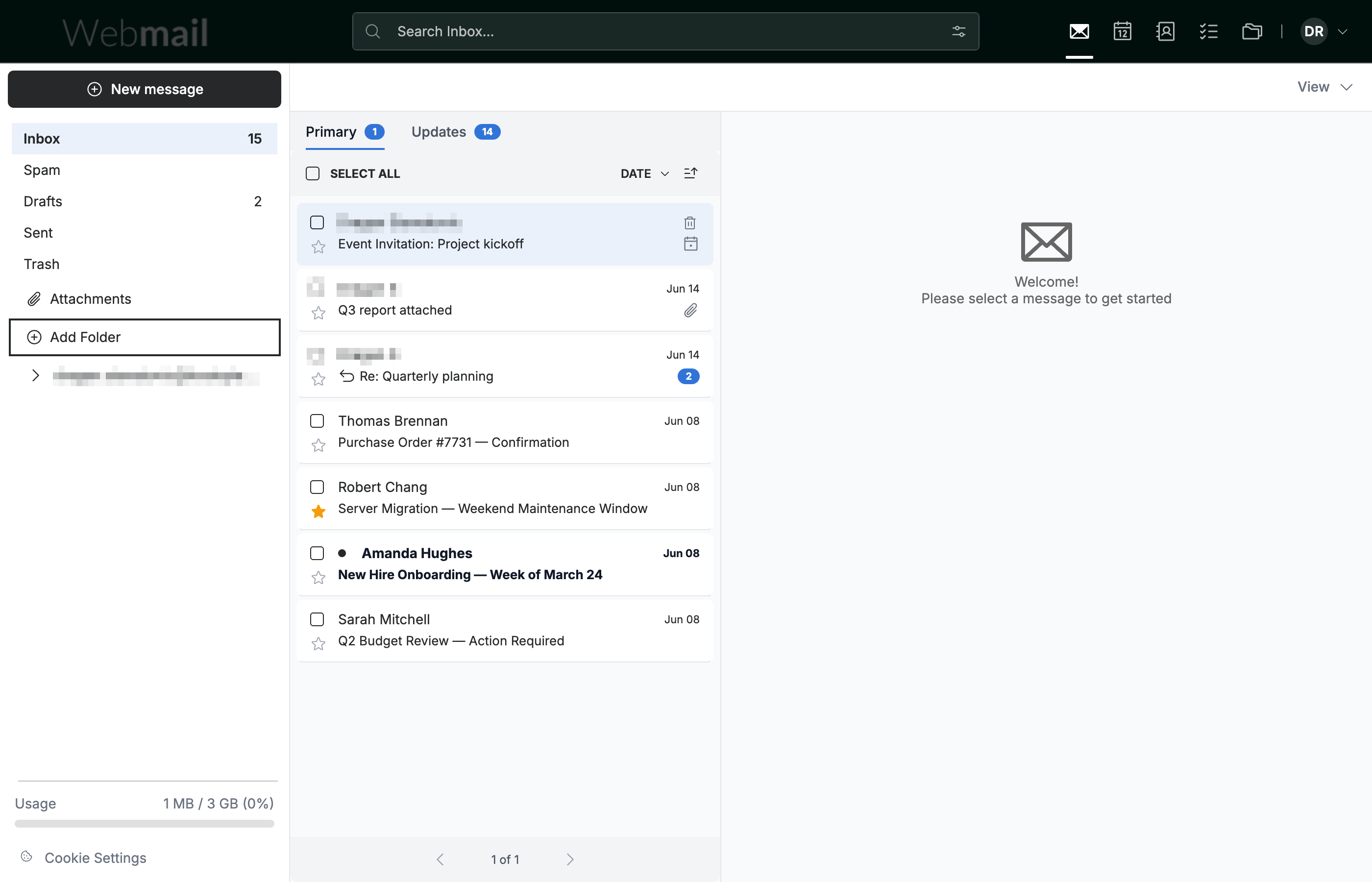
Step 1 — Click Add Folder
Click Add Folder at the bottom of the folder list in the sidebar.
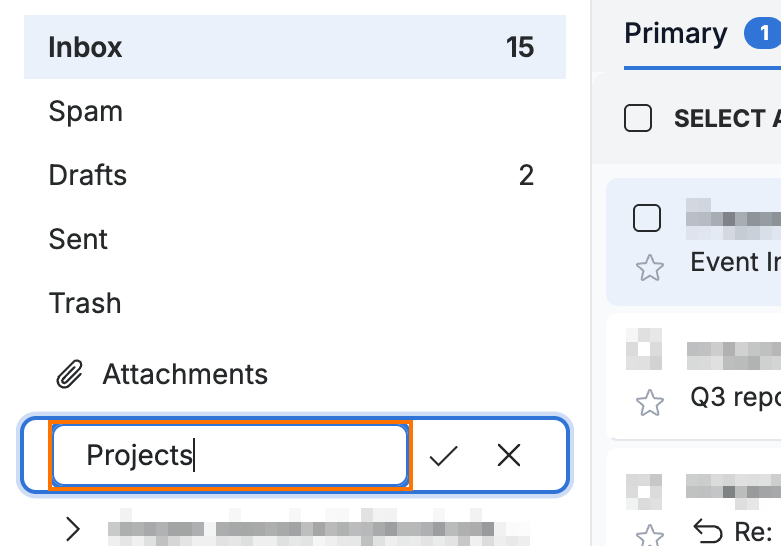
Step 2 — Name your folder
Enter a name in the New Folder field that appears, then click the checkmark to create the folder. The new folder is added to your folder list.
Tip: Click the X next to the field to cancel without creating a folder.
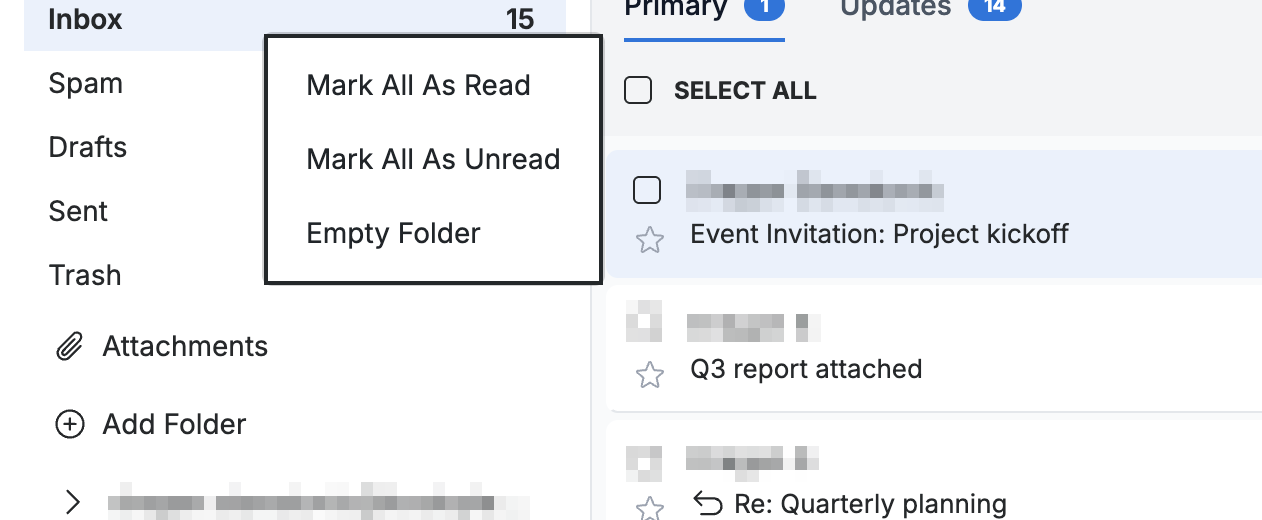
Step 3 — Manage a folder
Right-click any folder to open its management menu. Select Mark All As Read or Mark All As Unread to update every message in the folder at once, or Empty Folder to remove all of its messages.
Note: Empty Folder permanently deletes every message in the folder and cannot be undone.
Explore our other guides to get the most out of Webmail.