Bring events from another calendar into Webmail by importing them from a web address or from an `.ics` file on your device. This guide covers both methods and shows where the imported events end up.
Step 1 — Open the calendar menu
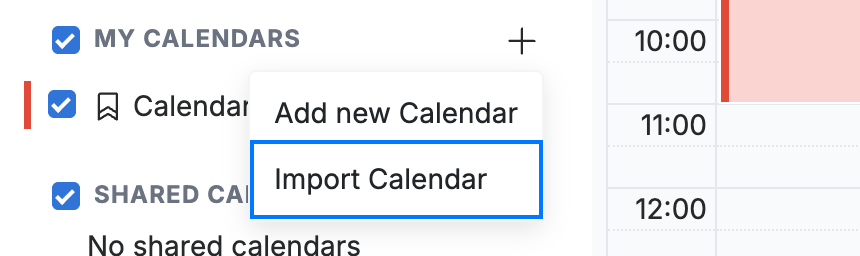
Click the + button next to My Calendars in the sidebar, then select Import Calendar (blue).
Step 2 — Choose how to import
Select an import source (blue). Choose URL and paste the link to a published calendar, or choose Upload Calendar to import an `.ics` file from your device.
Note: Upload Calendar opens your device's file picker so you can select the `.ics` file — that dialog belongs to your operating system, not Webmail.

Step 3 — Choose where to add the events
Select where the imported events go (orange): An existing Calendar merges them into a calendar you already have, or A new Calendar creates a separate one for them.

Step 4 — Import the calendar
Click Import Calendar (green) to bring in the events.

Explore our other guides to get the most out of Webmail.