Remote images in an email can be used to track when you open it, so Webmail hides them by default. The Pictures in email panel lets you choose when pictures load and which senders are exceptions. This guide explains the options.
Step 1 — Open Settings
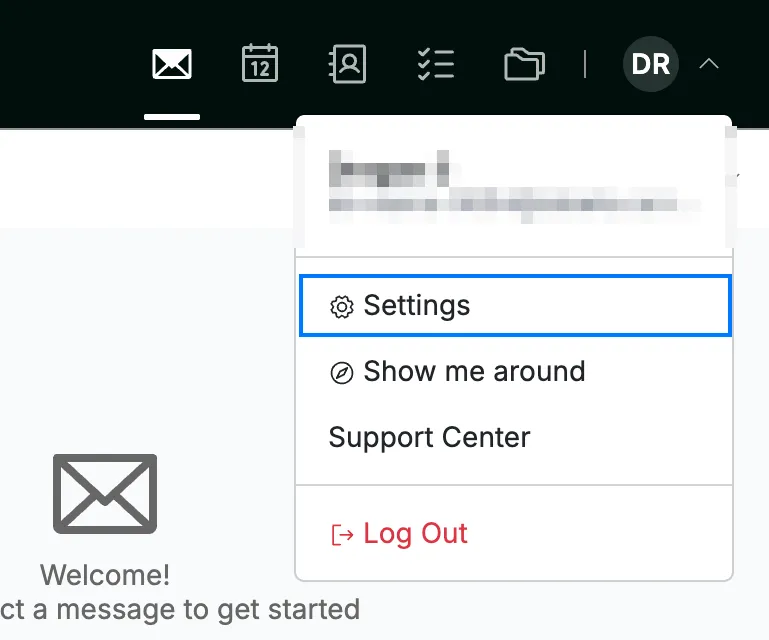
Click your avatar in the top-right corner and select Settings.
Step 2 — Open Pictures in email
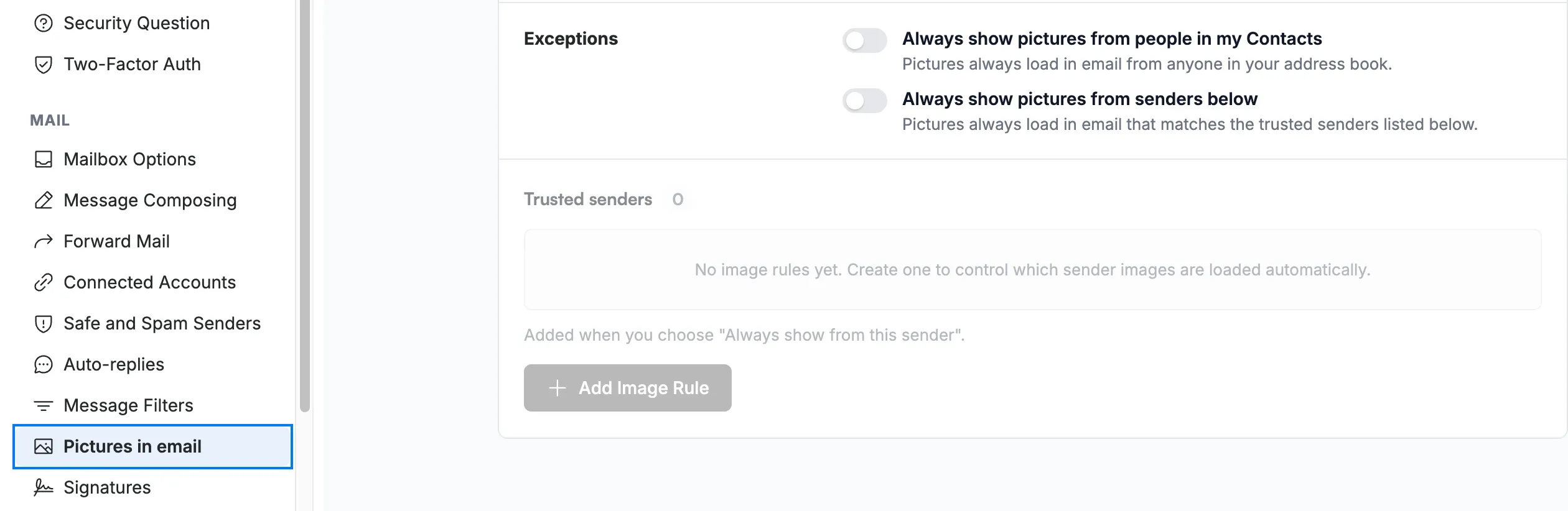
Select Pictures in email from the Mail section of the settings sidebar.
Step 3 — Choose when pictures load
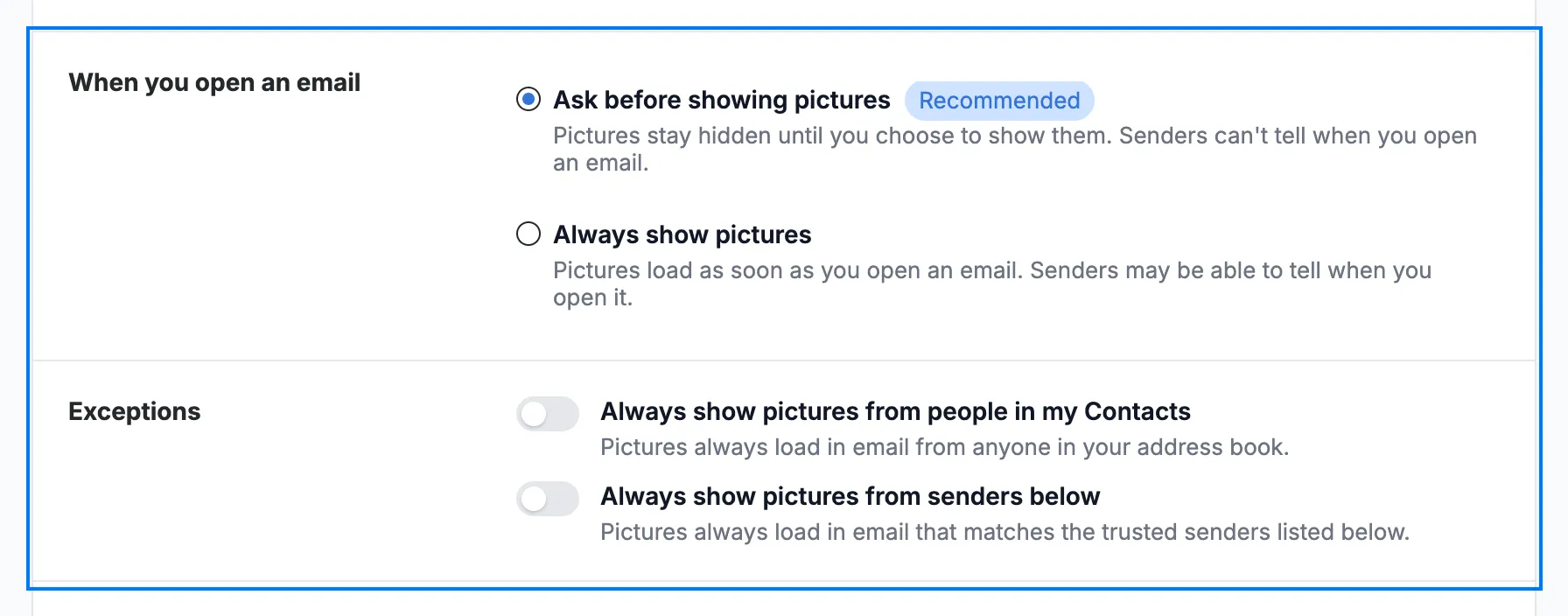
Under When you open an email, select Ask before showing pictures — pictures stay hidden until you choose to show them, so senders can't tell when you open an email — or Always show pictures, which loads them as soon as you open an email.
Under Exceptions, turn on the senders whose pictures should always load:
- Always show pictures from people in my Contacts — anyone in your address book.
- Always show pictures from senders below — senders you add as image rules (see *How to set image display rules per sender*).
Note: Changes on this panel are saved automatically — there is no separate save button.
Explore our other guides to get the most out of Webmail.